Monday, March 23, 2015

Planning 11.1.2.4 (1) - Simplified Interface

Hyperion Planning 11.1.2.4 has a new user interface mode called Simplified Interface. It is a tablet UI built for iPad or android tablets, started from version 11.1.2.3. But in this version it can be used in the desktop as well.

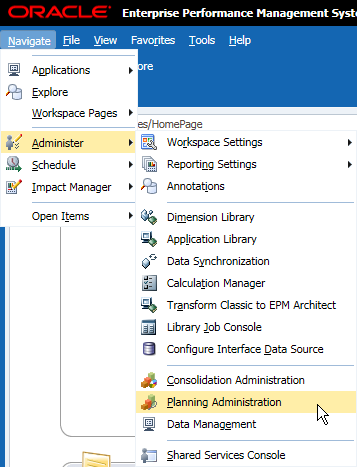
Login to Workspace, Navigate > Administer > Planning Administration

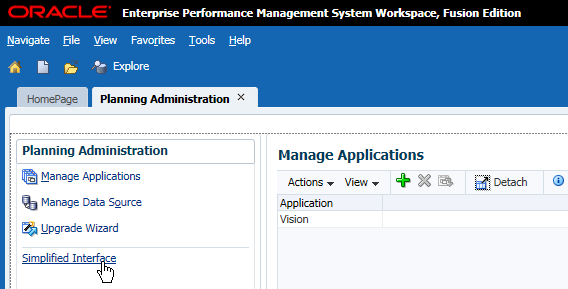
Click Simplified Interface, this will launch a new browser window showing the simplified interface.

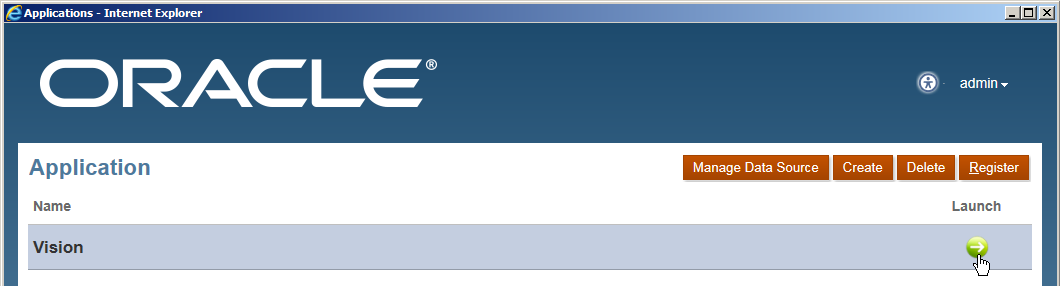
In the simplified interface, you can manage data source, manage your applications, or launch each individual application.
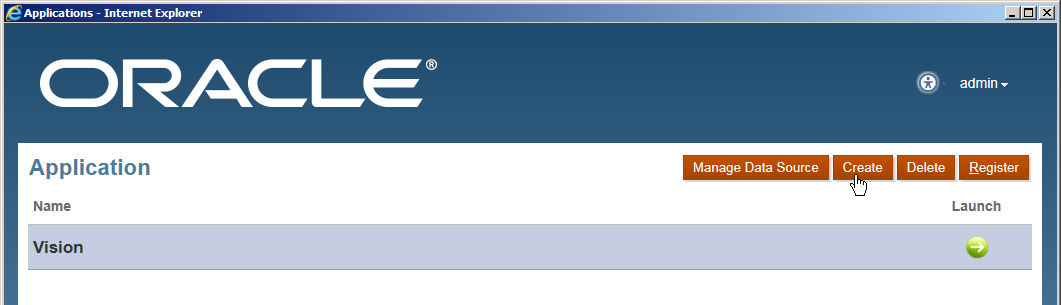

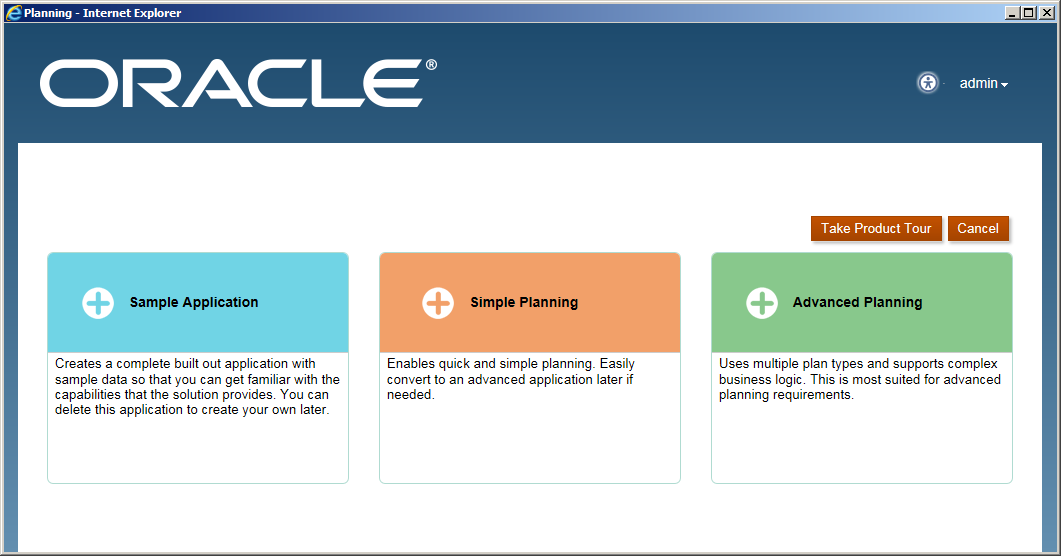
Click "Create" to open the create application page, there are 3 types of applications that you can create. Sample Application makes you create the sample "Vision" application, Simple Planning makes you fast deploy an application with only one plan type, and Advanced Planning will have two plan types. The plan types can be added or deleted after you create the applications. But frankly speaking, I would prefer to create the applications in the original Planning Administration web page, in which you can control all the application initializing parameters.

Let's move back to the home page of the Simplified Interface, because of the time I have created the sample application "Vision" already. Click the arrow to launch it.

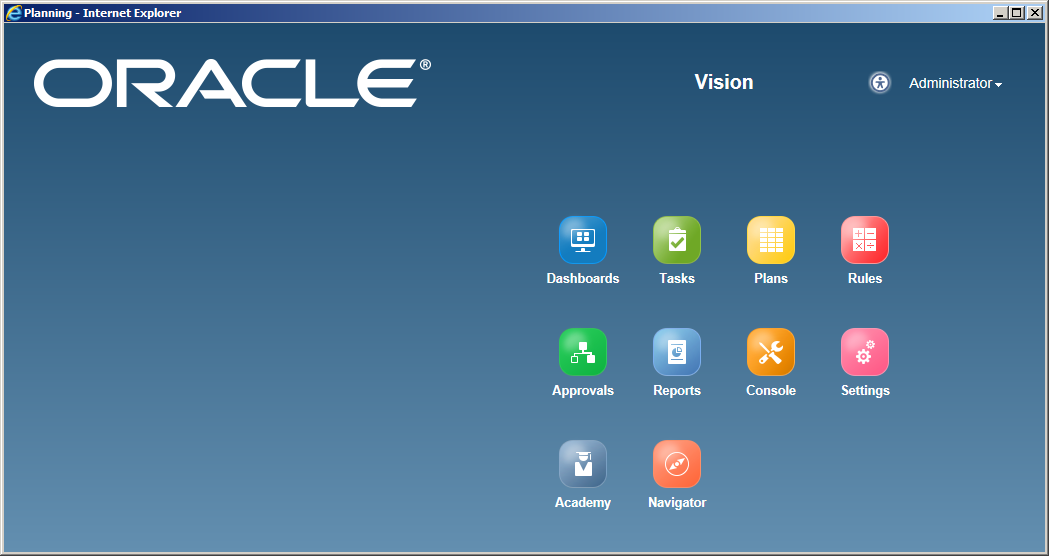
You can find some features are added than the last version, such as Dashboards, Console and Navigator. Let's explore them one by one.

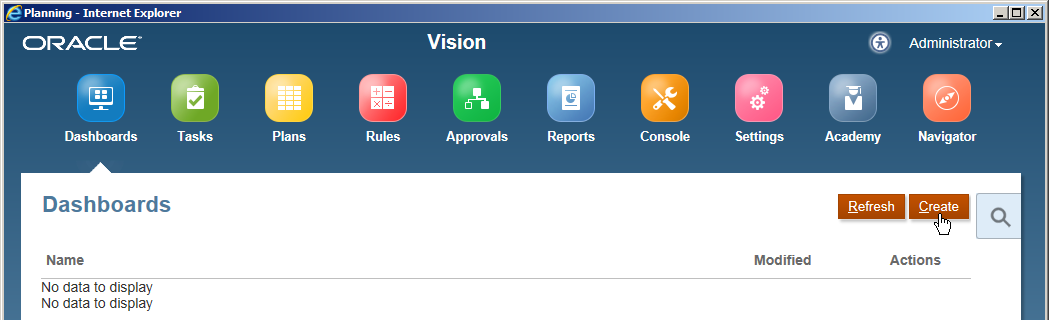
Click "Dashboards" and find there is no data to display now. Click "Create" to create a new one.

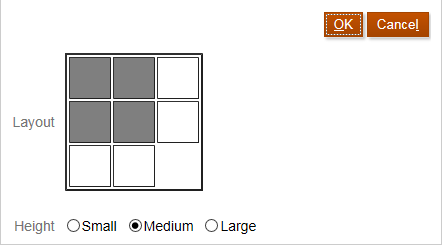
The dashboards' concept is similar with composite forms, but you can add more elements like URL and commentary here. Firstly, you can click "Layout" to design the dashboard's layout.
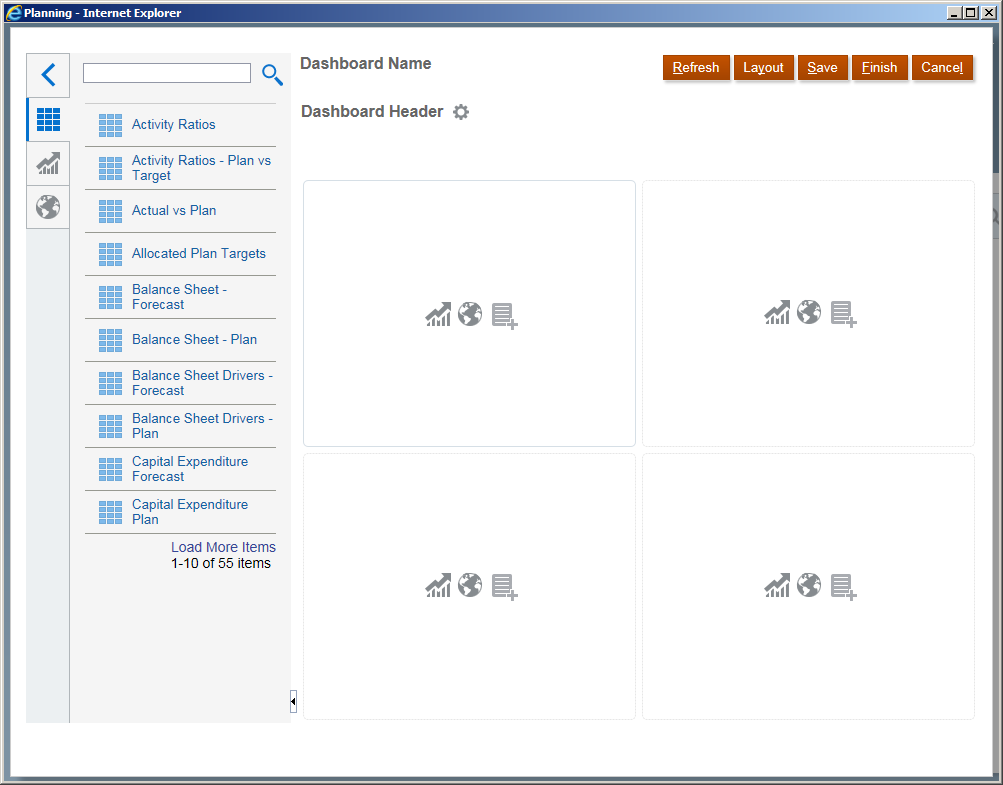

You can design the dashboard's layout as below, maximum is 2*3, click OK to continue.

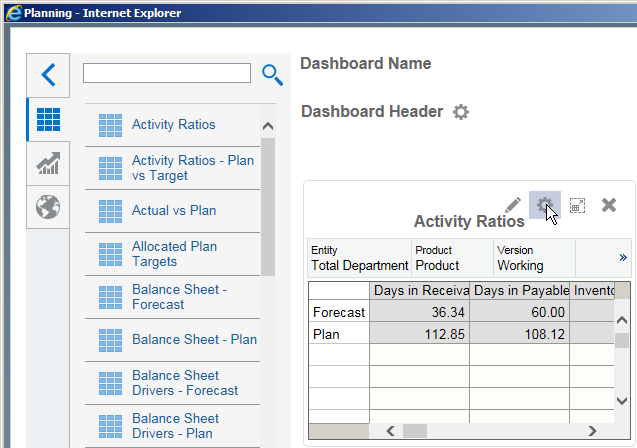
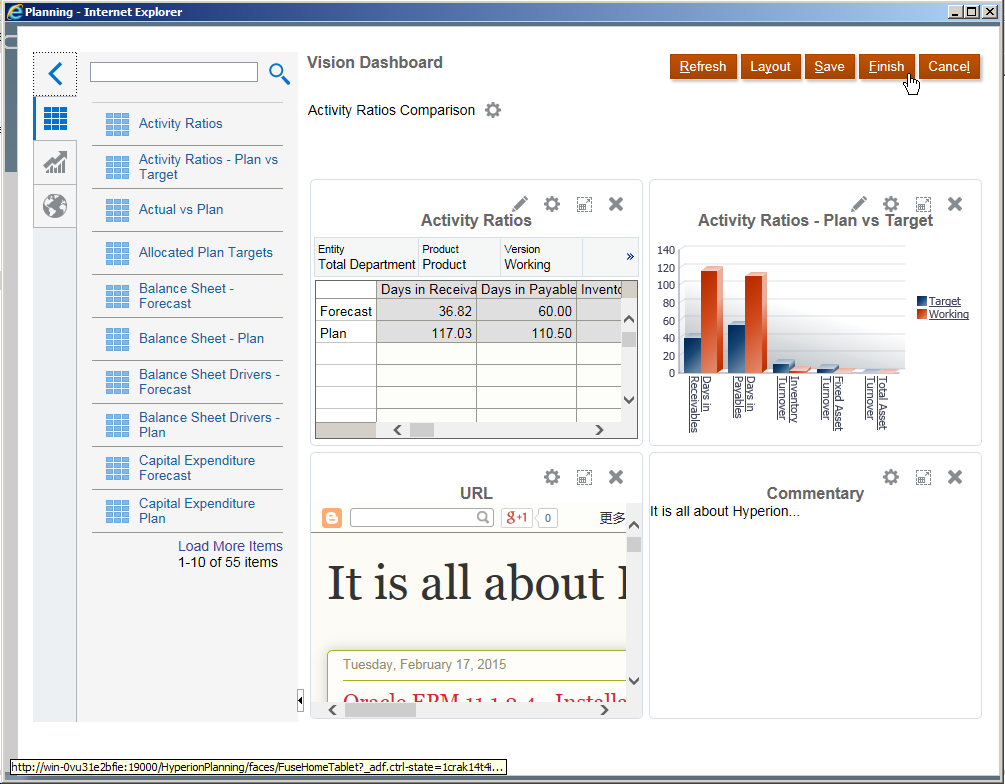
Drag the form that you want to display to the dashboard's area, click the setting button that you can change it to chart type.

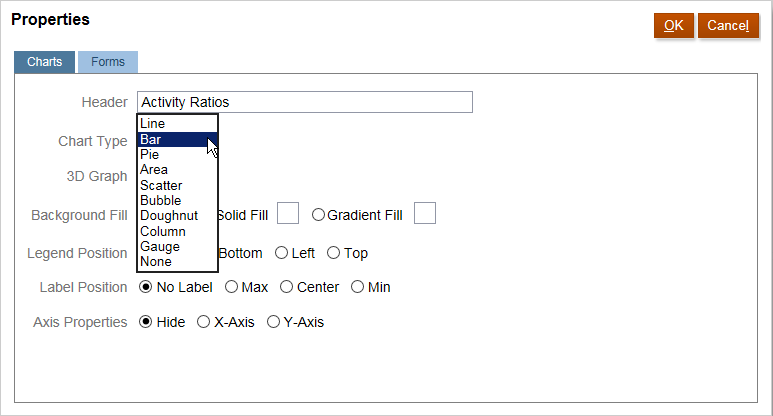
In the properties page, click "Charts" and then select the chart type you want to display. Then click "OK"

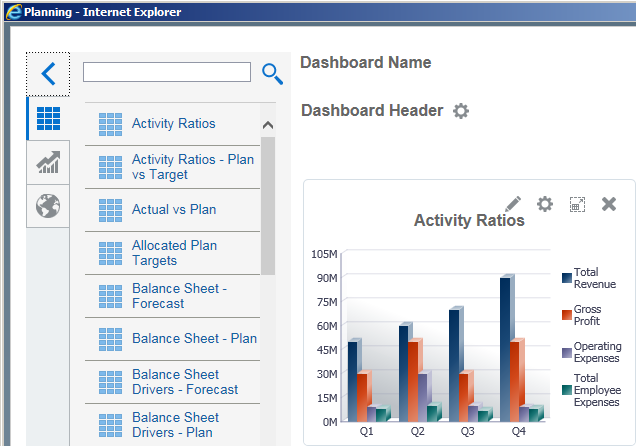
You can find the display is changed to a chart as below.

You can create the chart directly by clicking the chart button in the dashboard area.
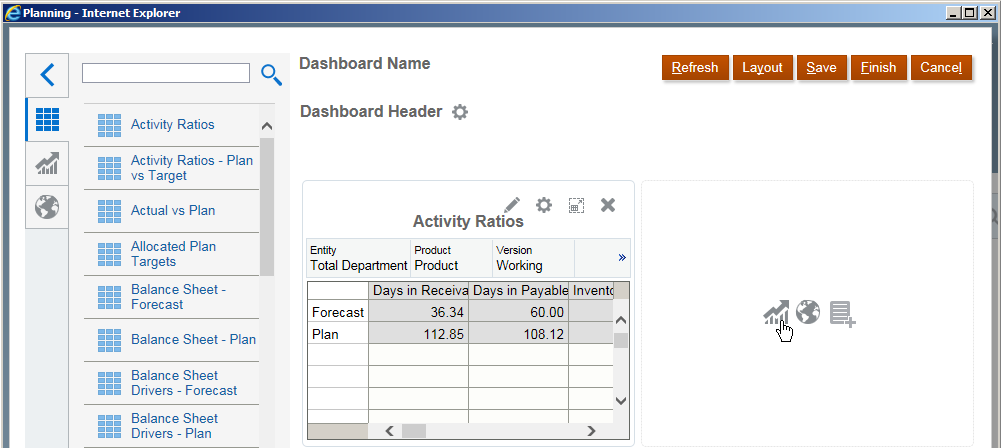

By default it will use the first form to display, and then you need to click the setting button to change the target form.
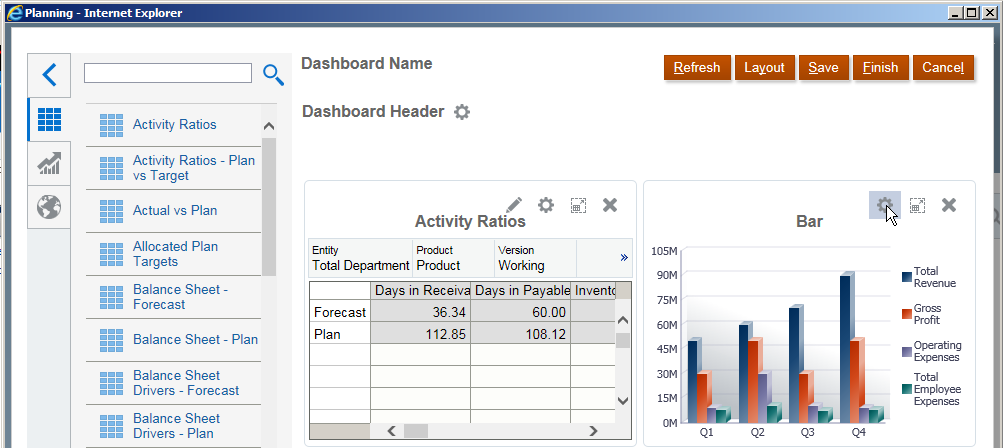

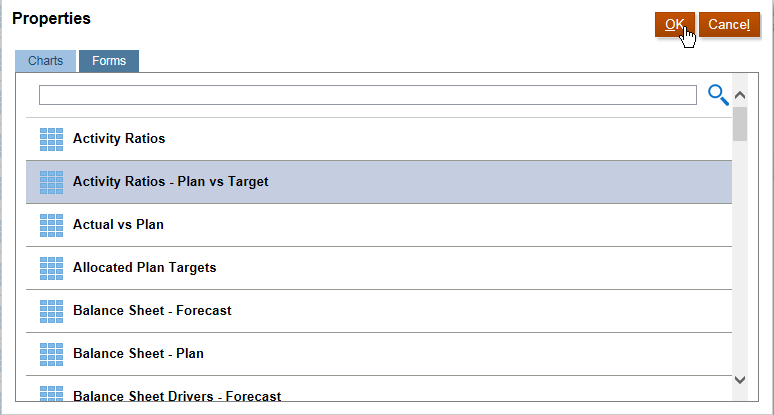
In the properties page, select the form that you want to display. And then click "OK"

Then you can find the chart display changed to another form. If you want to display a web page in the dashboard, click "URL" button as below.
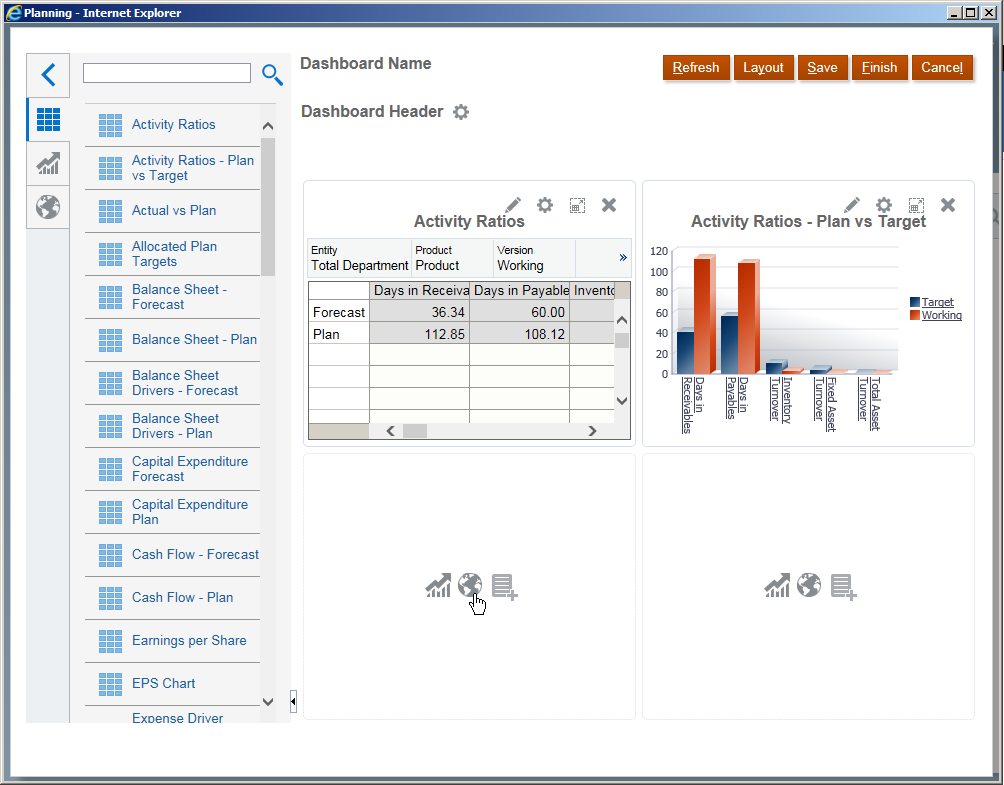

Input the Header and the URL, click OK


You can find the web page displayed as below. If you want to type some commentaries in the dashboard, click the Commentary button.
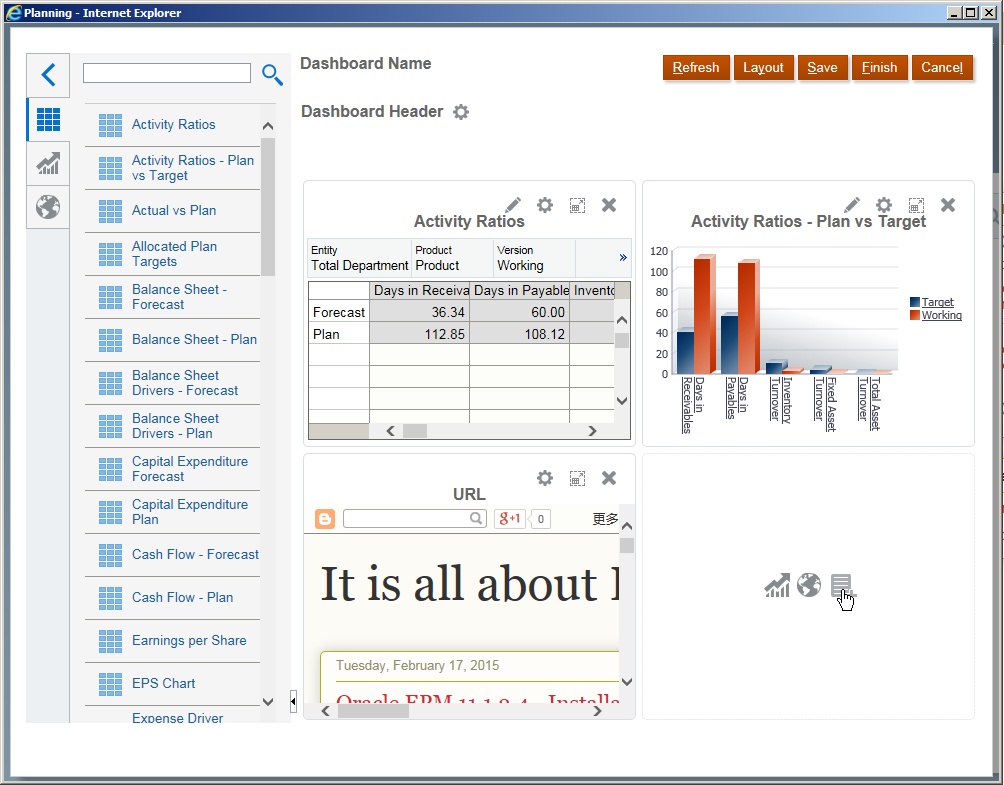

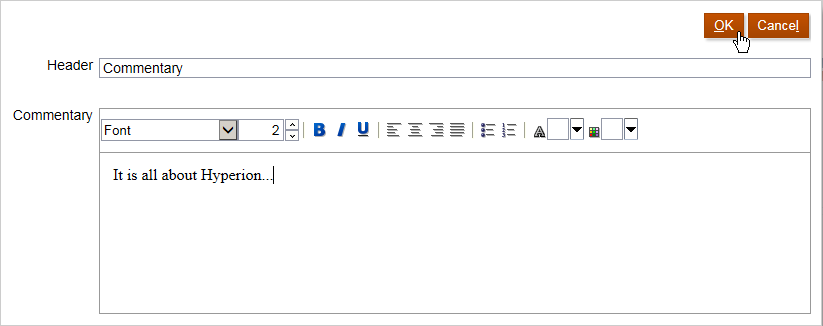
Type the Header and the Commentary as below, click OK

Now you can find the dashboard is shown as below. Then you can change the dashboard name and the dashboard header.
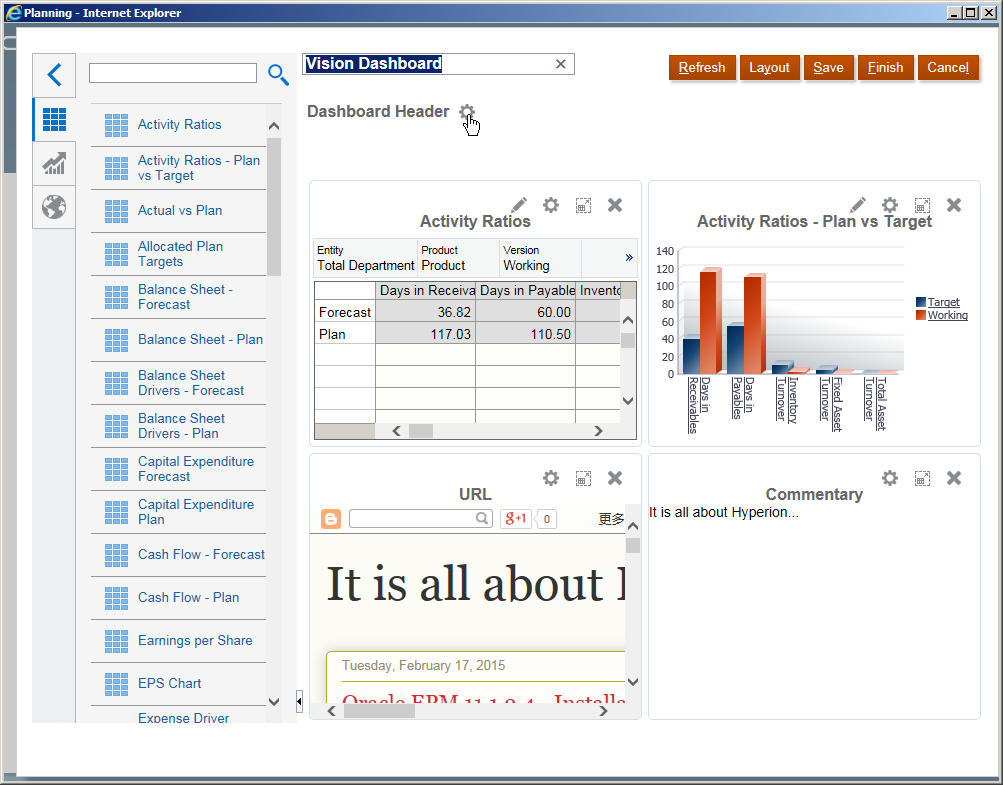
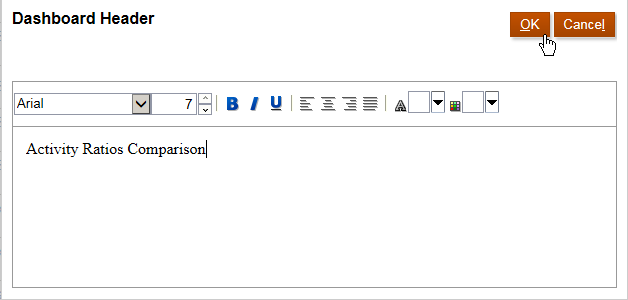


After all the settings are done, click Finish to save and close.

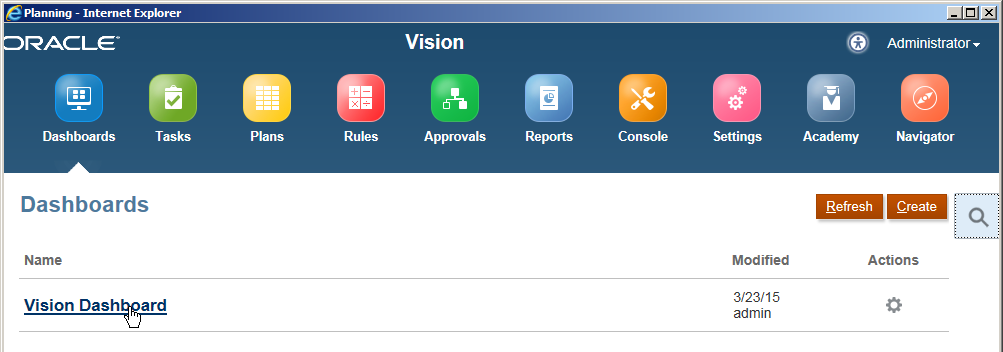
Then you can find the new added dashboard here, click the dashboard name to launch.

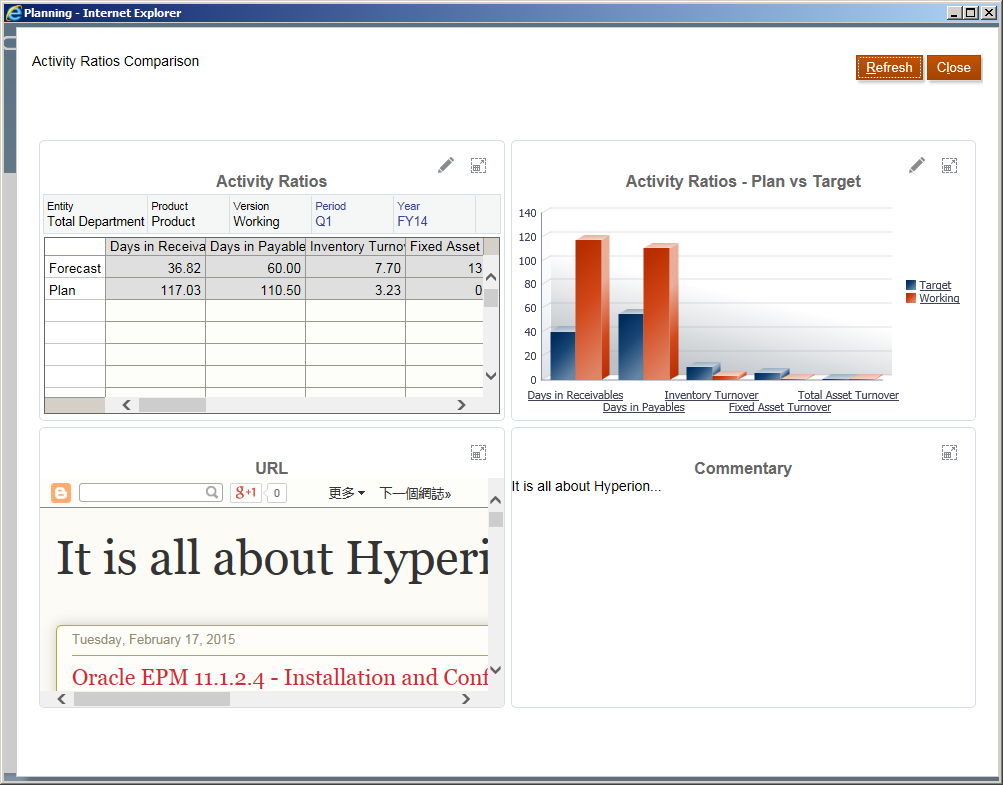
The dashboard shows below.

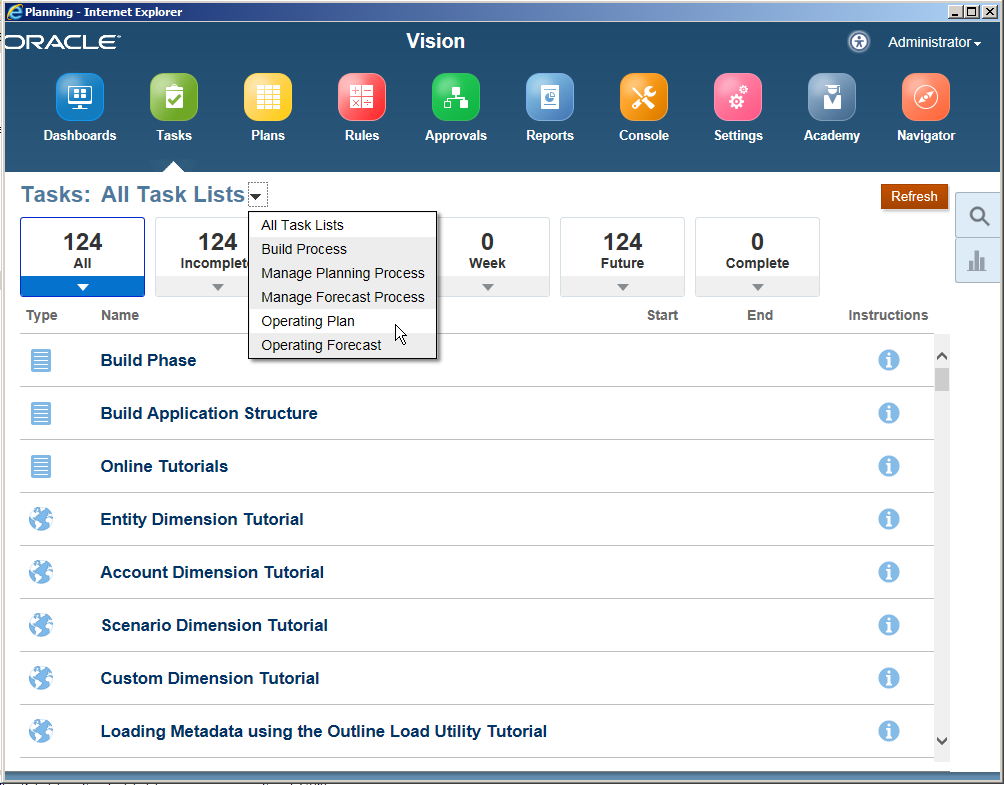
Then click "Tasks" button, in this page you can select your task list and complete it in the Simplified Interface mode.

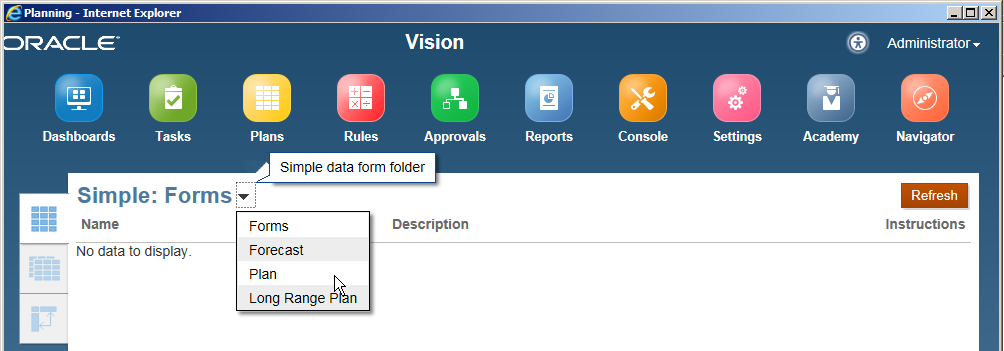
Click "Plans" button, actually it should be called Forms because here contains all the single and composite forms. Select the form folder as below.

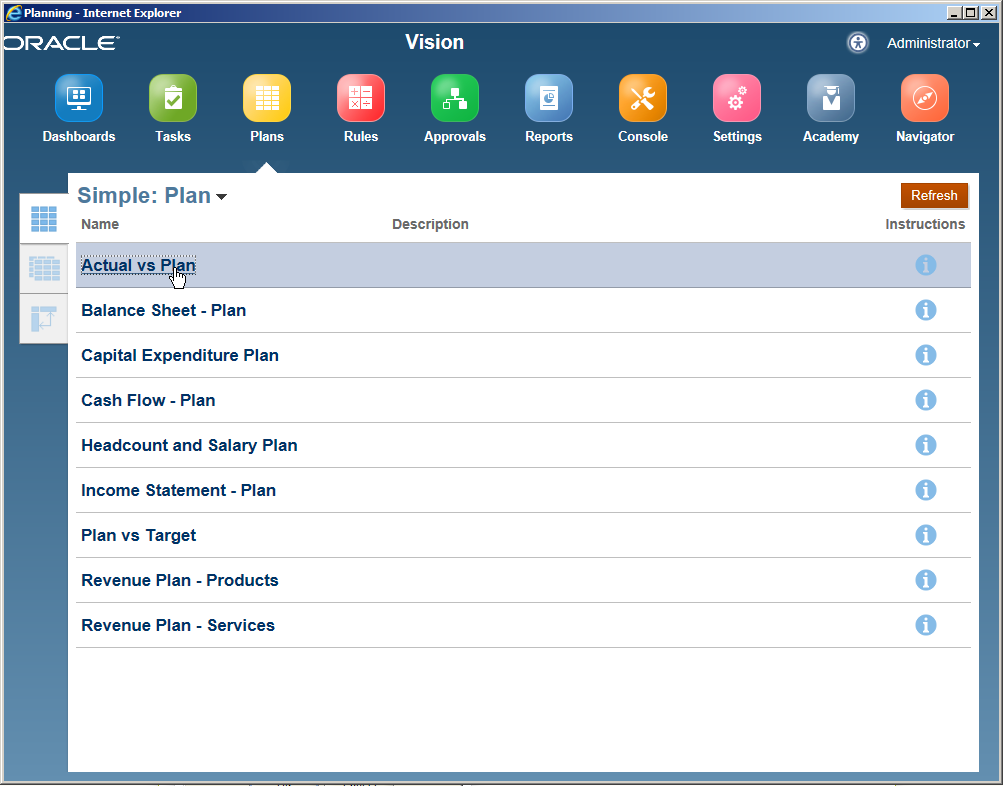
And then click the form you want to open.

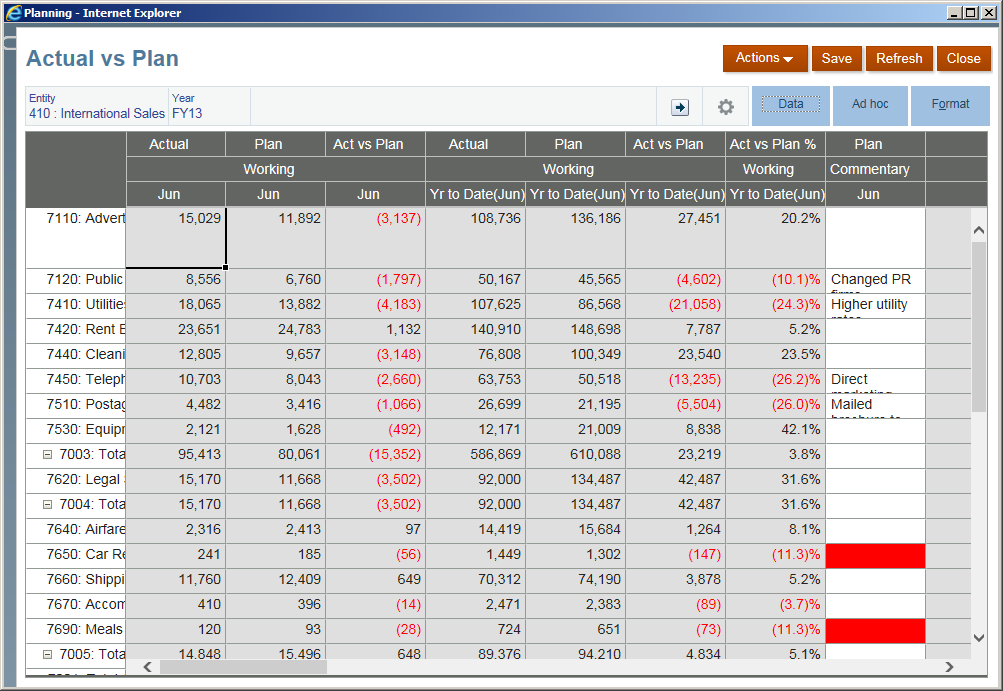
The form shows below, you can input data or review it if you have access.

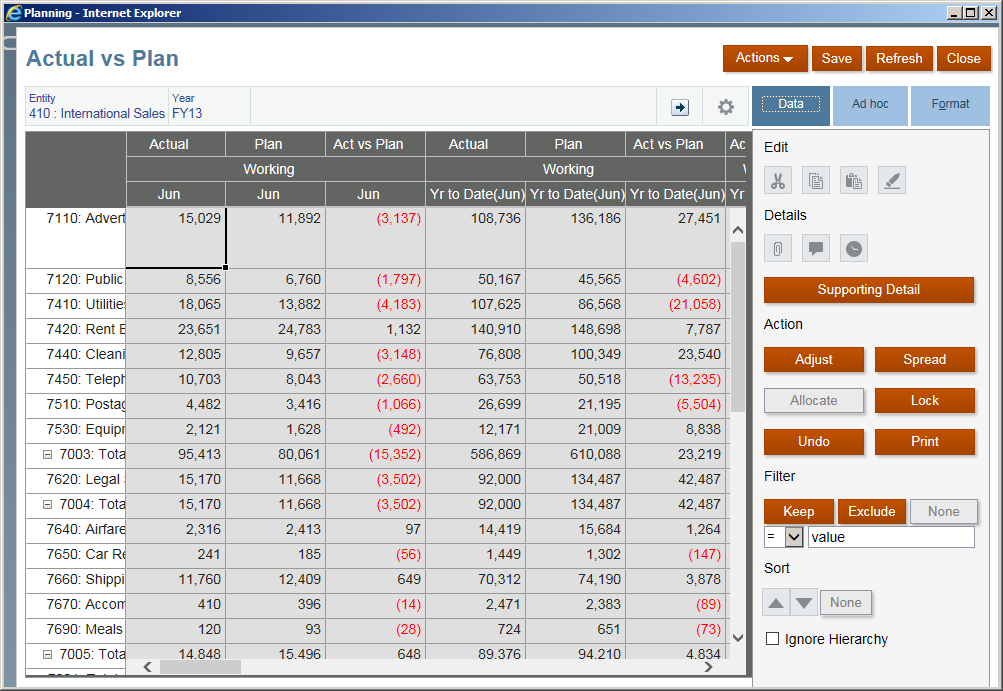
Click Data tab, you can find many shortcut buttons here.

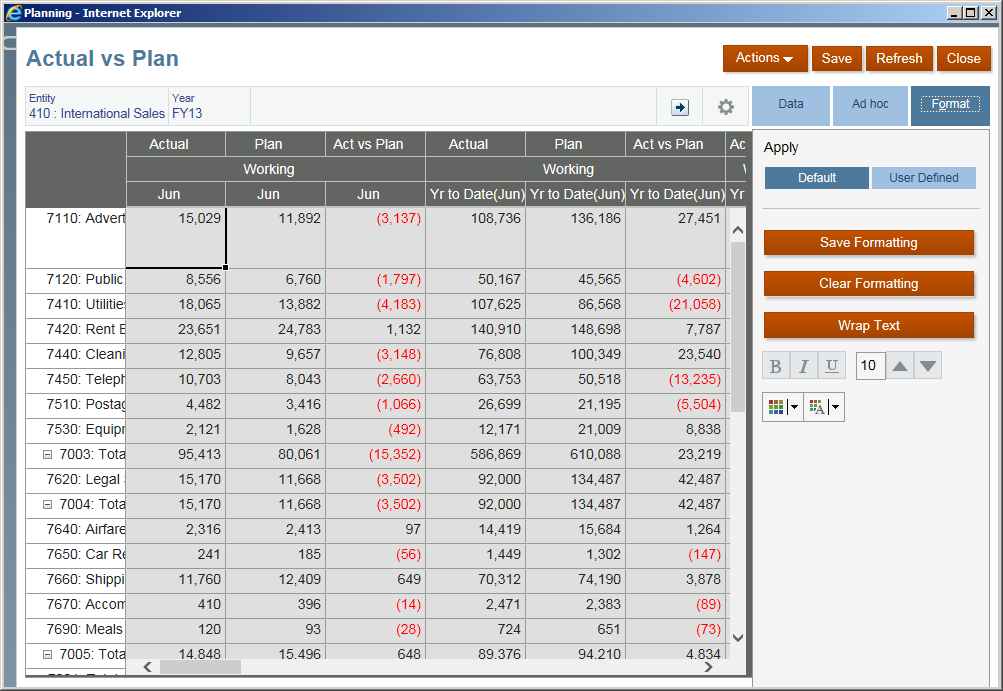
And in the Format tab, you can change the form's format.

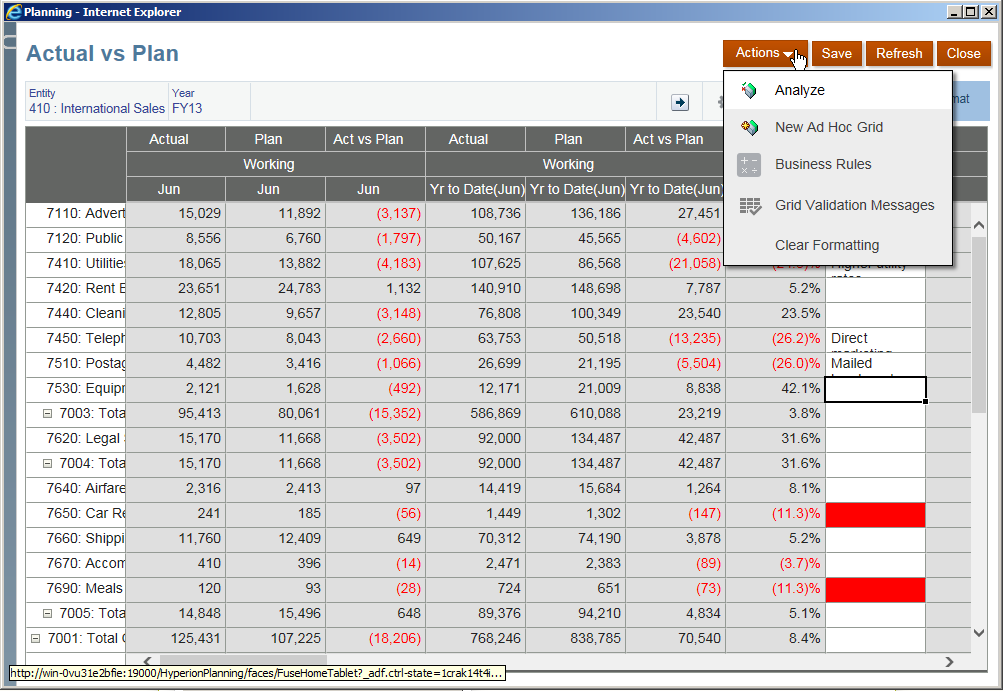
And some actions that you can find here.

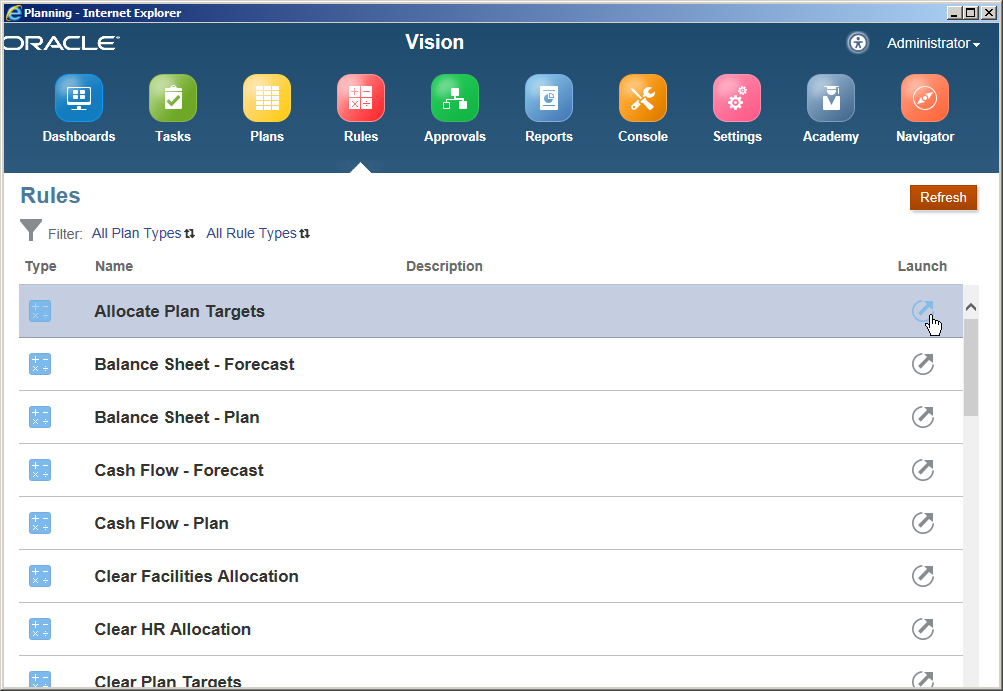
Now let's move to the Rules page, it contains all the business rules and you can launch them here.

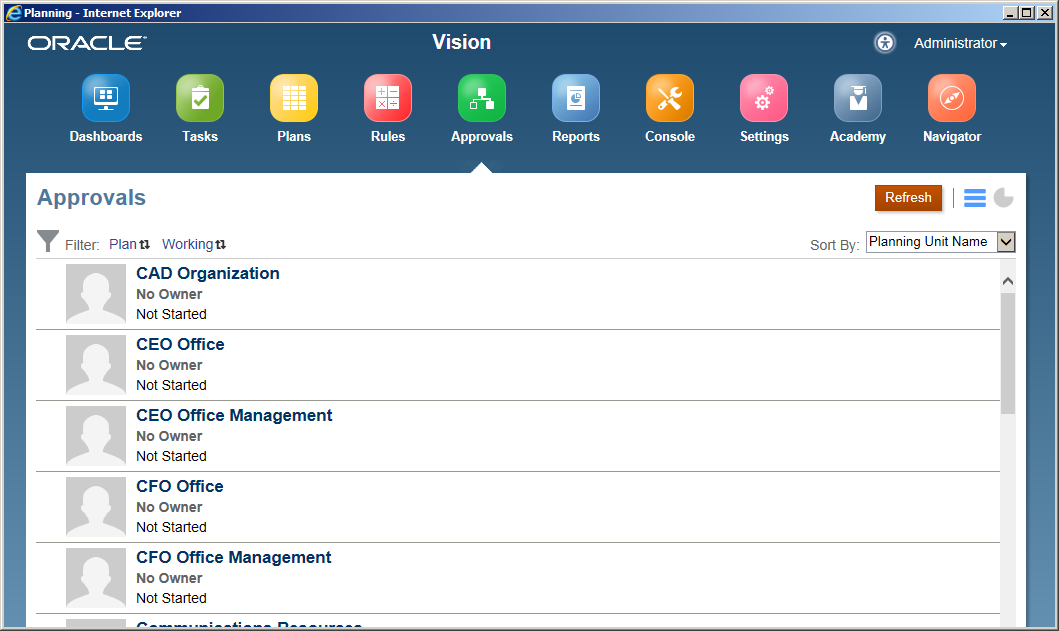
In the Approvals page, you can manage the approvals here.

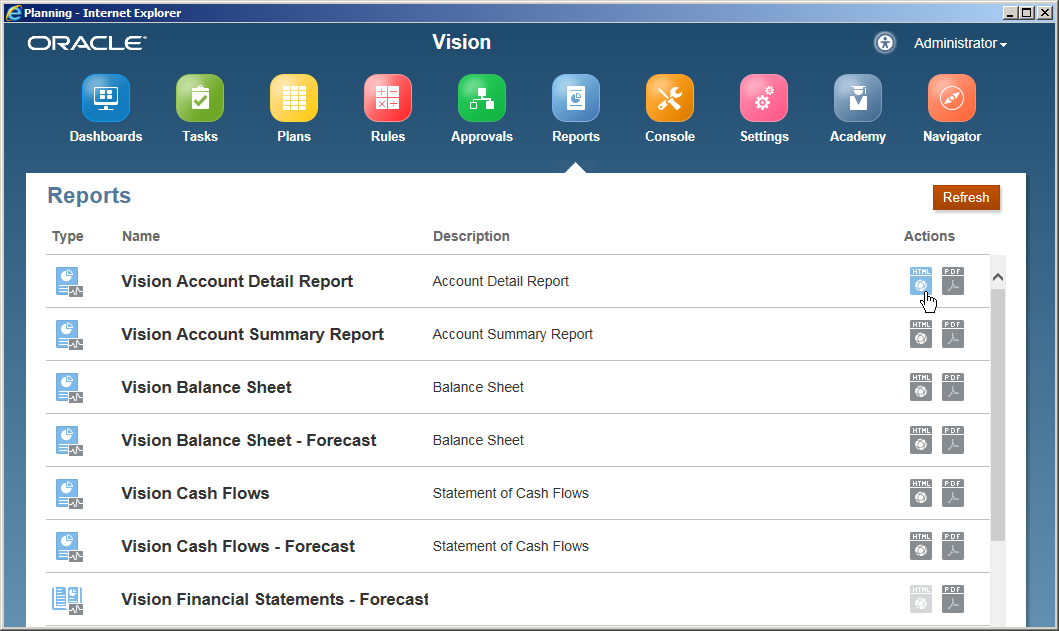
In the Reports page, you can find all the Financial Reports here. You can open them in HTML or PDF mode.

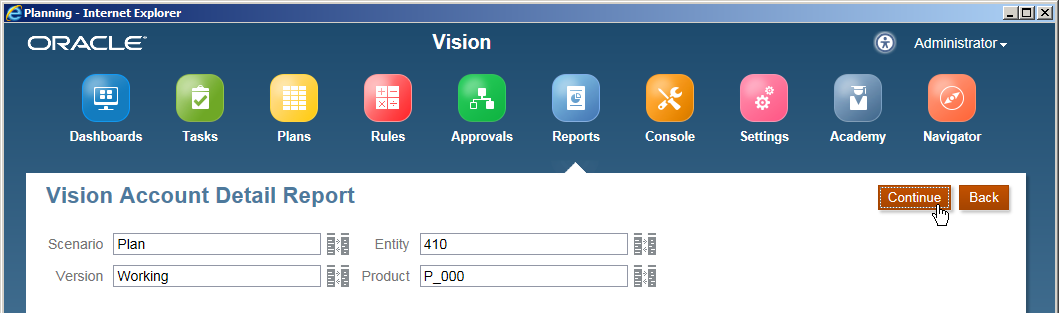
Select the POV and then continue.

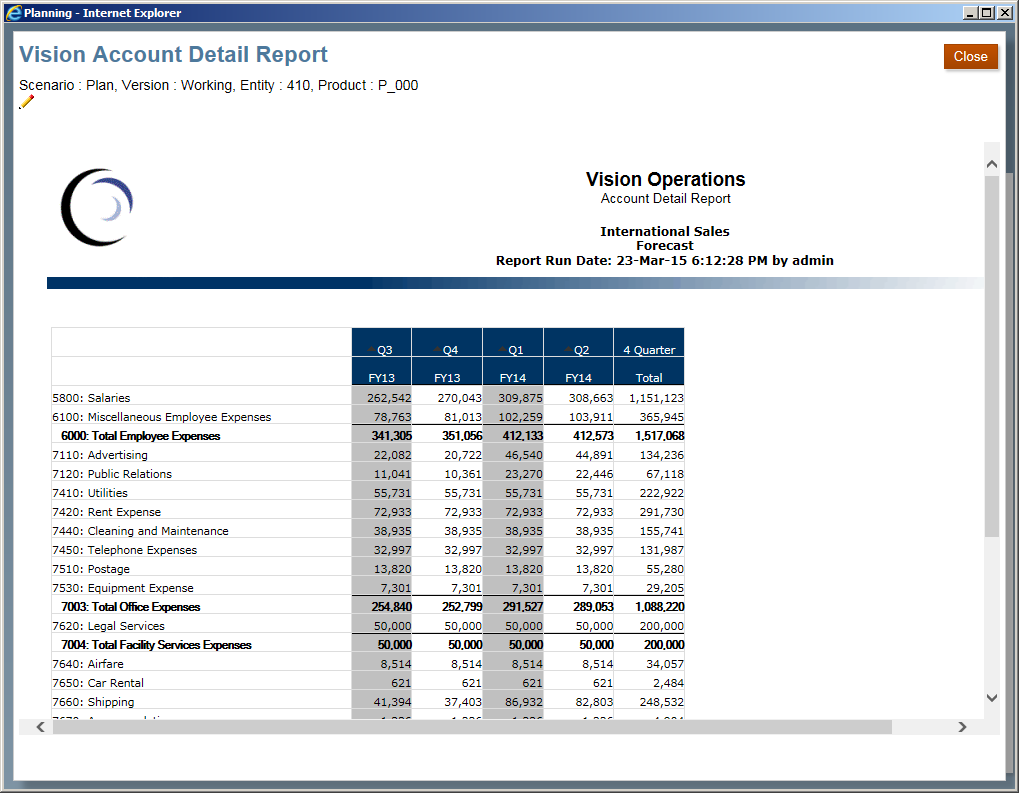
The financial reports can be displayed as below.

In the Console page, you can have an overview of the application. How many tasks, forms, rules and approval hierarchies are in the application.
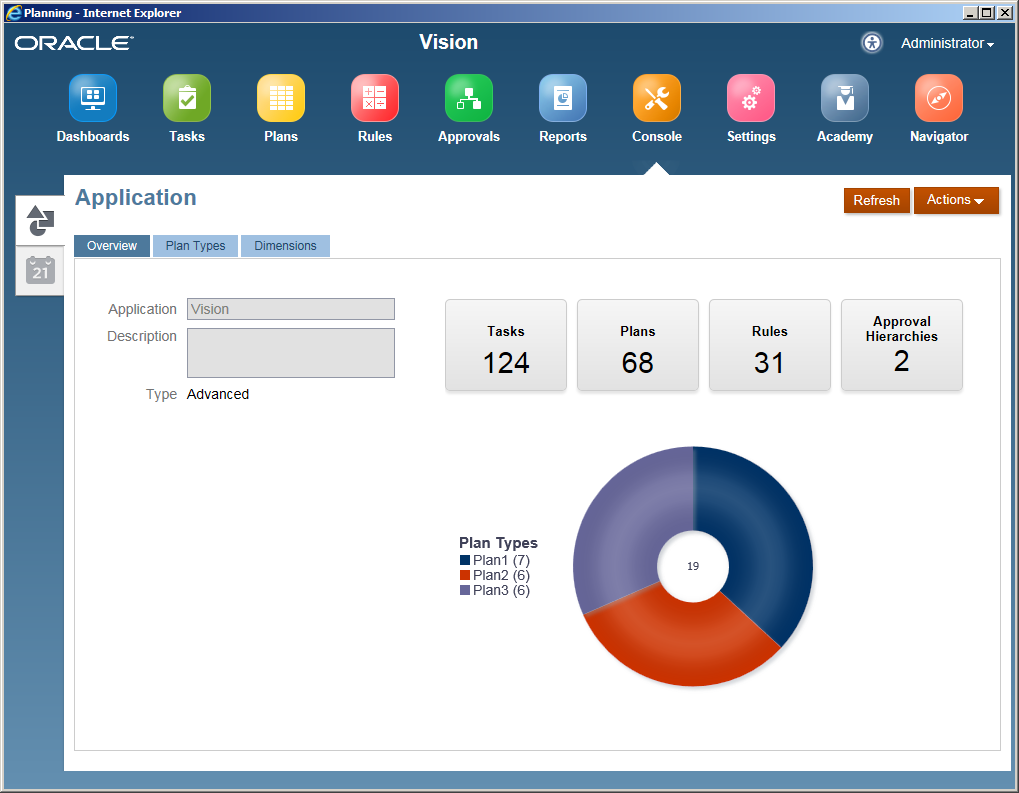

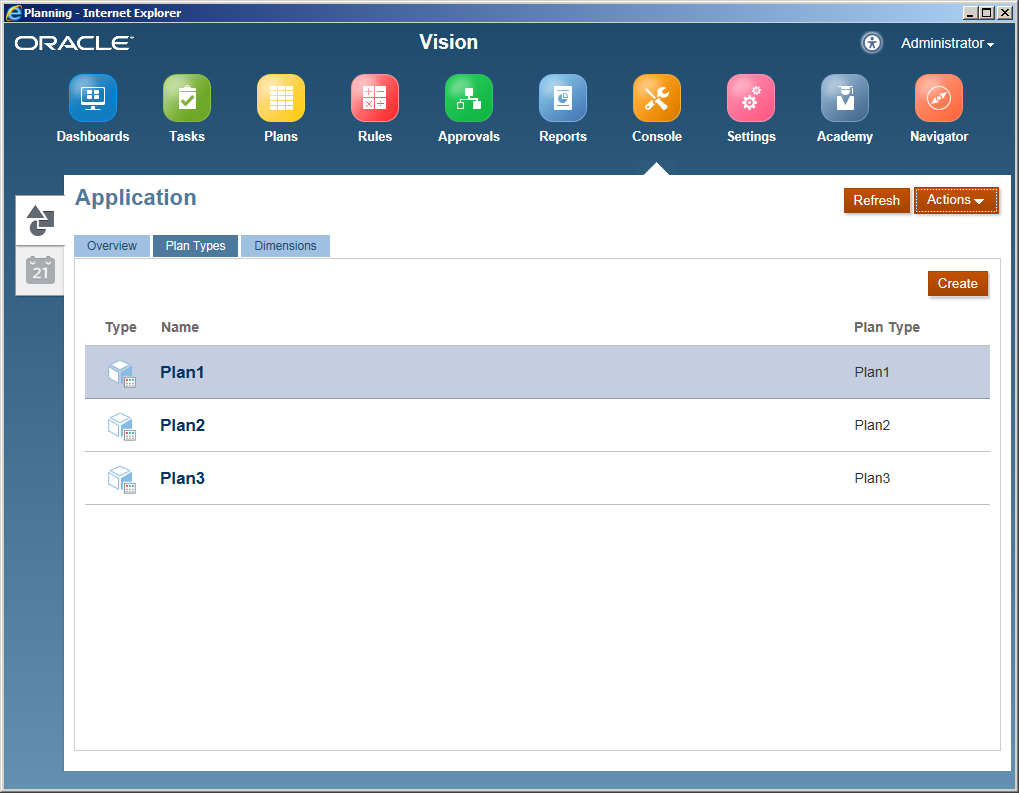
Switch to Plan Types tab, you can manage the plan types here.

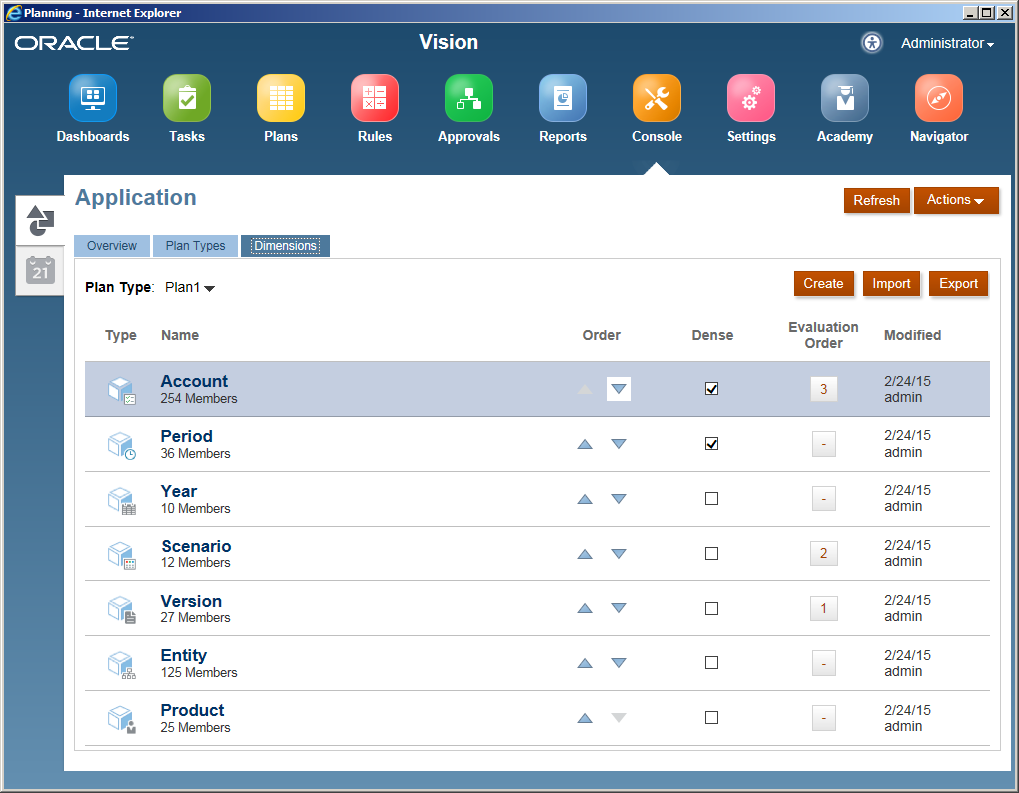
In the Dimensions tab, you can find the dimensions of each plan type, the order of them, the dense sparse setting, and also the evaluation order.

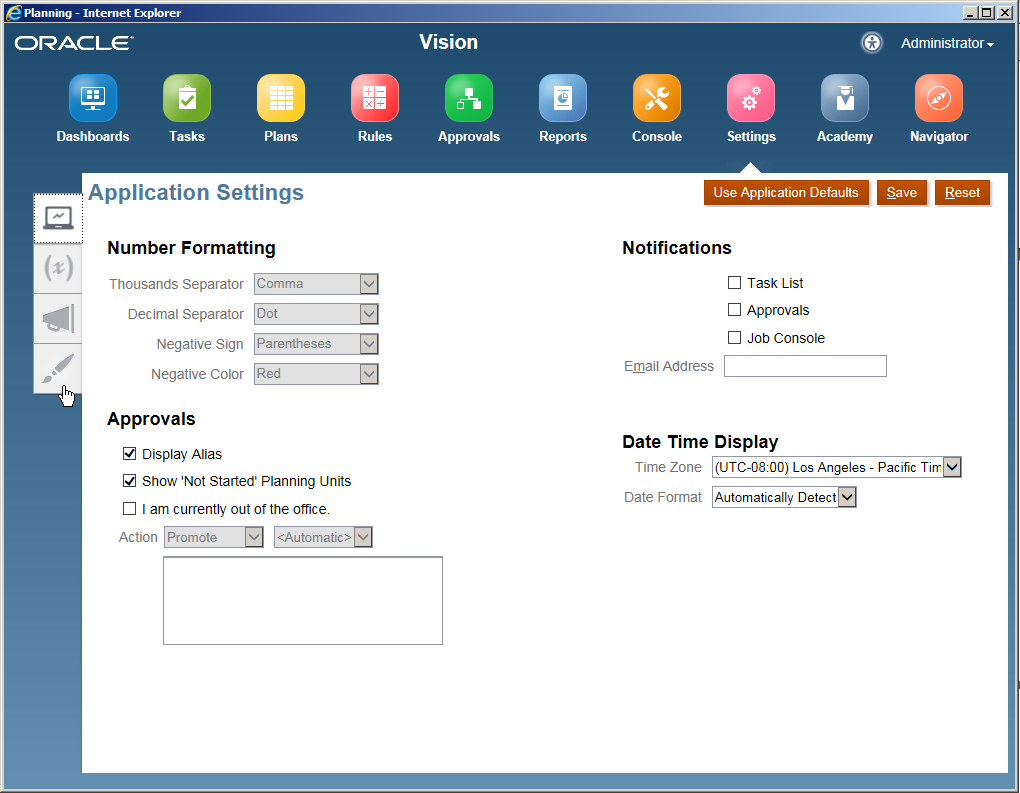
In the Settings page, you can change the applications settings here.

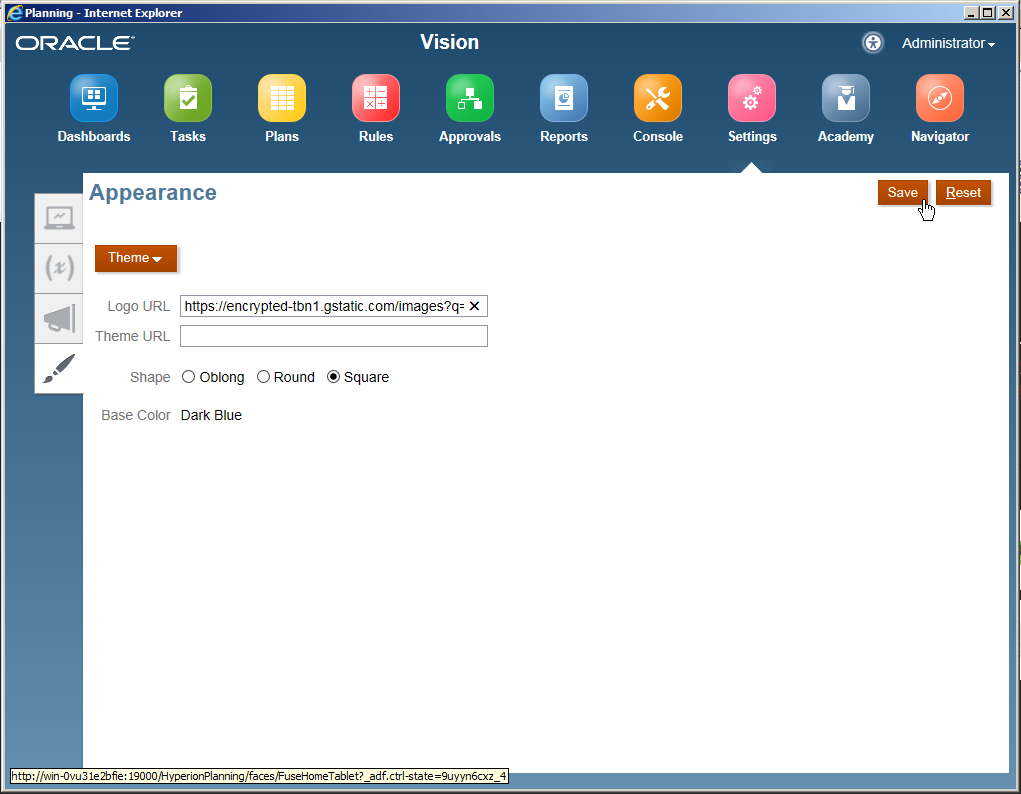
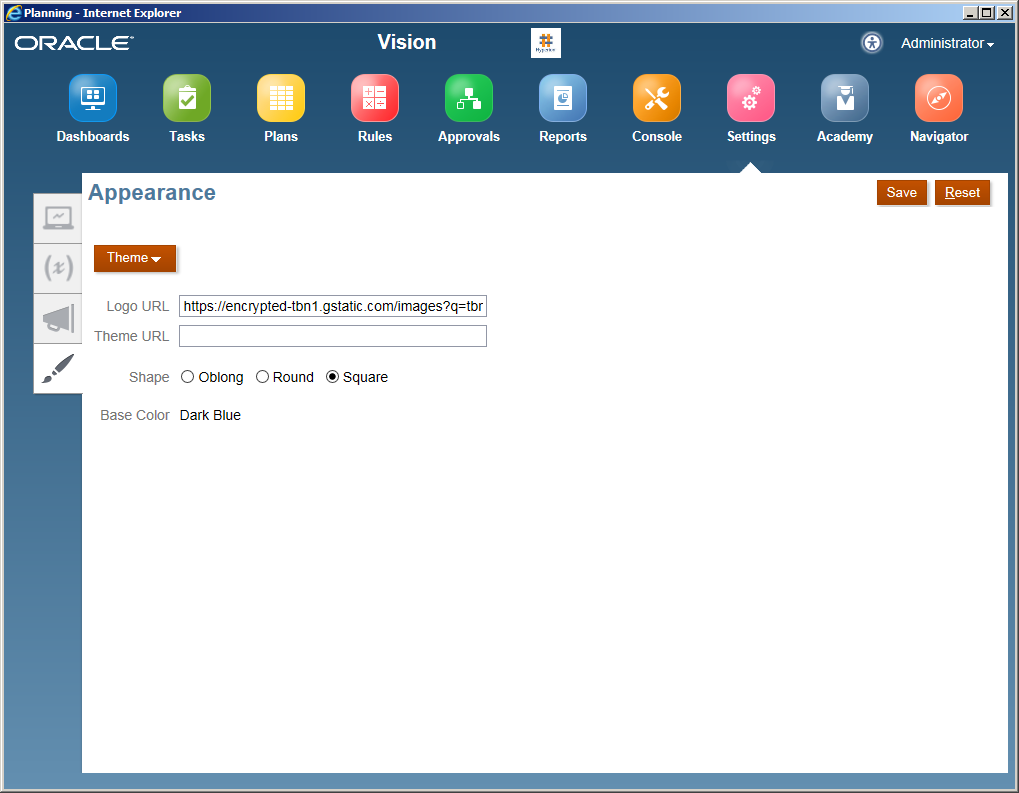
In the Appearance tab, you can change the Theme, Logo and the background display as below (Only apply to Simplified Interface).  For example, I input the Logo URL and then click Save.

Then you can find the new added Logo appeared in the right hand side of the application name.

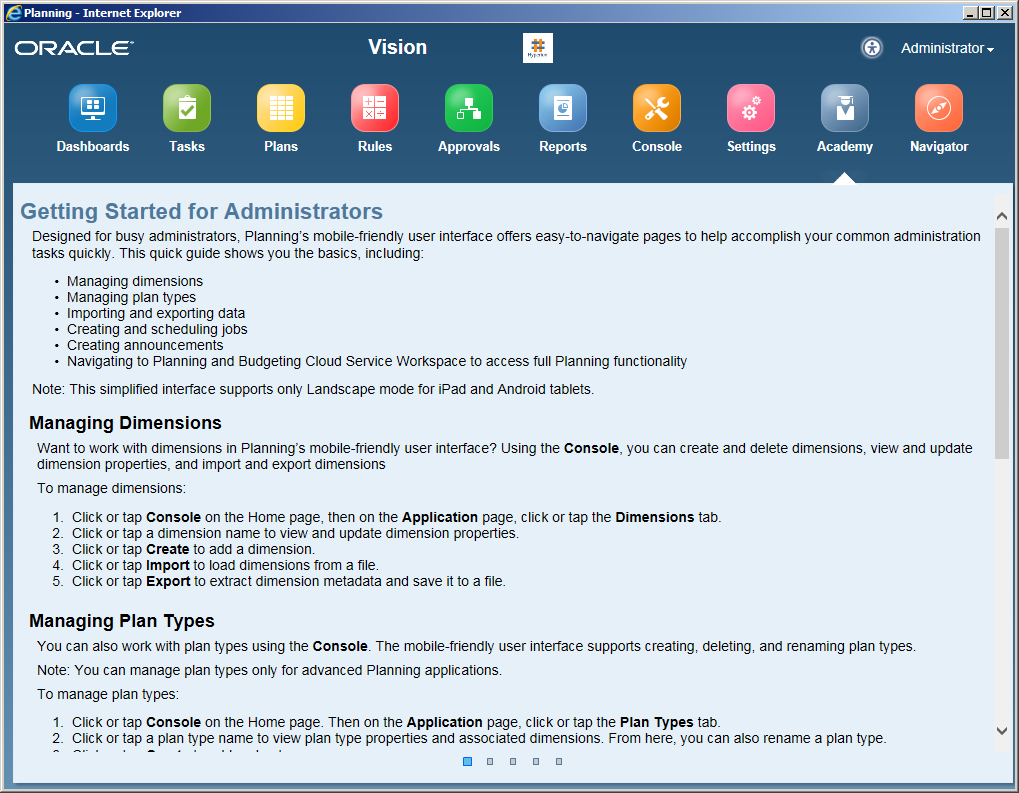
The Academy page is a general guideline for the current user, you can have a read if you are interested.

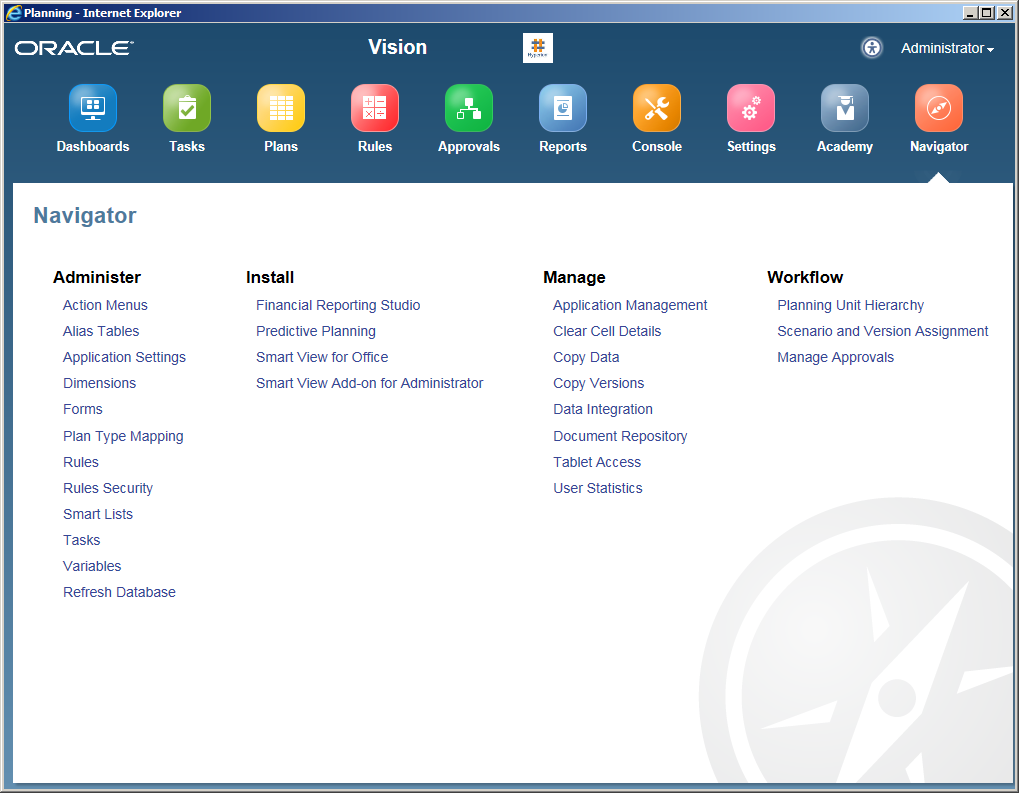
The Navigator page contains all the links of Planning functions, which will navigate you to the normal user interface web page.

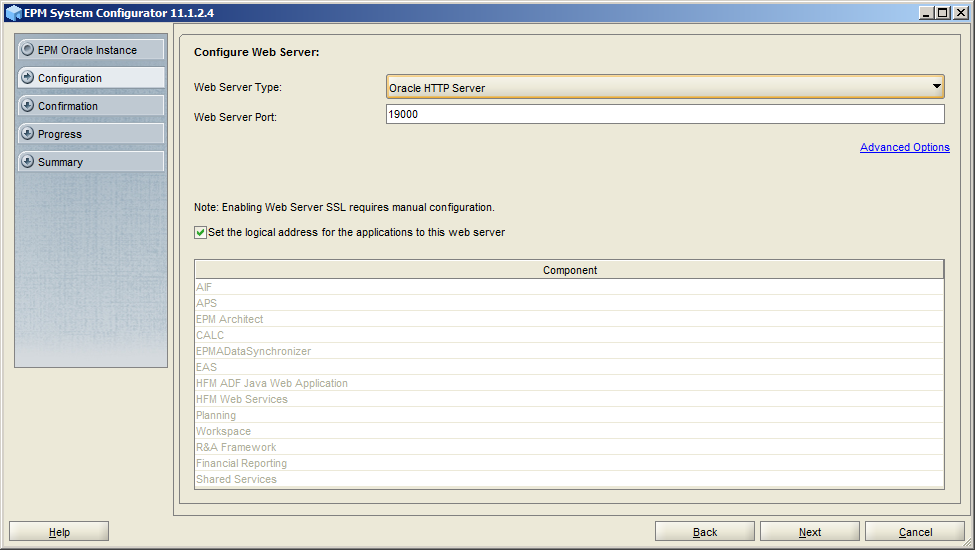
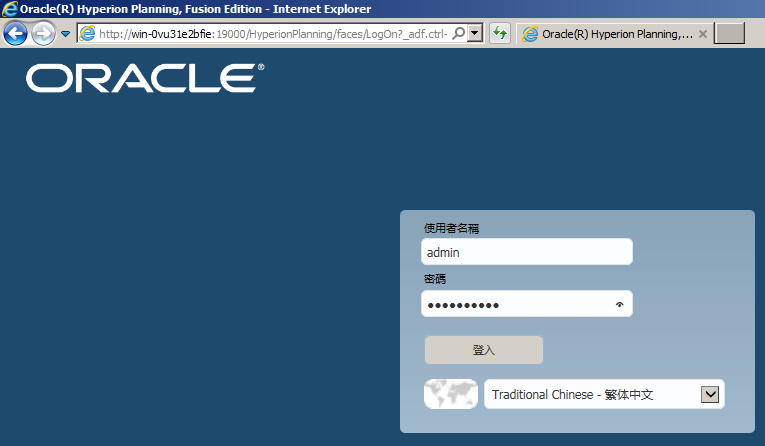
There is a direct enter link for the Simplified Interface, http://server:19000/HyperionPlanning, in this direct link you can select your favorite language and then login.
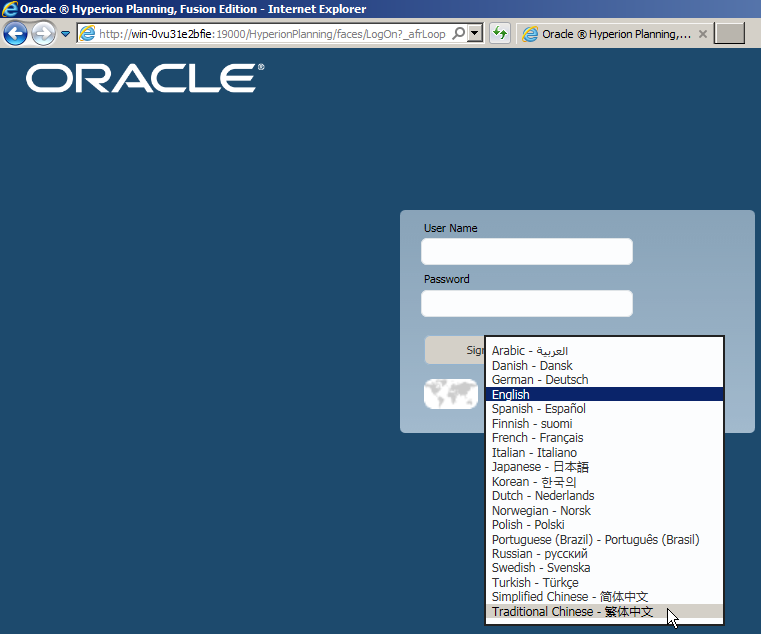


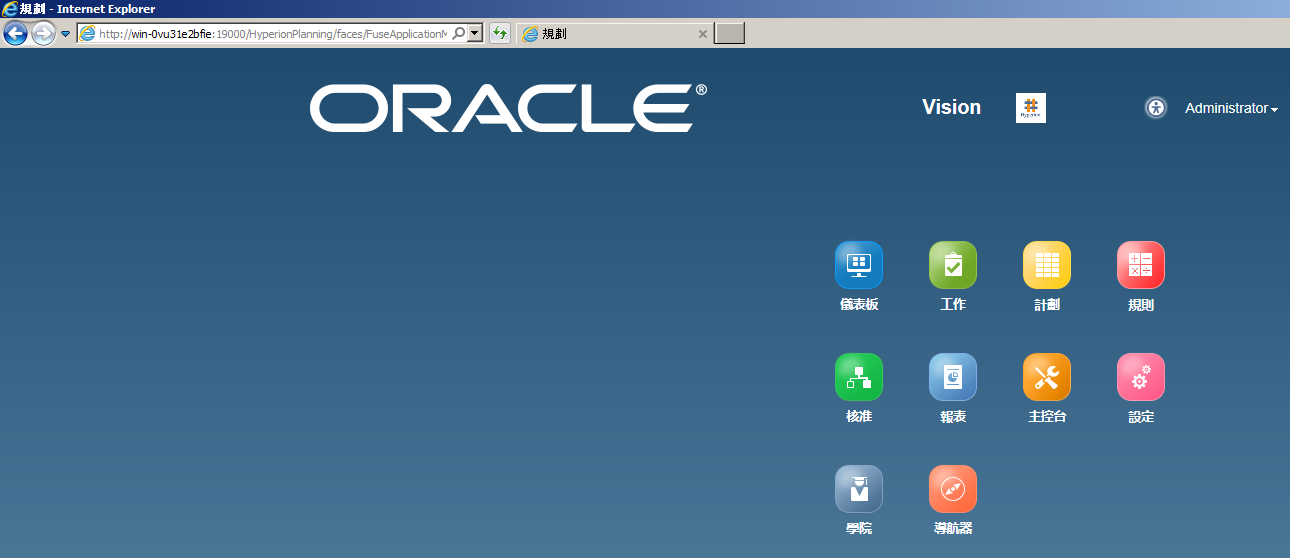
The language changes as below.
Tuesday, February 17, 2015

Oracle EPM 11.1.2.4 - Installation and Configuration

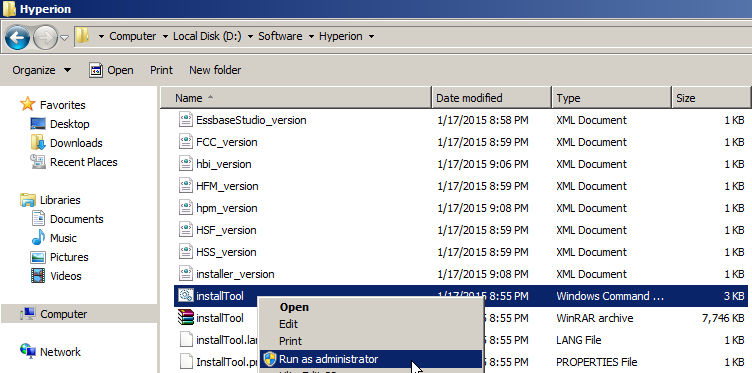
After download and unzip the EPM related installation files into one folder, right click "installTool.cmd" and then Run as administrator.


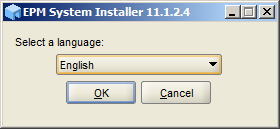
Select a language as below,


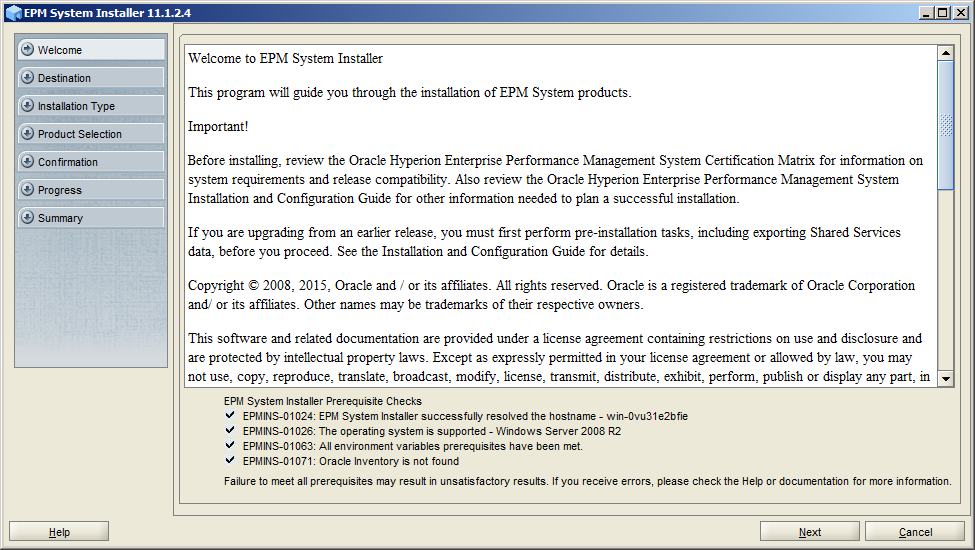
After passed all the prerequisite checks, click Next


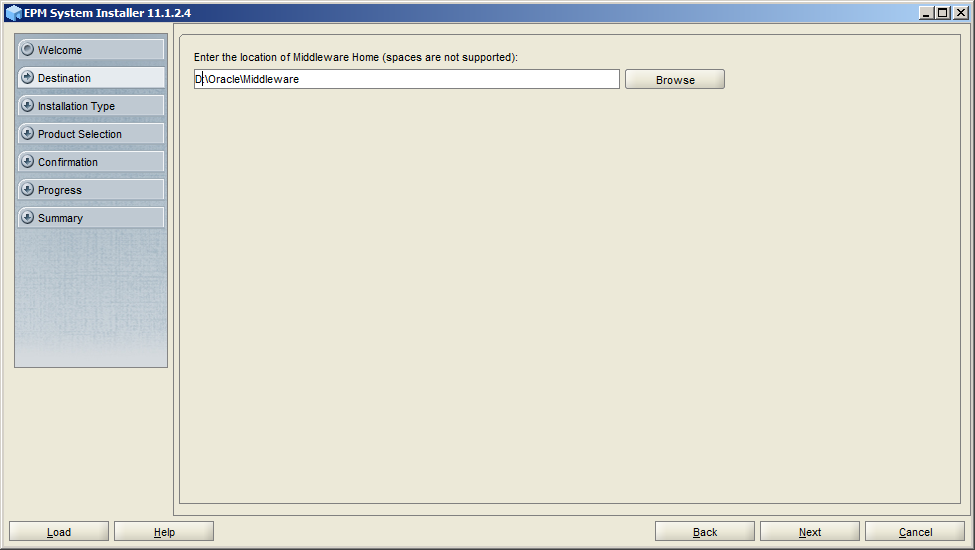
Change the location where you want to install


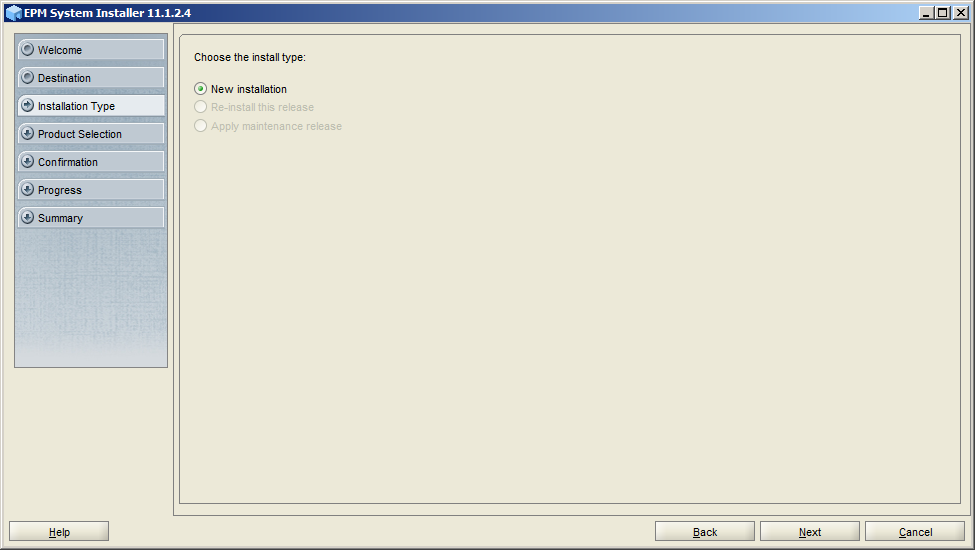
If it is the first installation, select New installation and then Next


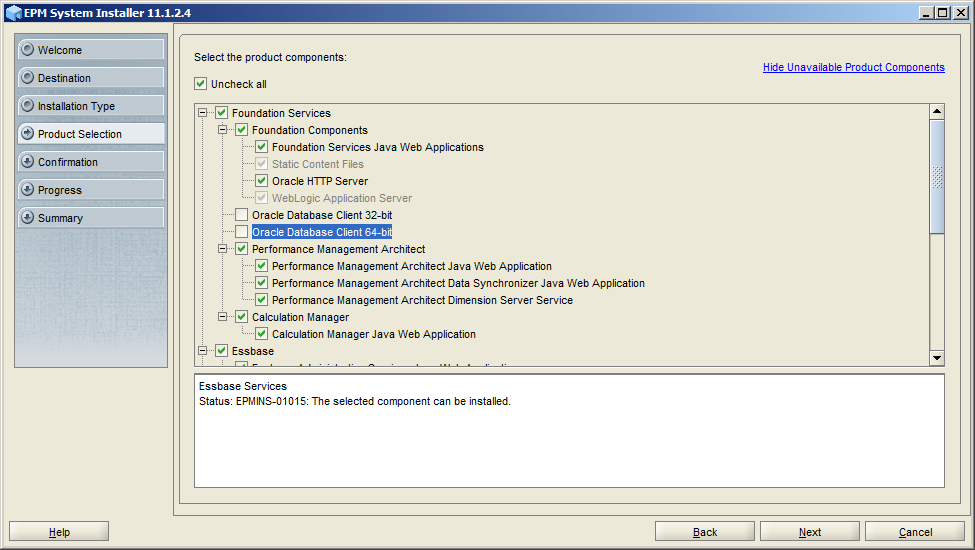
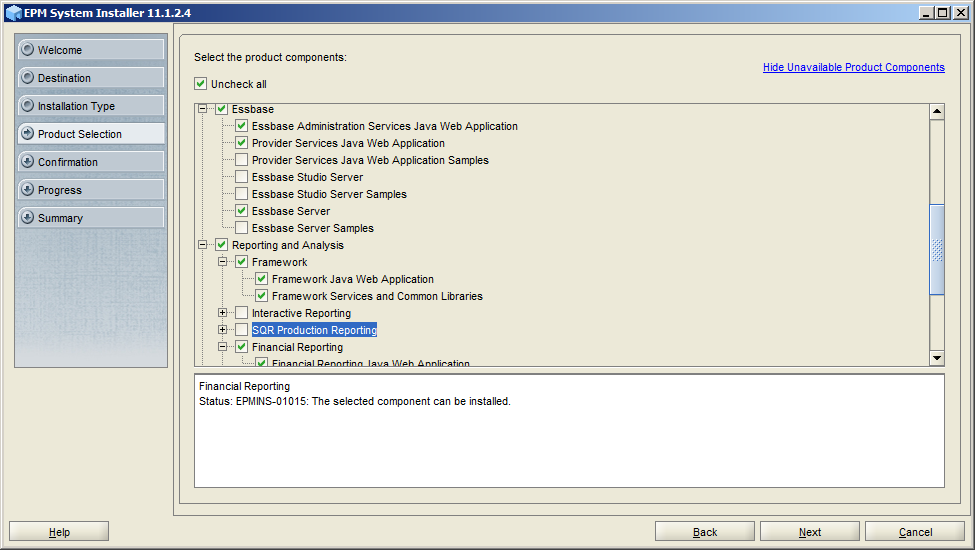
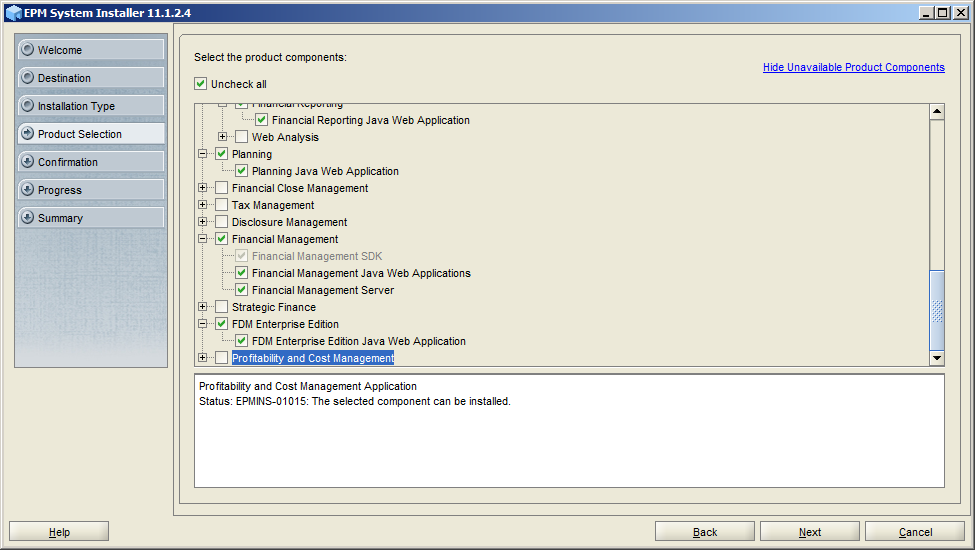
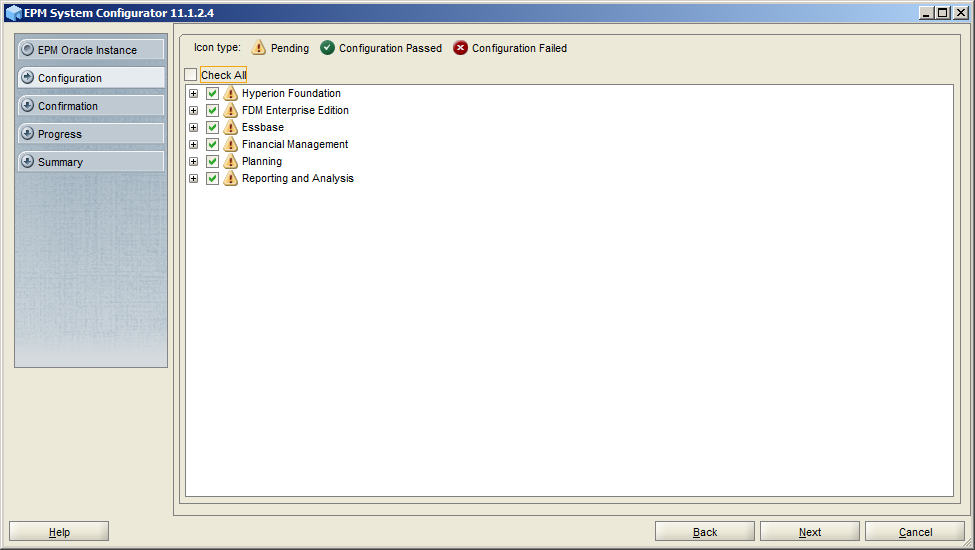
Select the components you want to install, remember to select Oracle HTTP Server


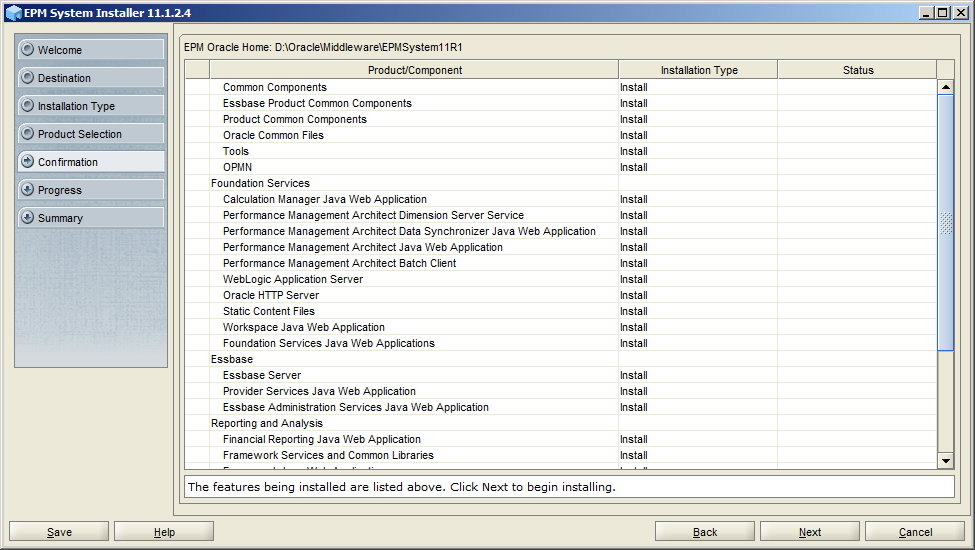
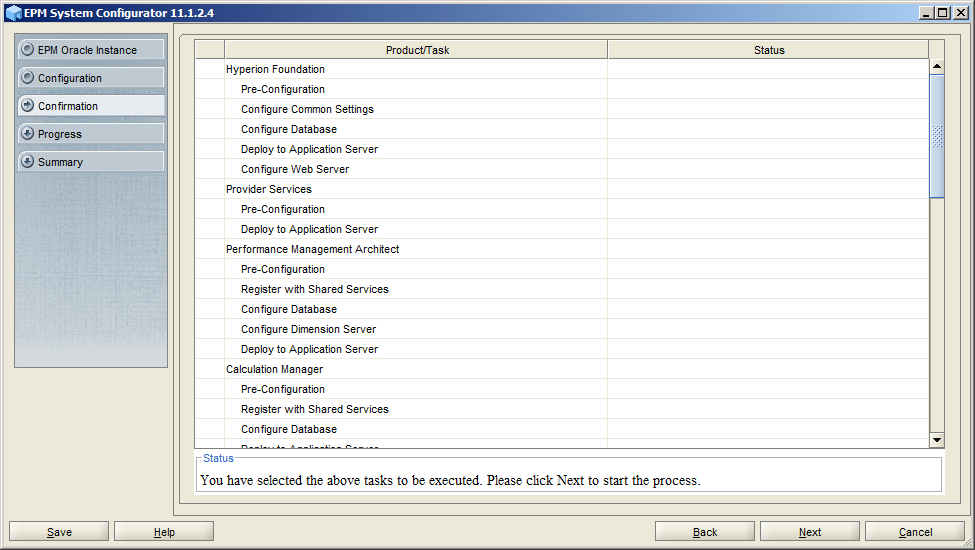
Confirm the components you want to install, click Next


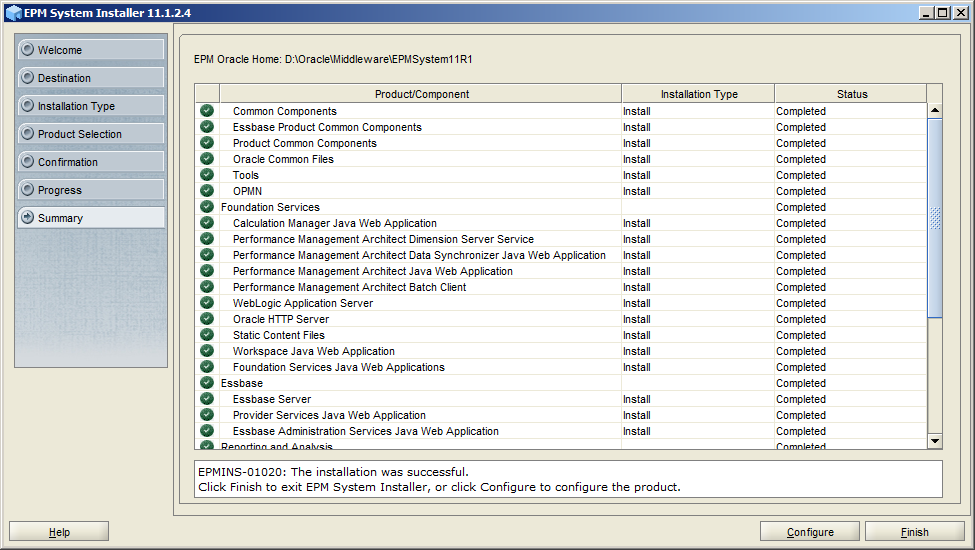
After the installation was successful, click Configure to do the configuration.


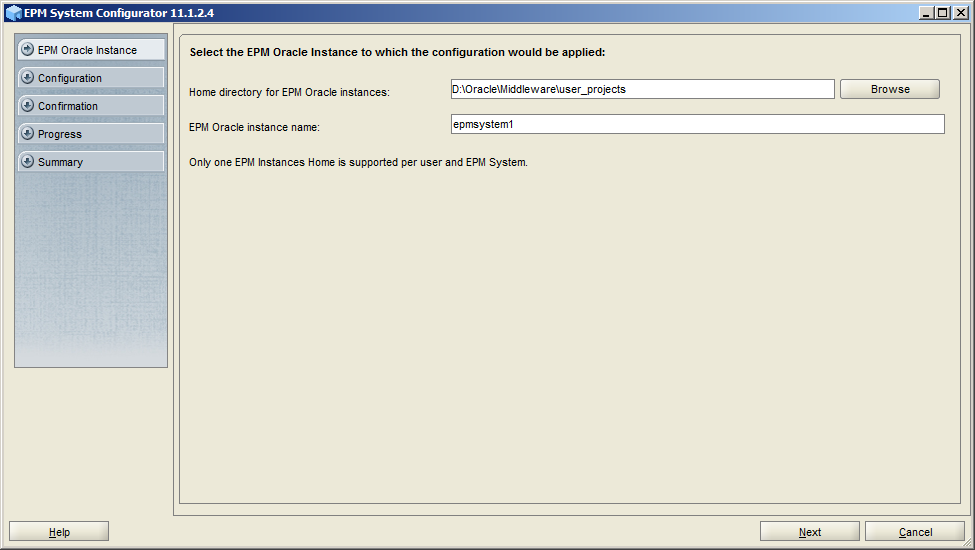
I used the default home directory and instance name for the configuration


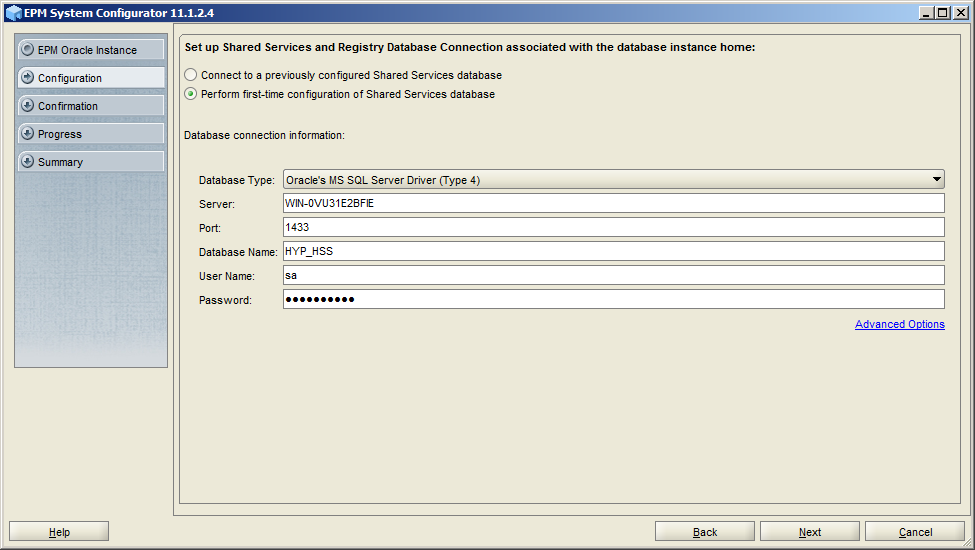
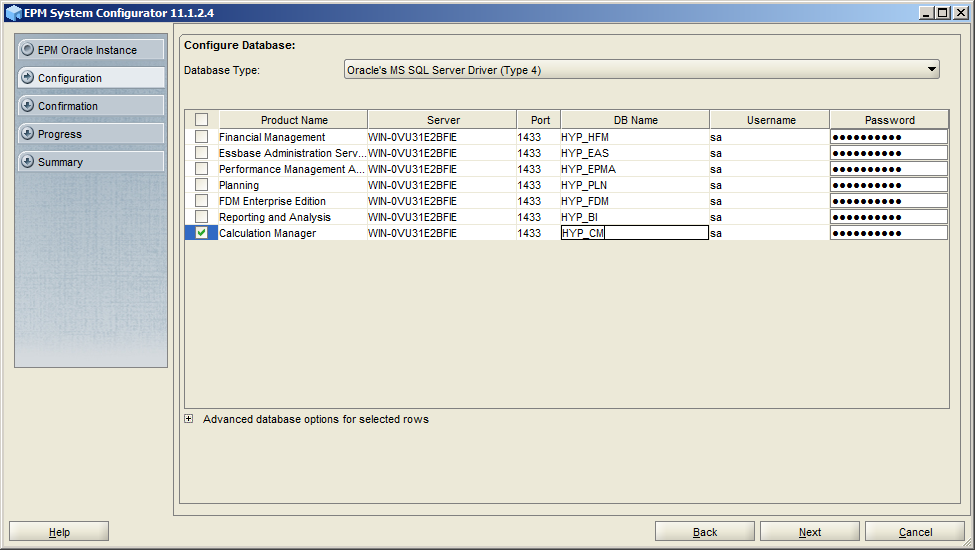
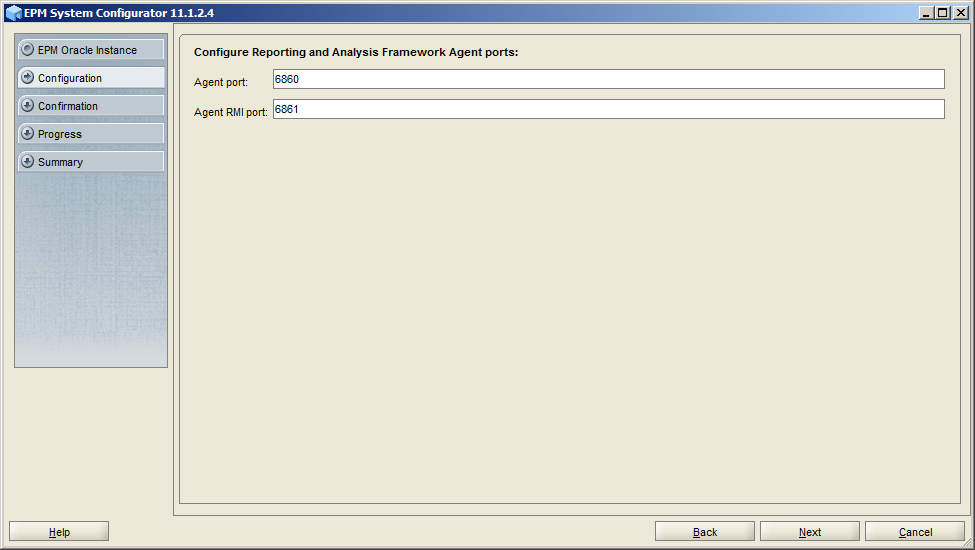
Select Perform first-time configuration of Shared Services database. Because I used MS SQL Server as the relation database, I selected Oracle's MS SQL Server Driver (Type 4) and input the server and database information as below.
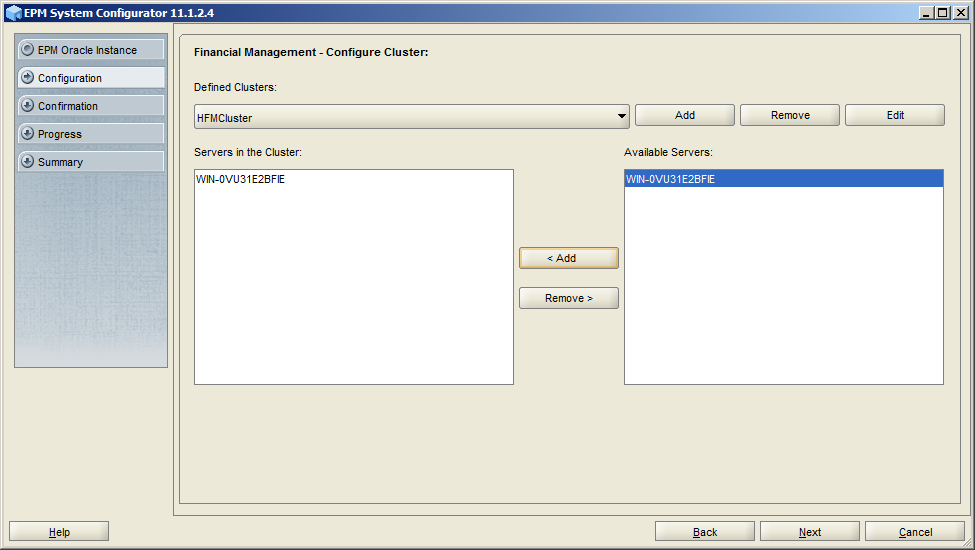

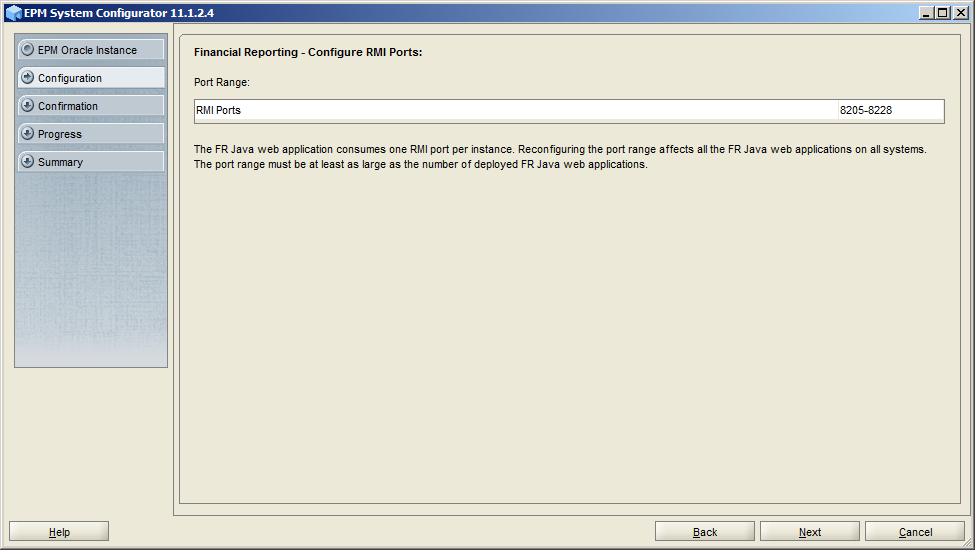
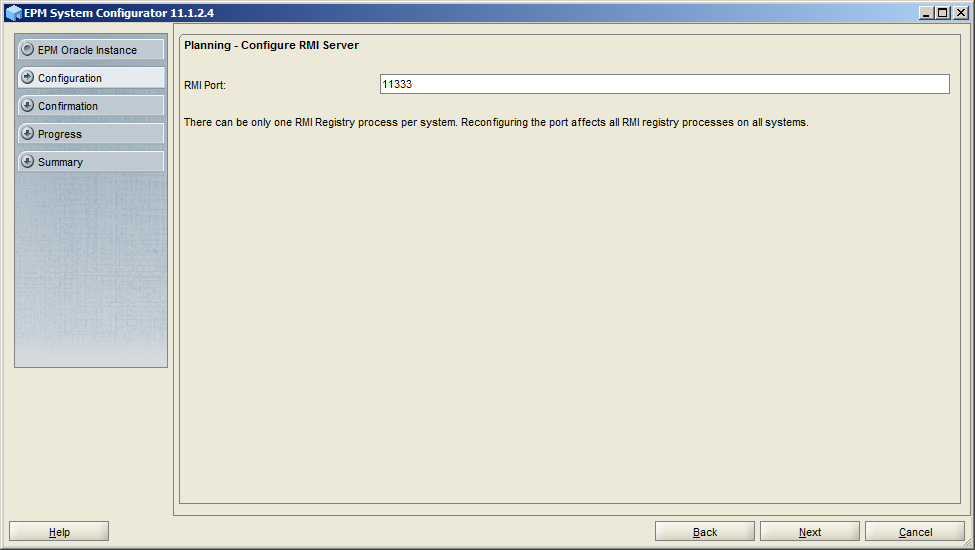
From version 11.1.2.3, you can configure all the components at the same time even you want to specify different databases for different products. Just keep all the selected components for the configuration.


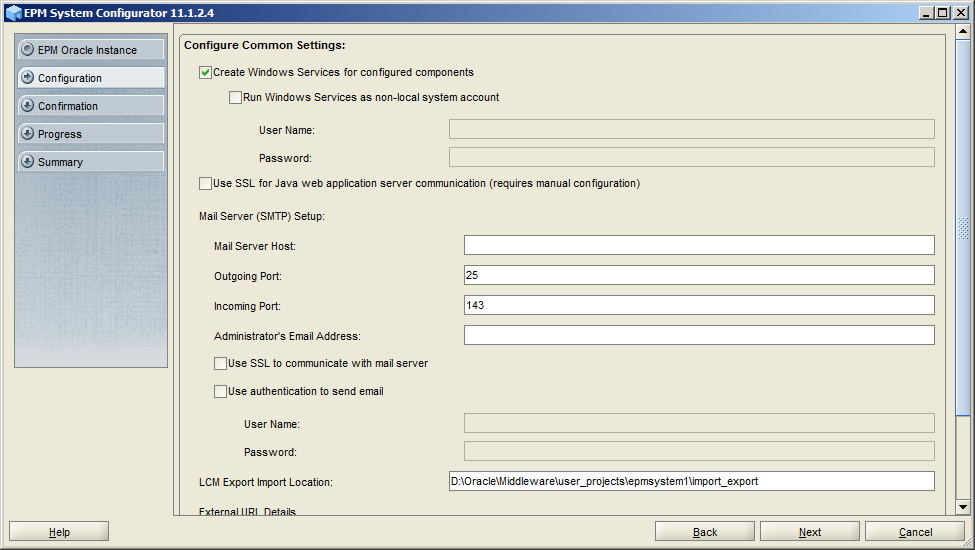
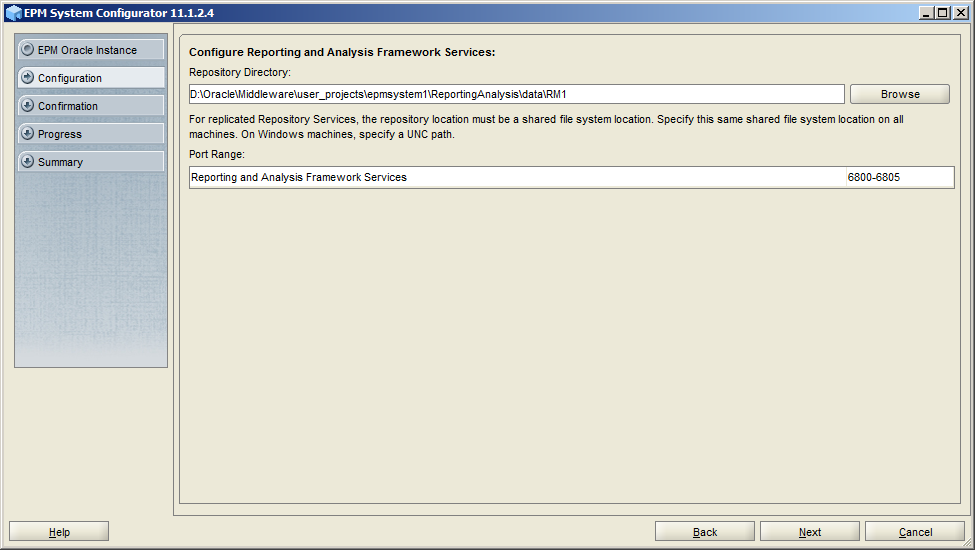
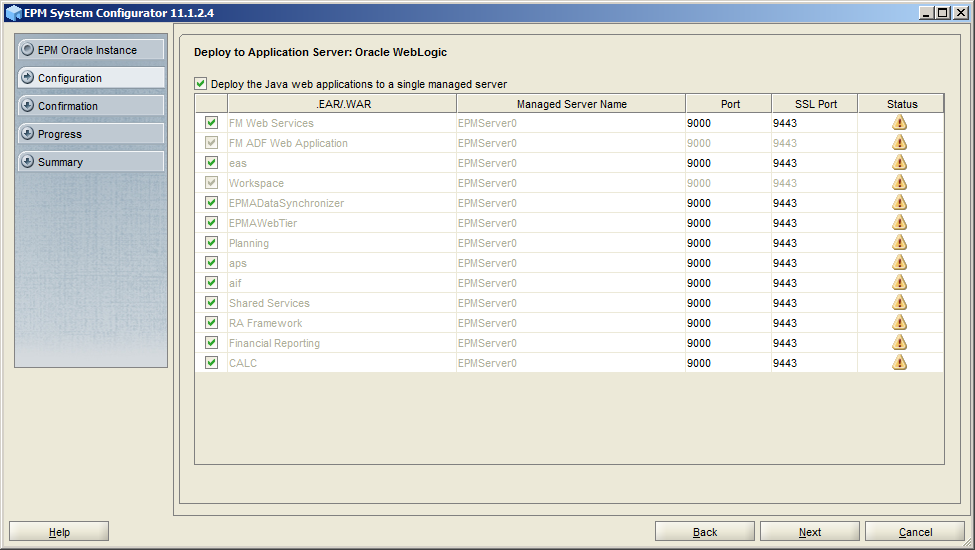
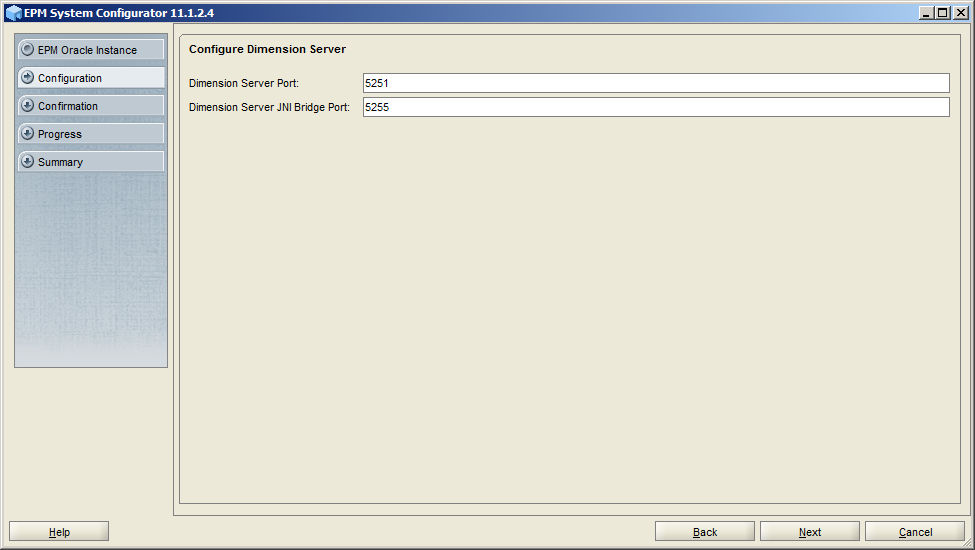
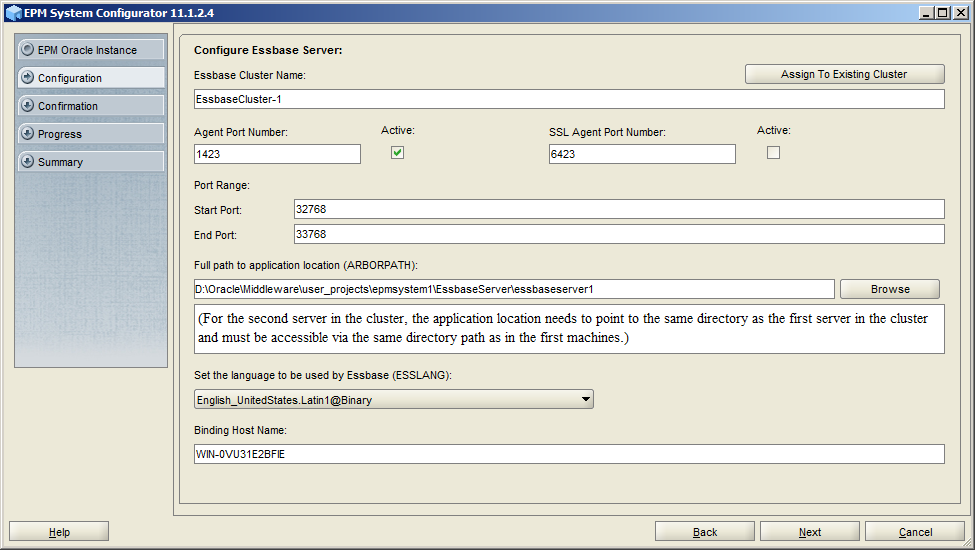
Keep the following settings and then Next


Specify DB name, username and password for different products, and then Next


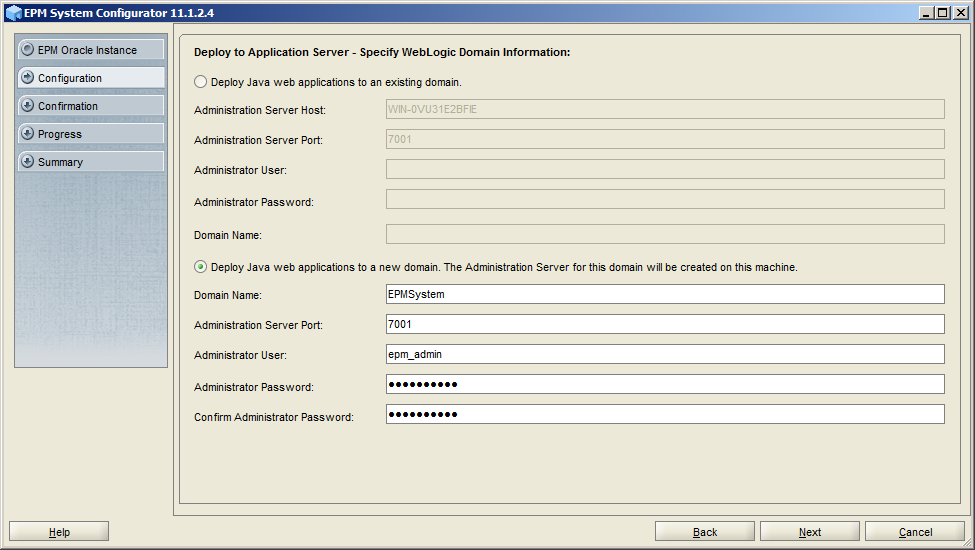
Input the password for WebLogic user


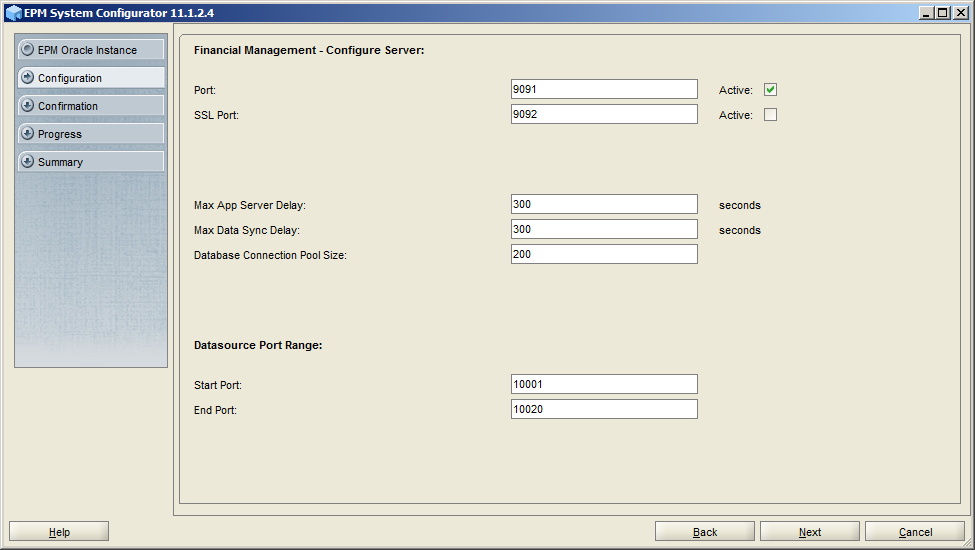
HFM configuration page, no DCOM user any more


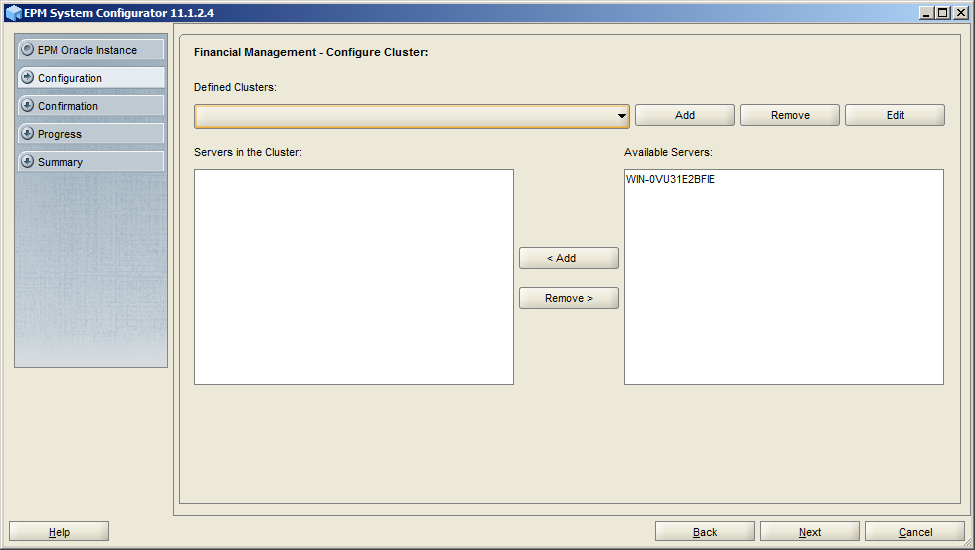
Click "Add" to add new cluster for HFM


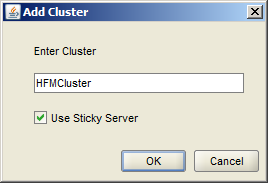
Input the HFM Cluster name and click OK


Select the available server and then click < Add to add the server to the new added cluster


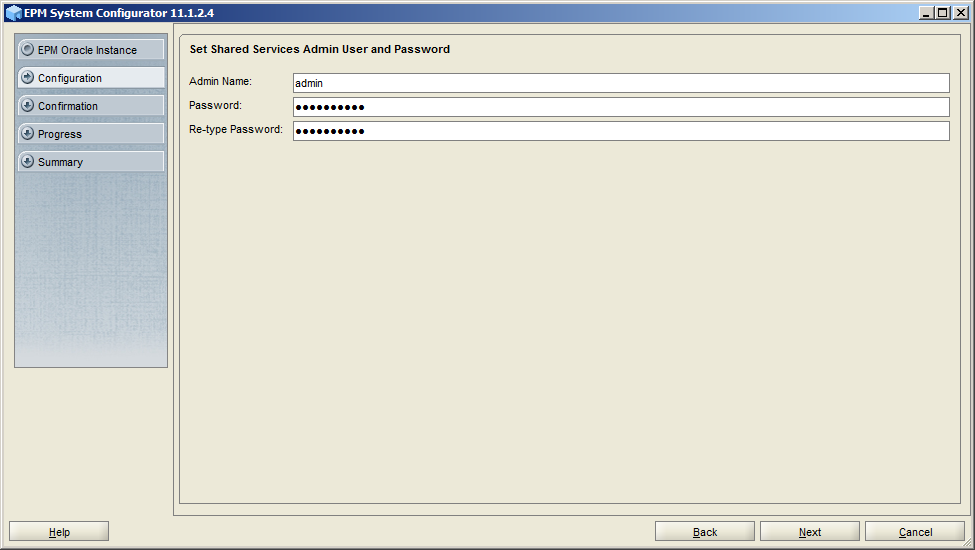
Input the admin password for the administrator of Hyperion


Confirm all the configuration and then click Next


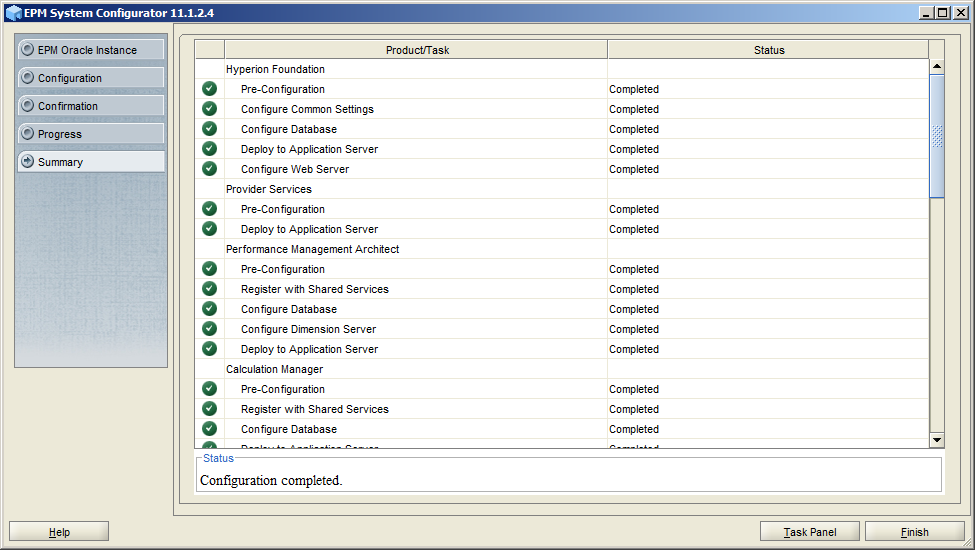
After a while, the configuration was completed


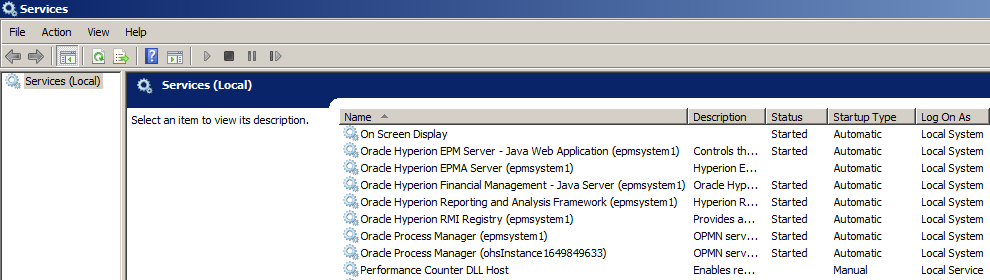
You can find the Hyperion services in the Windows Services Panel


According to the certification matrix, IE 8 is no longer supported by 11.1.2.4. Now it supports Internet Explorer 9.x, Internet Explorer 10.x, Internet Explorer 11.x and Firefox 31.x ESR.


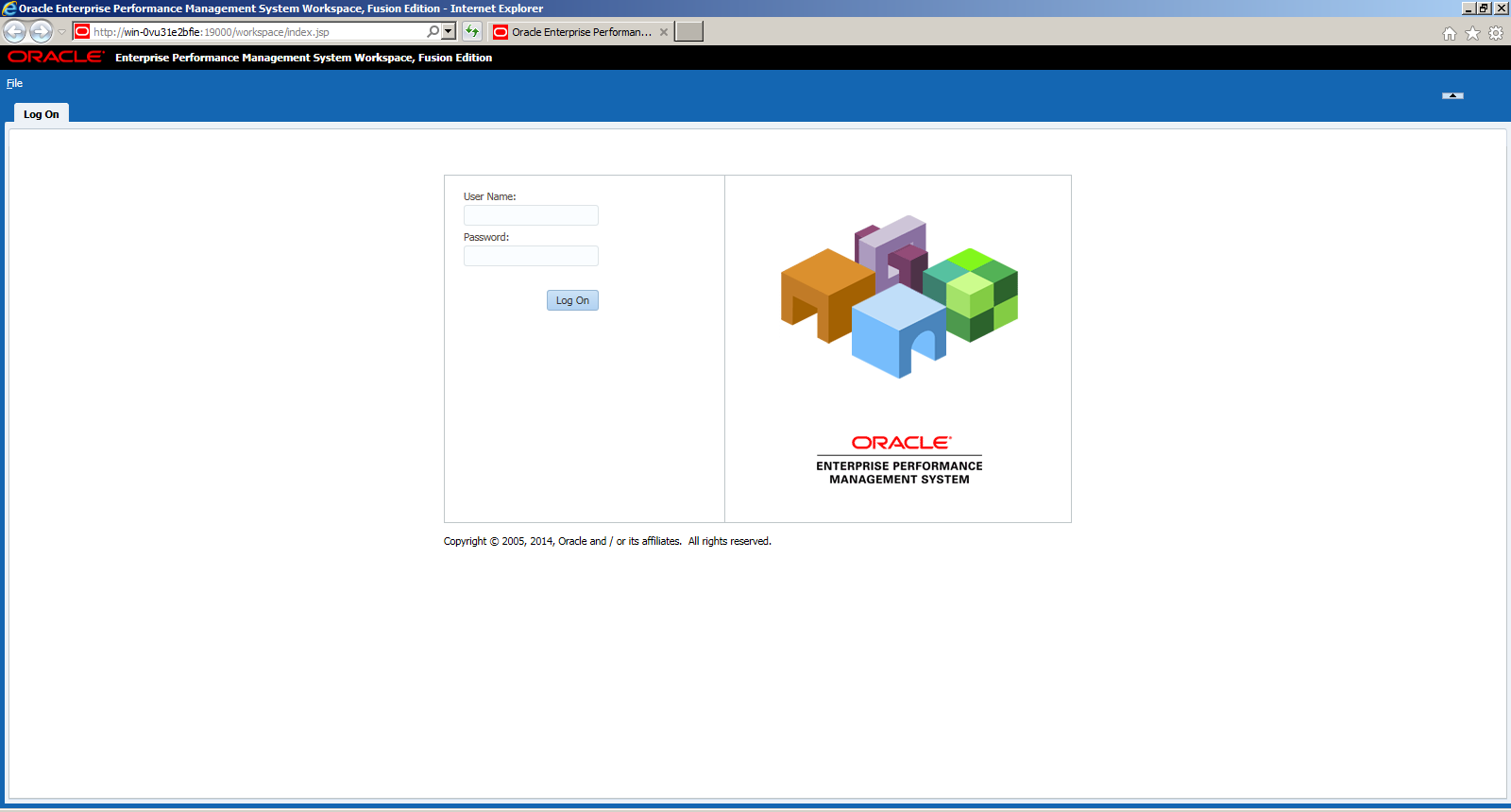
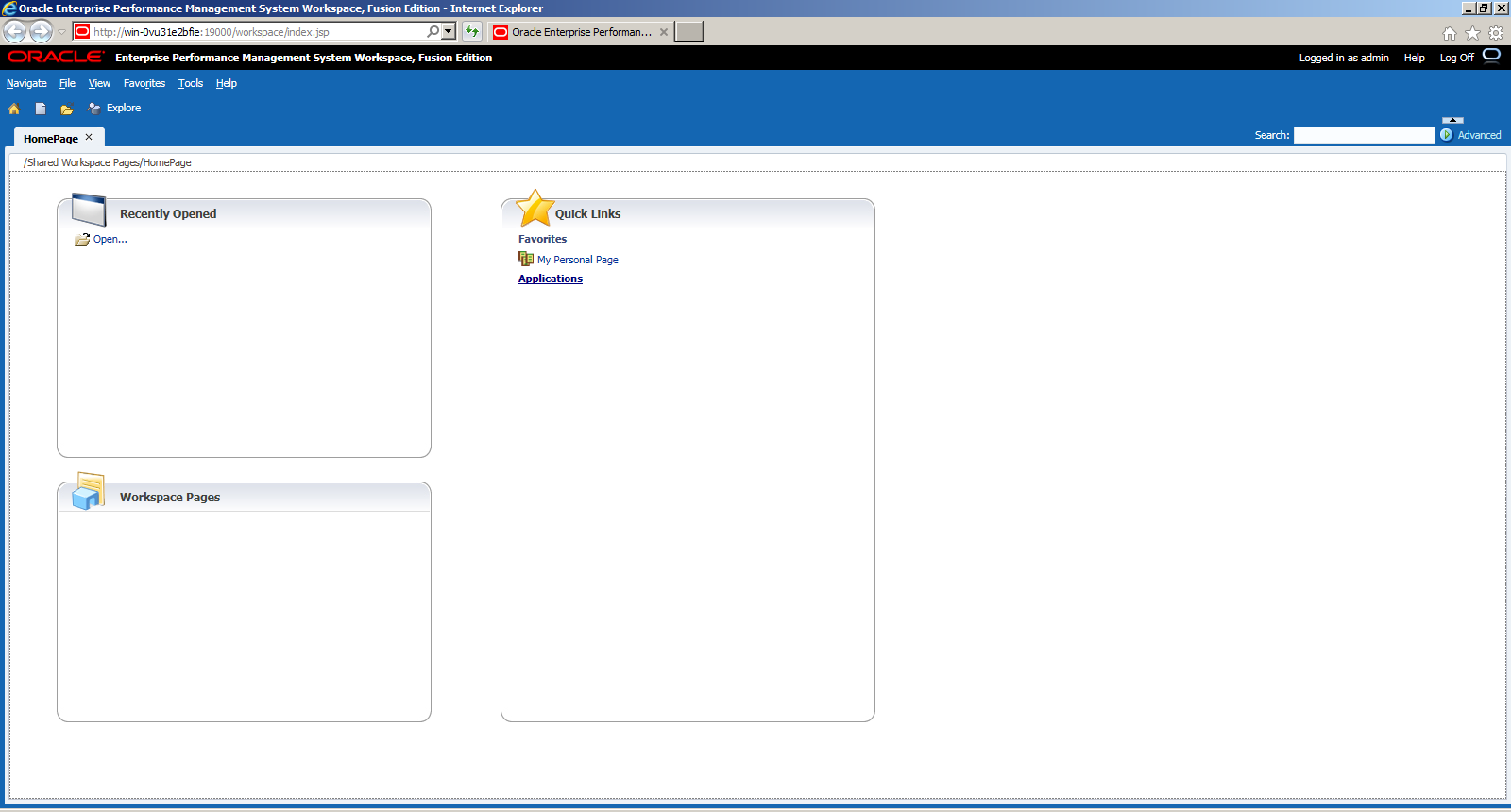
After login, you can find the home page is very similar with the previous version


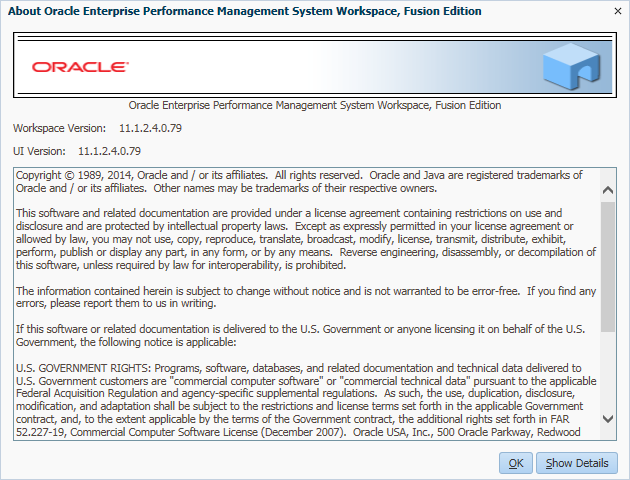
You can find the workspace version is 11.1.2.4.0.79


For more new features exploration, I will do that in the coming blogs. But Chinese New Year is coming soon, happy new year to all.

Thursday, February 12, 2015

Oracle EPM 11.1.2.4 New Feature

Oracle EPM 11.1.2.4 released this month, following are some new features in this version.


Hyperion Planning
  • Enhanced Performance in Simple Forms: new shortcut keys Tab and Shift+Tab, and new actions such as Undo (Ctrl+Z) and Wrap Text.
  • Control the Look and Feel of the Interface: Can add your company logo to the Home page, or create a watermark background by including a URL to an image file.
  • Manage the Application with the Console
    • Get a visual overview of the application.
    • View a graphic of the number of dimensions by plan type. (You can add plan types.)
    • See the total number of tasks, plans, rules, and approval hierarchies in the application.
    • Refresh the application.
    • Set a schedule for backing up the application, including setting the time zone.
  • Schedule Recurring Jobs: Schedule and manage jobs such as importing and exporting data or metadata, launching a business rule, and refreshing the database. You can start the job immediately or schedule it to run at intervals.
  • Enhanced Planning Capabilities:
    • Easily create dashboards in Planning to provide a quick, visual view of key data. Just drag forms, charts, and external links to a dashboard.
    • Analyze data in robust ad hoc grids by zooming in and out on members, and pivoting dimensions. Change which members to work with.
    • Format and save ad hoc grids as reports for viewing in Planning or in Oracle Hyperion Financial Reporting.
    • Format forms to emphasize certain data. For example, set the font size and color. Bold, italicize, or underline data. Set the background color. You can save or clear the formatting.
    • Visualize tasks by status or by type.
    • View planning unit status in a graphic.
  • Automatic Save: Administrators can set up a simple form so that planners' data is automatically saved when they move out of a cell, and values are aggregated immediately. The affected cells are displayed in green. To enable automatic save, the administrator selects the new Grid Properties option Enable Autosave. With that option selected, administrators can also select Run Form Rules on Autosave, which updates dynamically calculated cells that depend on the changed cell values.
  • Support for Dynamic Dimension Members: Users can now add children whenever they want and name them whatever they want. If a parent member is enabled for adding dynamic children, users can create a new member by entering its name in the runtime prompt.


HFM
  • New Architecture: Oracle Hyperion Financial Management is now platform-independent, and is supported on Windows and Linux (Note that HFM Linux is only supported on Exalytics). This release includes simplified deployment, support for multiple databases per instance, and streamlined integrations.
  • Profile Editor on the Web: You now create and edit application profiles on the Web.
  • Multiple Selection of Load Files: Load screens have been enhanced to enable you to select multiple files to load simultaneously. The new multi-selection option is available in Load Data, Load Documents, Load Journals, and Load Intercompany Transactions.
  • Reordering Tabs: You can reorder tabs in Financial Management applications. You can drag and drop to reorder tabs, or you can use the Reorder Tabs dialog box to change the order.
  • Configuration Settings: Configuration settings are now available through the Financial Management UI. The available settings are displayed with their default values, ranges, and validation criteria. If you are an administrator, you can also override the default setting for certain configuration settings.
  • Metadata Merge Utility: If you are upgrading to a new release from an existing release, you can use the Metadata Merge utility to merge your existing metadata files with the files in the latest version. This enables you to retain modifications that you made in your existing metadata file. The utility is located in the Utilities folder.


FDMEE
  • FDM Classic is no longer available
  • Target Application Enhancements
    • Oracle Hyperion Profitability and Cost Management (HPCM)
    • Tax Provision Application of Oracle Hyperion Financial Management
  • Target Load Options: In Data Load Rules, you can now specify target application options specific to a location. For example, you can select different data protection values for each location.
  • Data Synchronization: In this release, a robust data synchronization feature has been added to FDMEE so that you can easily move data between the EPM applications irrespective of the dimensionality of the application without having to create a data file from the EPM source application. You specify the source and target EPM application, and then map the data. Given the powerful mapping features already available, the data can be easily transformed from one application to another application. For example, synchronizing data enables you to move data from Financial Management to Oracle Essbase for reporting.
  • Write-Back: FDMEE has been enhanced to support write-back from all EPM applications (except the Accounts Reconciliation Manger) to Enterprise Resource Planning (ERP) applications. This feature offers significant advantages, such as writing back budgets created in Planning to Peoplesoft or E-Business Suite ERP GL, or moving adjustment journals from Oracle Hyperion Financial Management to ERP Systems like Oracle E-Business Suite or Peoplesoft. Other target systems still need to use a custom application framework.
  • POV Locking: New POV lock options are available in this release that enable you to lock the POV for all locations or to lock the POV for an individual location. Locking the POV prevents locations from modifying the data. When a location has been locked for a particular period or category, users cannot import, validate, export, or rerun the validation report.
  • Import Format Builder: A new Import Format Builder feature has been added in this release to Import Formats. When the source system is a file-based data load, use the Import Format Builder feature to map source fields graphically to target dimension members instead of typing the starting position and the field length. This feature is available for both fixed and delimited files.


Smart View
  • Enhanced Submit Data Functionality
    • Submit Data Without Refresh - Submit modified cells, also called dirty cells, from Oracle Essbase, Oracle Hyperion Planning Ad Hoc, and Oracle Hyperion Financial Management Ad Hoc without first refreshing.
    • Submit Data Range - Select and then submit contiguous and non-contiguous single cells and cell ranges from Essbase, Planning Ad Hoc, and Financial Management Ad Hoc. Only cell data from the selected cells is submitted. If there are dirty cells on the sheet outside the range of selected cells, their changed value is not submitted.
  • POV and Pivot Enhancements
    • Multiple members can now be pivoted from the grid to the POV toolbar.
    • Multiple members can now be pivoted from the POV toolbar to the grid.
    • A single dimension can now remain on the POV toolbar.


Generally speaking, I can't see many of big changes in this version. For more information, please find the link below. http://docs.oracle.com/cd/E57185_01/index.htm

And you can also use the web-based CFO (Cumulative Feature Overview) tool to check the details of the new and enhanced features and functionality available between EPM product releases. https://apexapps.oracle.com/pls/apex/f?p=20620:1:0

Tuesday, December 2, 2014

HFM - Value Dimension and Rules

Maybe the complex part of HFM is the value dimension and rules, after you understand these two parts of HFM elements I am sure you will get a better understand of HFM's consolidation logic. So let me introduce the value dimension first.

Value dimension is a system-defined dimension, it represents the types of value stored in your application. You can find the following image for your quick understanding if this dimension.


Actually, you will find the dimension shows in HFM system as below, depending on how many currencies you have set up for the application. (5 currencies in this example.)


Technically, <EC>, <ECA>, <ECT>, <PC>, <PCA> and <PCT> are the pointers to the currency members. For example, if the entity and its parent's local currencies are HKD, the data will be stored in "HKD" member when input data in <EA> or translate data to <PA>.

For the sub group rollup logic in Entity dimension, you can find the picture below. Sub Group's <EC> = Sum of the children Subsidiaries/Associates/Joint Ventures' [Contribution Total]

After the understanding the value dimension, we can move to the HFM rule's calculation logic. Actually, the HFM admin guide describes very clearly about the rules so I just copy some of the contents here.

You use Financial Management rules to automate the calculations of data within an application. You can use rules for these purposes:

  • Calculate data entry level amounts for a specific entity, scenario, and period.
  • Prevent data entry for a specific cell in a specific entity, scenario, and period.
  • Allow input at the Parent entity level.
  • Calculate data that cannot be calculated through a hierarchical aggregation, such as ratios or variance analysis.
  • Perform allocations from a parent entity to a list of base entities.
  • Perform complex currency conversions, calculate exchange rate differences, or perform other calculations necessary for your consolidation.
  • Define formulas to dynamically calculate accounts.
  • Specify the accounts in the application that support intercompany transactions.
HFM provides the following rule types
  • Calculation
  • Translation
  • Consolidation
  • Allocation
  • Input
  • NoInput
  • Dynamic Calculation
  • Transactions
  • Equity Pickup
  • OnDemand (From version 11.1.2.3)


During the consolidation process, rules are executed in a pre-defined sequence. For each base child of a specific parent, the calculation sequence for the various elements in the Value dimension takes place in this order:
  1. Accounts defined as IsCalculated in the metadata are cleared in EntityCurrency.
  2. Accounts defined as IsCalculated in the metadata are cleared in EntityCurrAdjs.
  3. The Sub Calculate() routine is executed on EntityCurrency.
  4. The Sub Calculate() routine is executed on EntityCurrAdjs.
  5. The ParentCurrency data is cleared.
  6. Default translation is applied to all accounts defined as Revenue, Expense, Asset, Liability for the total amount of EntityCurrency and EntityCurrAdjs. For accounts with the Flow or Balance attribute, translation is not applied by default, the total amount of EntityCurrency and EntityCurrAdjs is rolled up into Parent Currency.
  7. The Sub Translate() routine is executed.
  8. The Sub Calculate() routine is executed on ParentCurrency.
  9. Accounts defined as “IsCalculated” in the metadata are cleared in ParentCurrAdjs.
  10. The Sub Calculate() routine is executed on ParentCurrAdjs.
  11. Accounts defined as “IsCalculated” in the metadata are cleared in ParentAdjs
  12. The Sub Calculate() routine is executed on ParentAdjs.
  13. Proportion and Elimination data are cleared.
  14. Default consolidation and eliminations are performed for the total amount of Parent and ParentAdjs.
  15. The Sub Calculate() routine is executed on Proportion and Elimination.
  16. Accounts defined as “IsCalculated” in the metadata are cleared in ContributionAdjs.
  17. The Sub Calculate() routine is executed on ContributionAdjs.
After the previous steps have been repeated for each base child, this sequence takes place for the parent entity:
  1. The EntityCurrency data is cleared.
  2. The sum of the total of Proportion, Elimination, and ContributionAdjs for every child is written into EntityCurrency of the parent entity.
  3. The Sub Calculate() routine is executed on EntityCurrency.
  4. Accounts defined as “IsCalculated” in the metadata are cleared in EntityCurrAdjs.
  5. The Sub Calculate() routine is executed on EntityCurrAdjs.
Note: If a parent is further consolidated into another parent, this sequence continues with step 5 from the child consolidation sequence.

Monday, December 1, 2014

Hyperion Planning - Why Form Cells are Read-only?

Sometimes we need to diagnose for our clients why some cells in forms are read-only and cannot input data. I would like to list all the possible reasons as much as I can. If you know there are other possible reasons please reply me in the blog, thanks.
  1. The login user is a viewer role - Provison setting in Shared Services
  2. The login user is not the current owner of the cell's planning unit - Check the current owner of the planning unit in Planning Manage Approvals
  3. One member of the cell is Dynamic Calc/Label Only - Member setting in Planning Dimension
  4. One member of the cell is not a leaf member - Member hierarchy in Planning Dimension
  5. The periods are out of the Scenario's valid input range (From Start Year/Period to End Year/Period) - Scenario member setting in Planning Dimension
  6. One of the members is Read-only - Member security setting in Planning Dimension
  7. Forgot to refresh the new added member to Essbase - Check the member synchronization of Planning and Essbase/Refresh Database
  8. Segment (One of the rows or columns) of the form is set to Read-only - Segment setting in Planning Form Design
  9. The form is set to Read-only - Form setting in Planning Form Design
  10. The segment is a formula row/column - Form setting in Planning Form Design
  11. The cell contains Supporting Detail - Cell input in Planning Form