Tuesday, November 11, 2014

Hyperion Planning - How to create Block

Block creation is always an issue for Planning or Essbase projects, you need to consider whether the block is existing in the business rules or calculation scripts. That's because the setting of the following option is set to off by default.


There are several ways to create blocks,
  1. Input data directly in web forms or Excel Smart View
  2. Data Load from ETL tools or EAS rules file
  3. Rollup in sparse dimension - CALC DIM, AGG, @IDESCNEDANTS...
  4. SET CREATENONMISSINGBLK ON;
  5. DATACOPY - The performance is much better than CREATENONMISSINGBLK command
  6. @CREATEBLOCK - this function is available from version 11.1.2.3
Here is an example for the function @CREATEBLOCK. Note that at the left hand side of the equal sign, it should be a sparse dimension member.

FIX (@Relative("AllChannel", 0))
 FIX (@Relative("AllProduct", 0))
  FIX ({Entity})
   FIX ({Years})
    FIX ({Scenario})
     "HSP_InputValue" = @CREATEBLOCK ({Version});
    ENDFIX
   ENDFIX
  ENDFIX
 ENDFIX
ENDFIX

Hyperion Planning - How to maintain Metadata

There are several different ways to maintain the metadata in Hyperion Planning

  1. HAL (Hyperion Application Link) - You can use it to maintain metadata in version 9 or lower
  2. DIM (Data Integration Management) - Informatica provides the Hyperion Planning adapter
  3. ODI (Oracle Data Integrator) - Will gradually replace DIM in the latest versions
  4. EPMA (Enterprise Performance Management Architect) - Maintain the EPMA master library and then deploy to Hyperion Planning
  5. Outline Load Utility (Command Line) - Load metadata with Planning utility after version 11
  6. Outline Load Utility (Planning UI) - Allows metadata to be imported or exported from the web interface after version 11.1.2.3
  7. Access to Planning Metadata in Smart View - Allows metadata to be maintained in Smart View after Planning Admin Extension installed in version 11.1.2.3

When you use Outline Load Utility command line to load the metadata (Method 5), you will find the parameters are so many and the operating is not very convenient. For example,

C:\EPM_ORACLE_INSTANCE\Planning\planning1>OutlineLoad /A:test /U:admin /M /N /I:c:\outline1_ent.csv /D:Entity /L:c:/outlineLoad.log /X:c:/outlineLoad.exc

Thus, I usually create another "my own" outline load utility in the planning implementation projects with windows shell scripts, or the linux one.

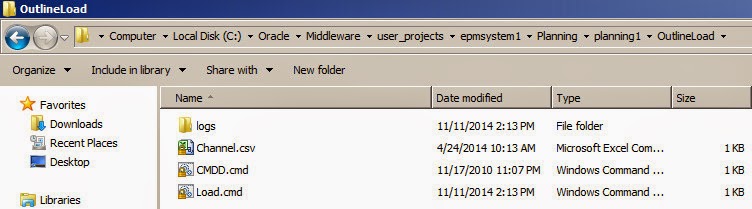
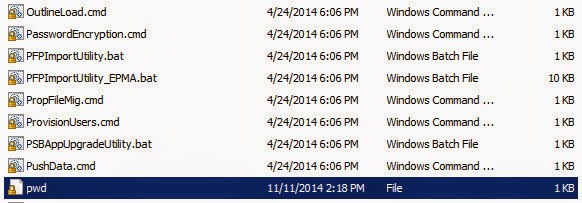
First, remote to the Planning application server and then locate to the Outline Load Utility folder. (Or some other path that you want to store the new utility file) Create a folder called "OutlineLoad". We will use "OutlineLoad.cmd" and "PasswordEncryption.cmd" in the later.

Create a folder called "logs" under the folder "OutlineLoad" and create two command files called "CMDD.cmd" and "Load.cmd".


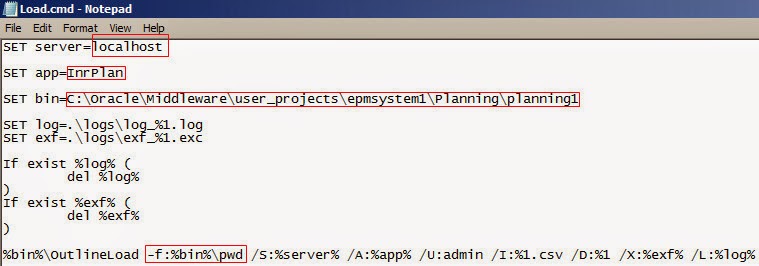
Edit the "Load.cmd" in Notepad, update the server, application name, "OutlineLoad.cmd" utility path. If you want to skip the password prompt, you need to use [-f:passwordFile] option as the first parameter in the command line. Next step will introduce how to generate the encrypt password file.


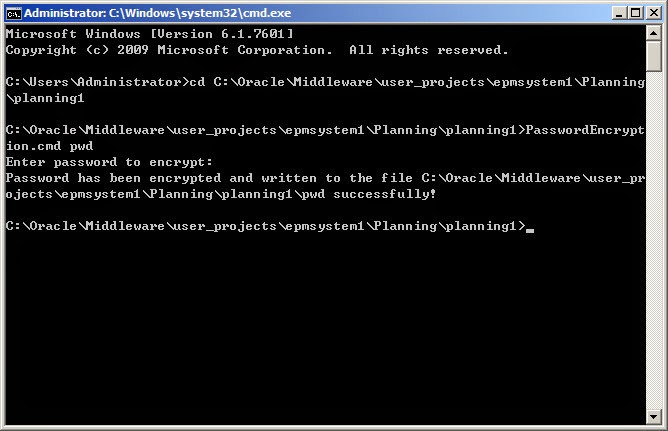
Open a command line window, locate to the PasswordEncrypt.cmd utility path. Input the command "PasswordEncryption.cmd passwordFile" as below.


Then you can find the encrypt password file was generated successfully.


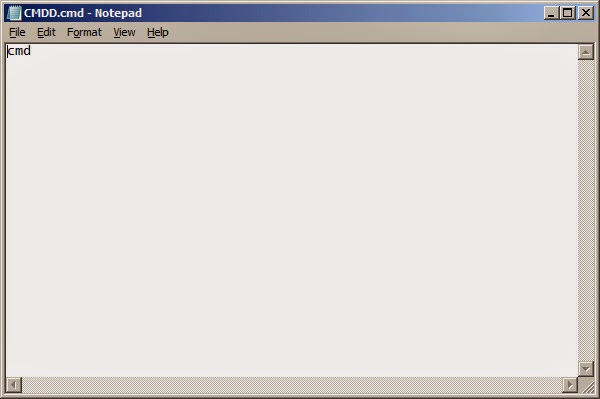
Edit the "CMDD.cmd" file in the OutlineLoad folder as below, it can help you to locate to the "Load.cmd" command folder easily.


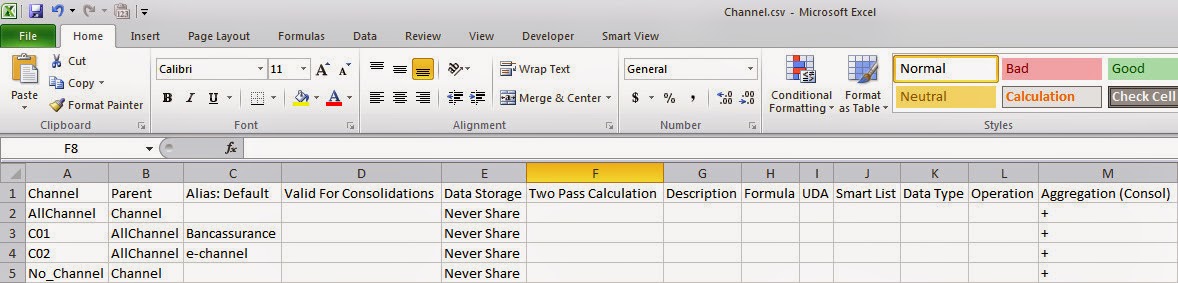
And then prepare the csv file for the dimension that you want to load, remember the file name should be the same as the dimension name with "csv" as the extension.


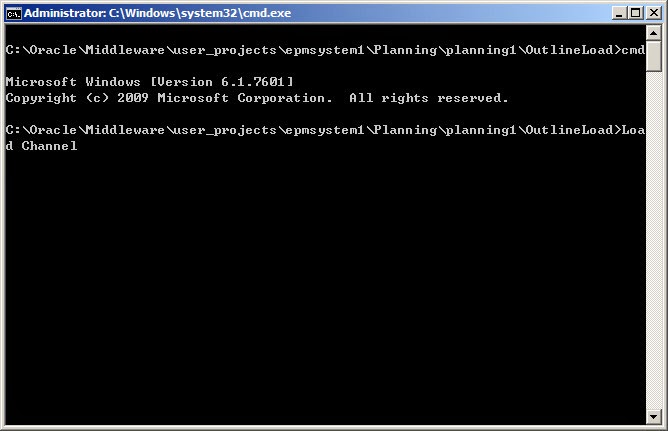
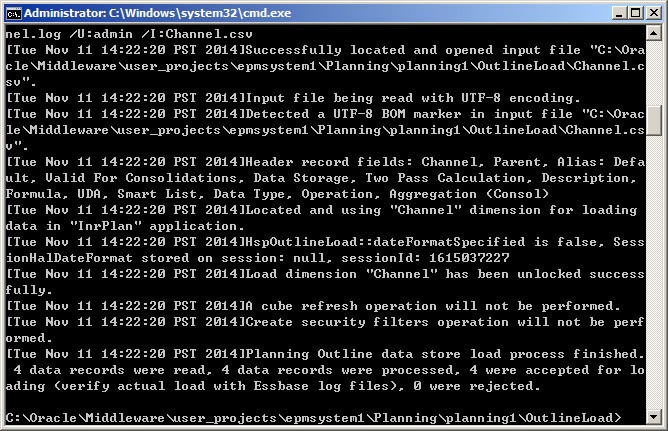
Double click the "CMDD.cmd" command to open a command line window, the path can be located to the custom "OutlineLoad" folder automatically. Then run the command "Load [Dimension Name]". This command will update the application specified in the "Load.cmd" file, the to be updated dimension is a parameter which we send to the "Load.cmd" command (Channel in this example) and the loaded file's name is the same as the parameter with csv as its extension.


The metadata is loaded successfully.


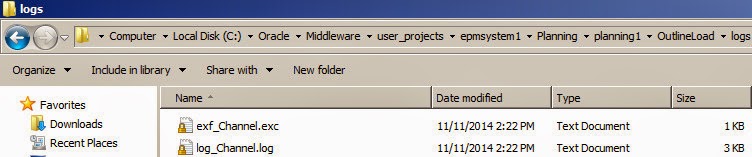
You can find the log and exception files in the "logs" folder.


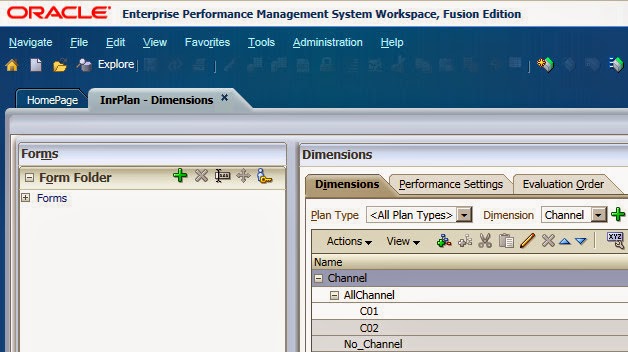
Open Planning Application and you can find the metadata is updated successfully.


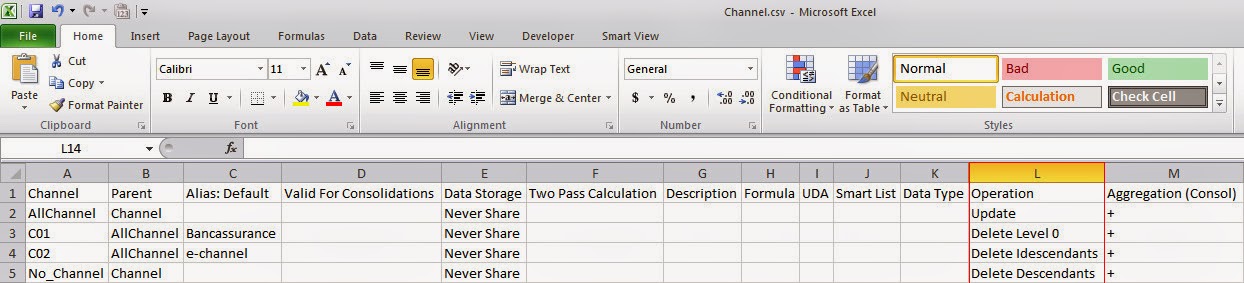
If you want to delete members with the "Load.cmd" file, just update the "Operation" column in the csv file. Examples are as below.


The Operation port takes any of the following values, the default value of this column is "Update".

  • Update – Adds, updates, or moves the member being loaded 
  • Delete Level 0 – Deletes the member being loaded if it has no children 
  • Delete Idescendants – Deletes the member being loaded and all of its descendants 
  • Delete Descendants – Deletes the descendants of the member being loaded, but does not delete the member itself 
You can use the same method to custom your "Export.cmd" file, also will rapidly improve your efficiency in the update of the Metadata. But of course from version 11.1.2.3, you can do that from Planning web UI directly, which you don't need to remote to the Planning server and do the jobs above!


Tuesday, July 1, 2014

FDMEE 11.1.2.3 (1) - Sample Application

After the PSU 11.1.2.3.500 is patched, we can create a sample planning application called "Vision". This sample application contains Hyperion Planning Application, Shared Services provisioning, Financial Reports, Calculation Manager and FDMEE.

FDM Classic last release is the 11.1.2.3.0 codeline. Beginning with the 11.1.2.4 version, FDM Classic will no longer be available, users will be required to move to FDM Enterprise Edition (FDMEE) in the 11.1.2.4 codeline. Today I want to introduce FDMEE for the sample application.

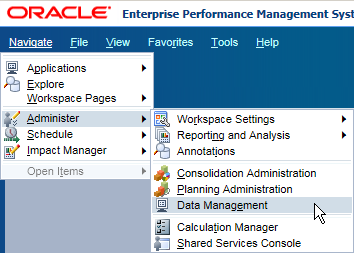
In Workspace, Navigate > Administer > Data Management. FDMEE starts from here, which called ERP integrator before.

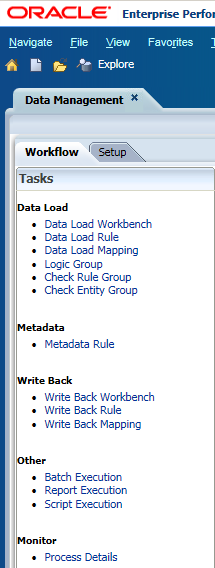
There are two components in FDMEE, Workflow and Setup.

In the Setup Tab, click "System Settings" in Configure > Input Value for "Application Root Folder" > Click "Save" > Click "Create Application Folders"
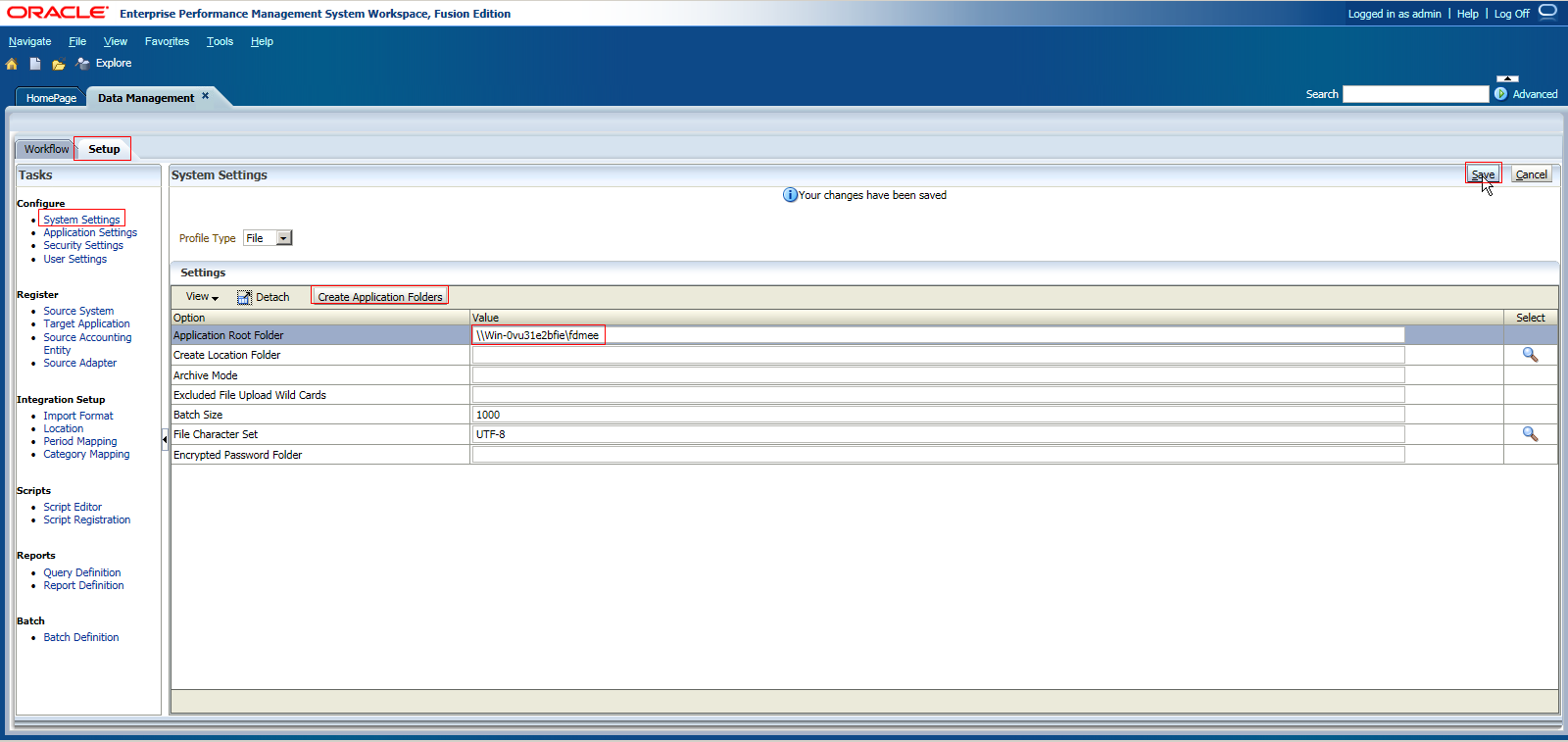

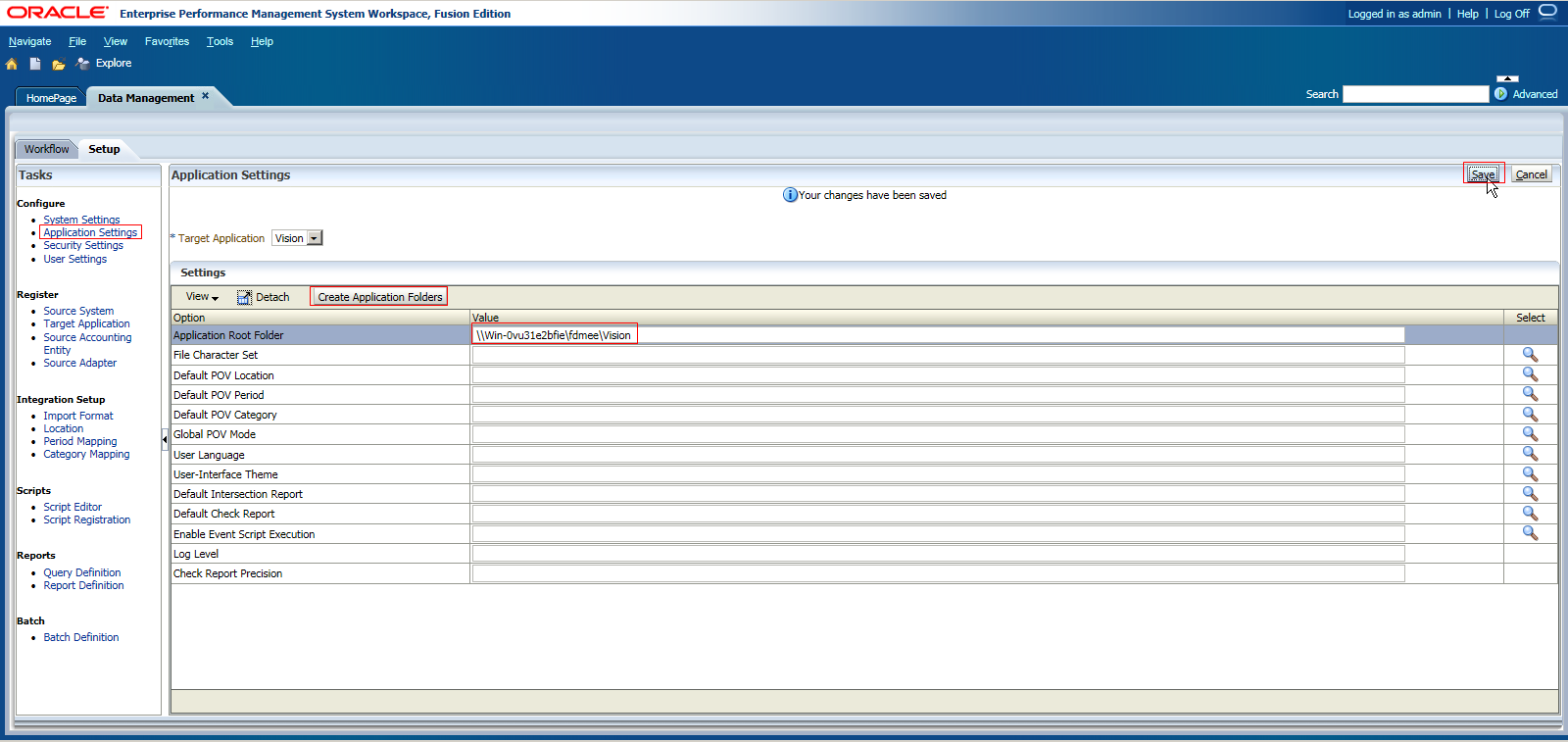
Click "Application Settings" > Input Value for "Application Root Folder" > Click "Save" > Click "Create Application Folders"

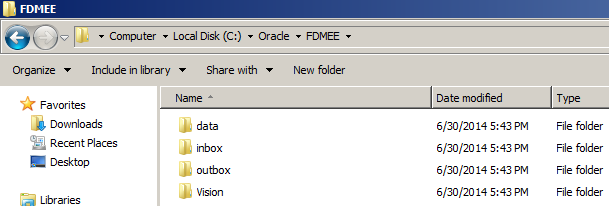
You can find the FDMEE related file folders are created in the specified path in the server.

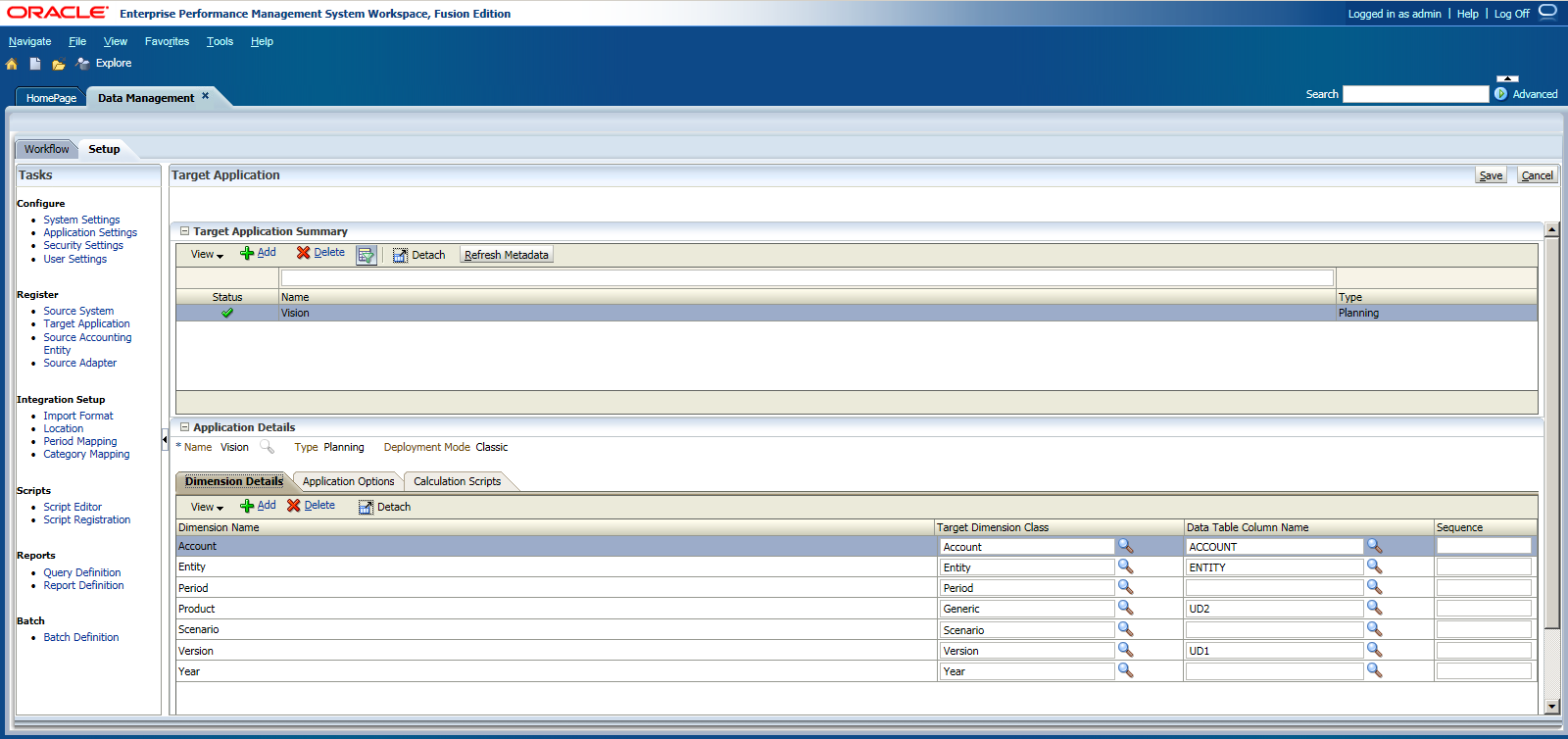
In the "Target Application" of Register, you can find the Dimension Details here.

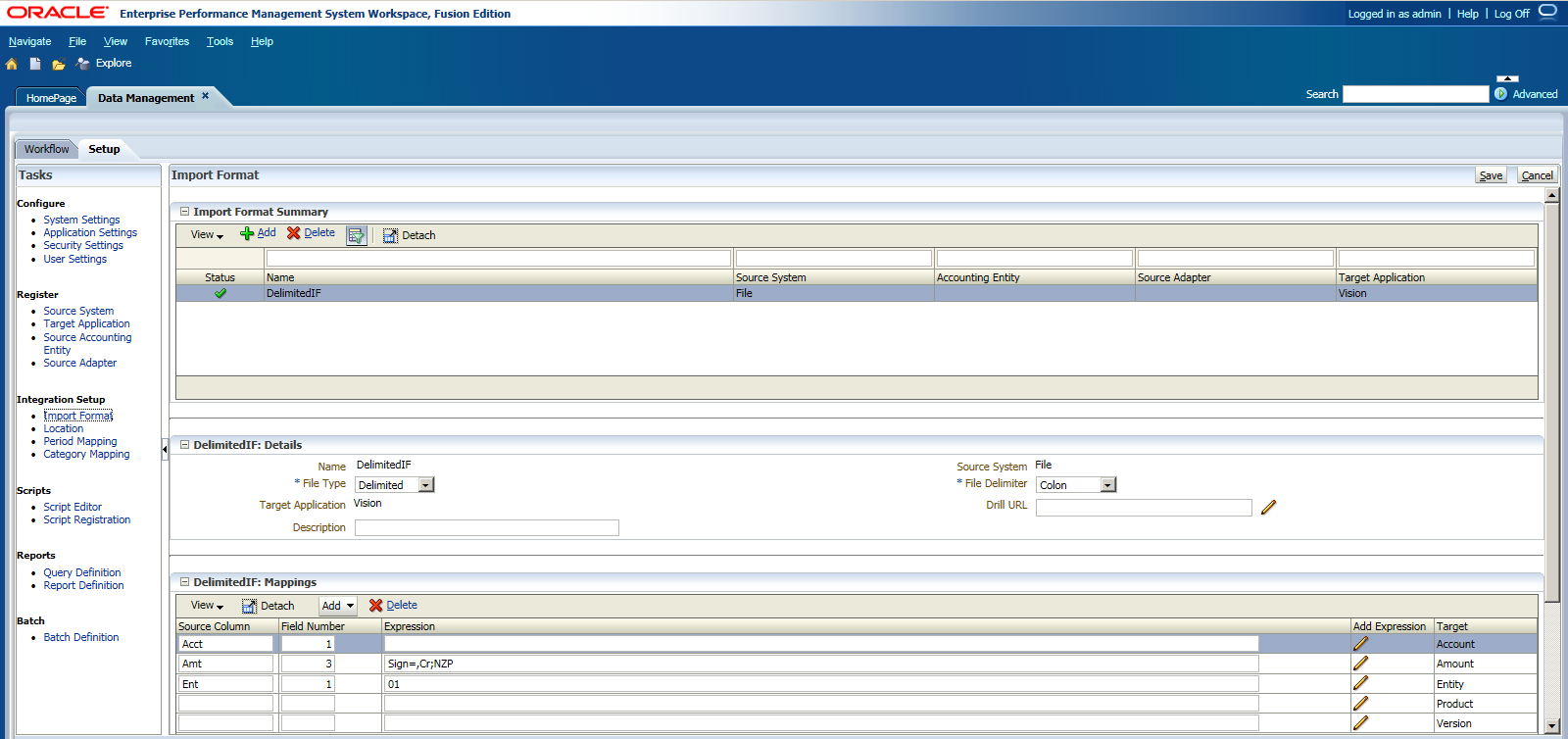
In the "Import Format" of Integration Setup, you can find the predefined Import Format settings. The Source System is File, file delimiter is Colon.

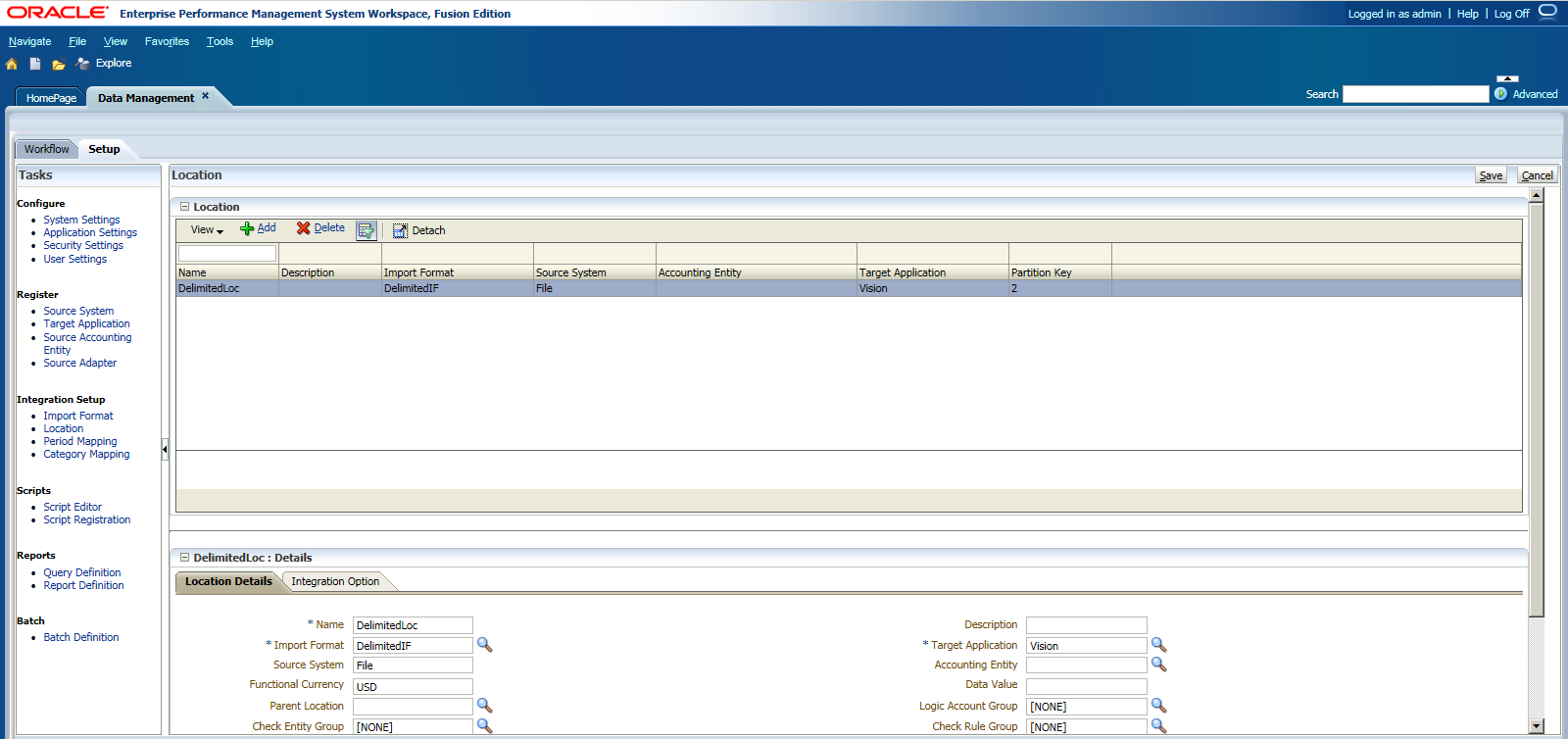
In the "Location" setting, you can find the Location Details.

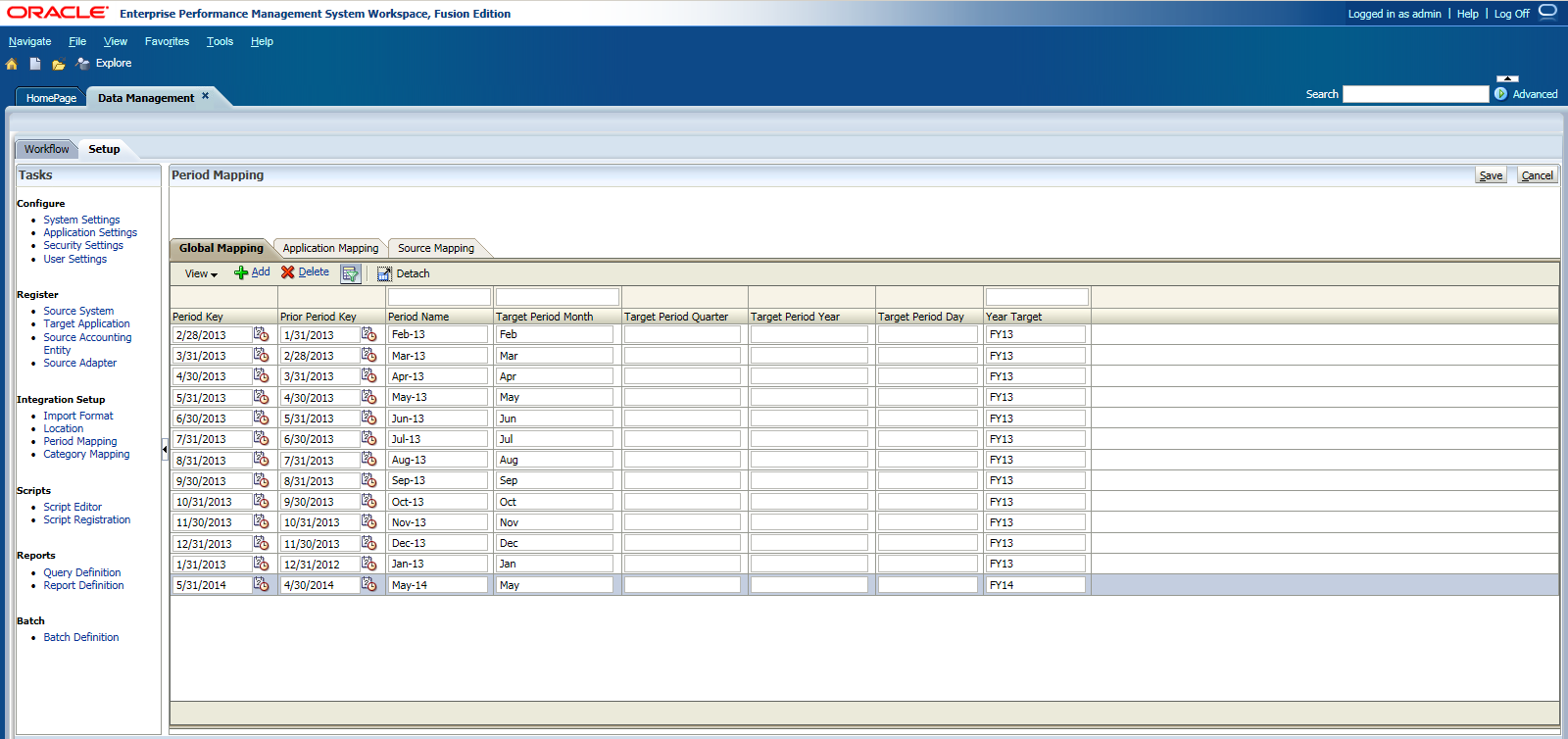
Period Mapping is as below.

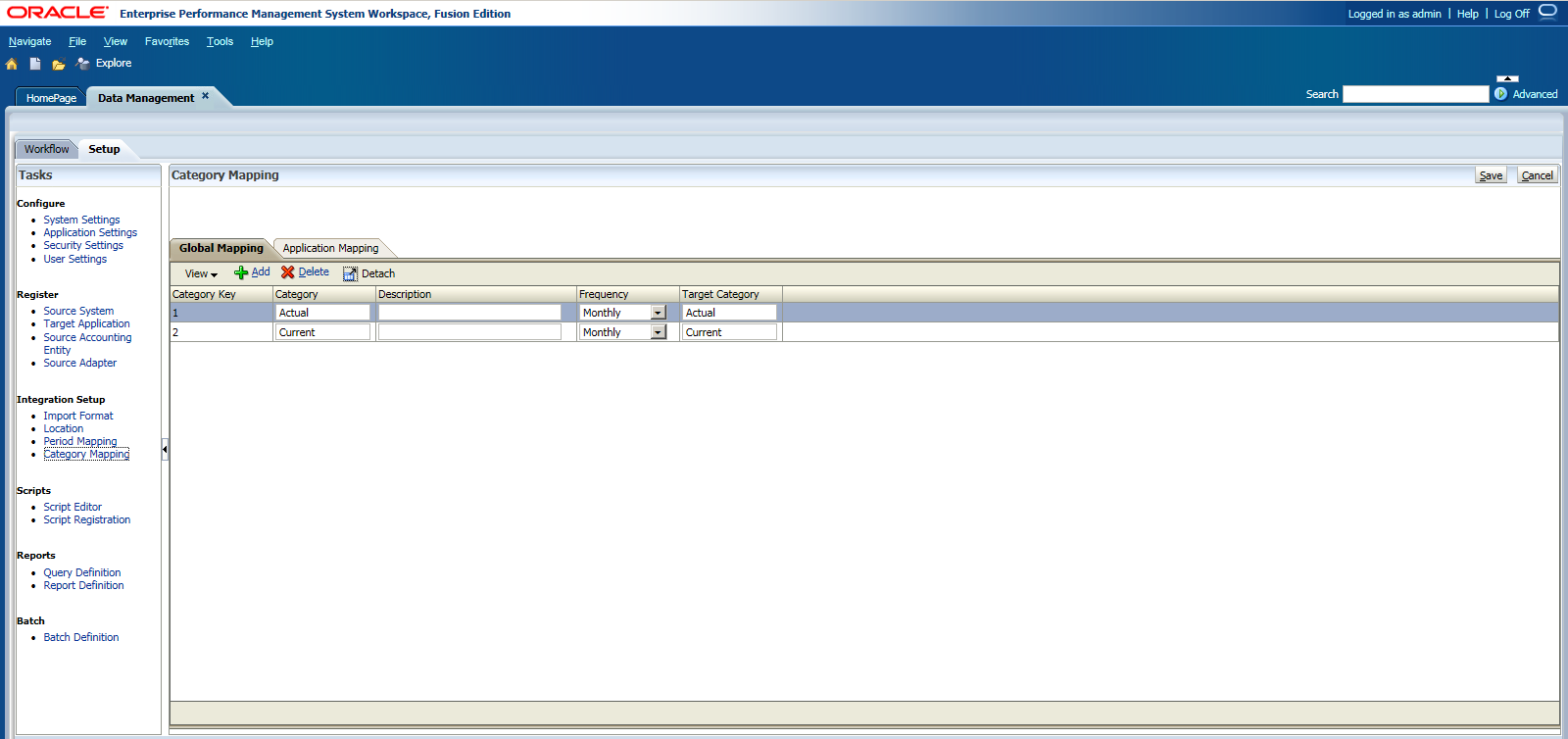
Category Mapping as below.

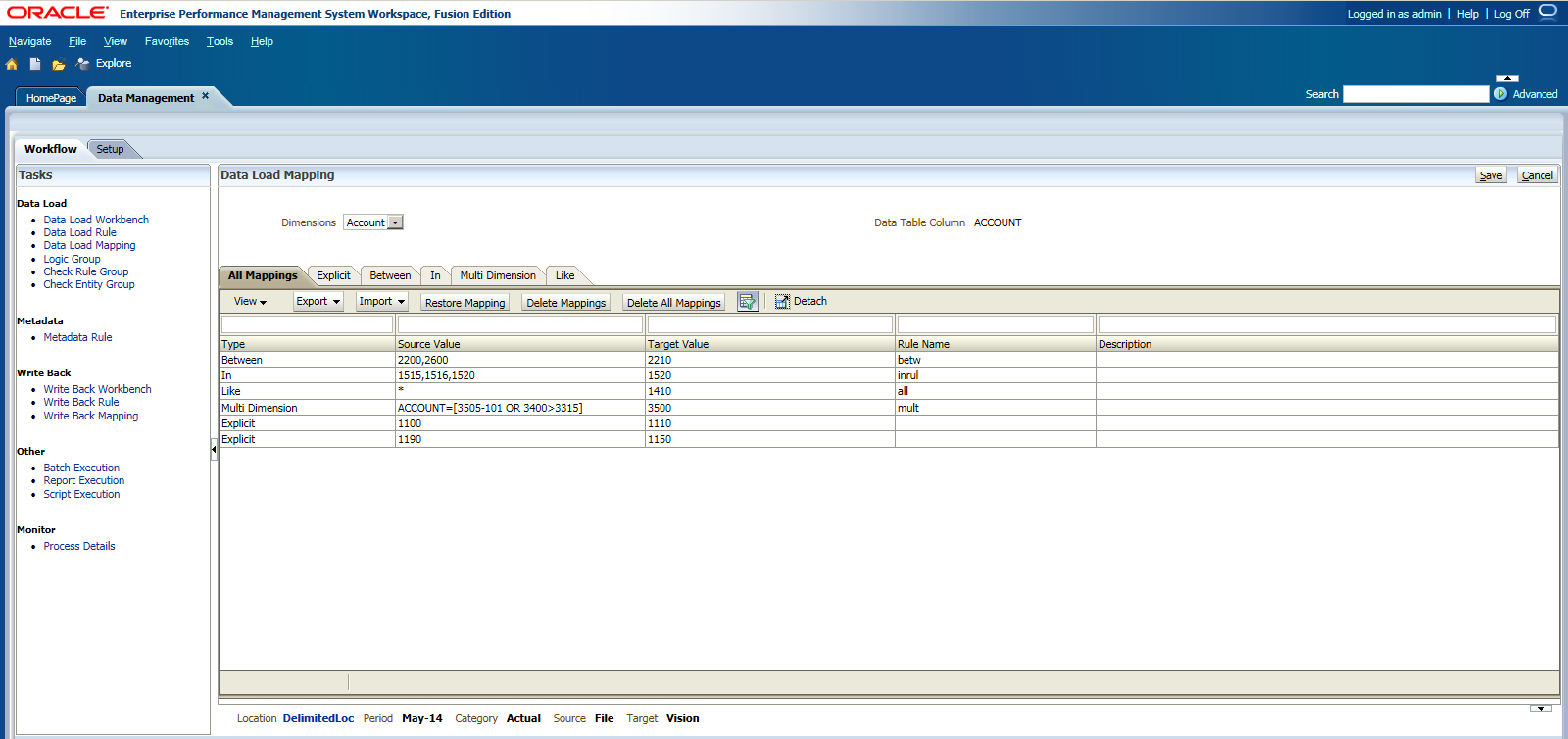
Now go back to the Workflow Tab, click "Data Load Mapping" in Data Load and you can find all the dimensions mappings here.

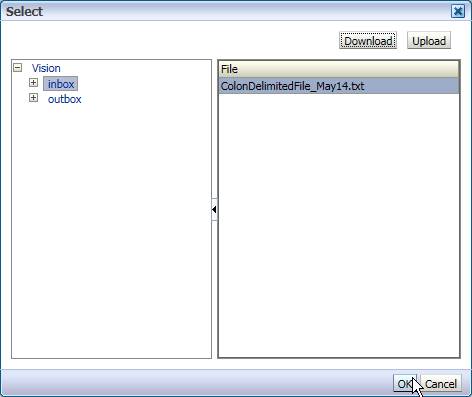
And then we will start to load the data, click "Data Load Rule" > Click "Select" to select the source file.
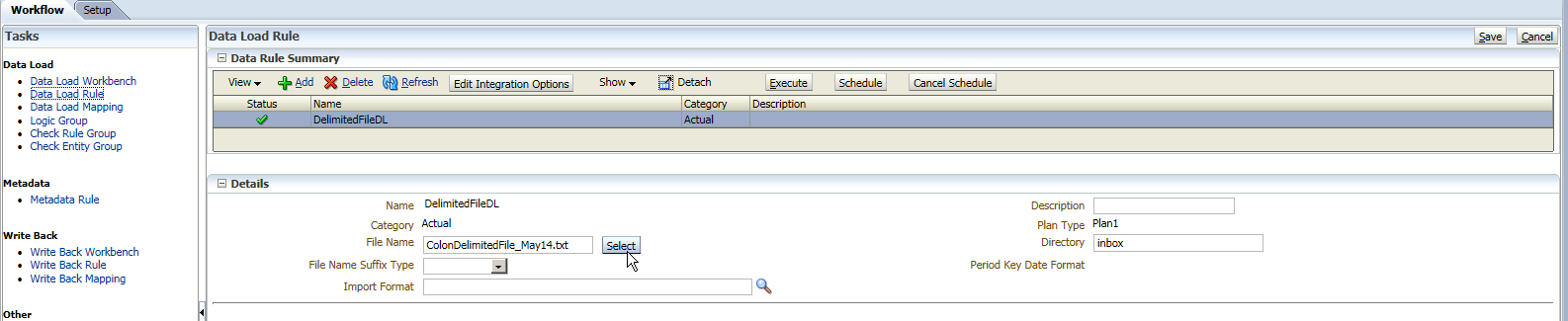

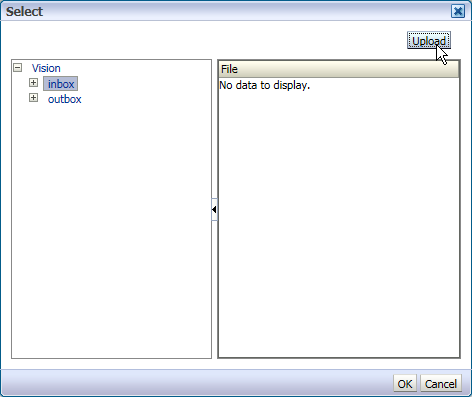
You can find there is no data file in the Inbox folder, click "Upload" to upload your local data file.

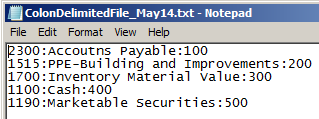
Based on the mapping settings, I prepared a simple data file for demo purpose.

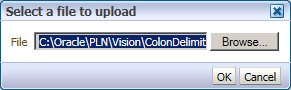
Select the file to upload, click OK

You can find the file was uploaded to the Inbox Folder, click OK to continue.

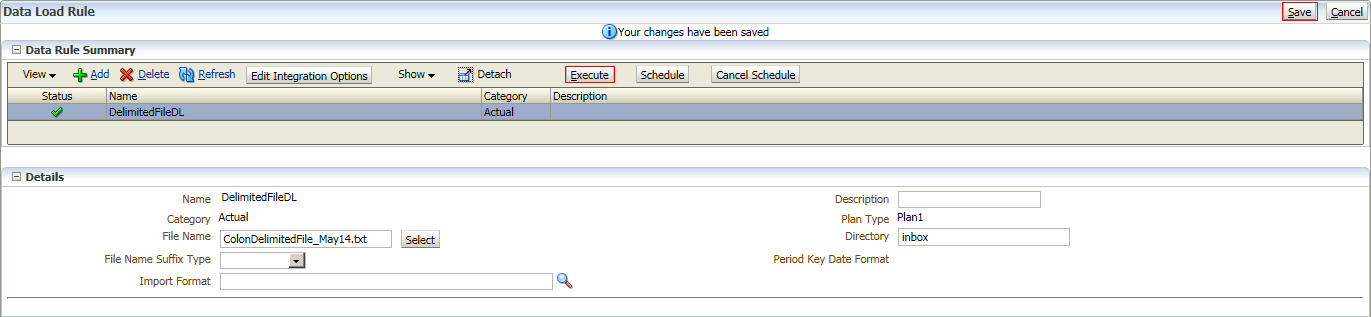
Click Save to save the setting > Click Execute to launch the data loading

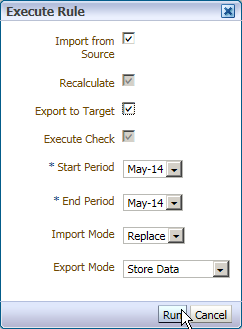
Check "Import from Source" and "Export to Target", and then click "Run"

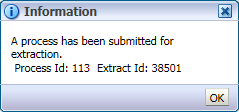
An information come out, click OK.

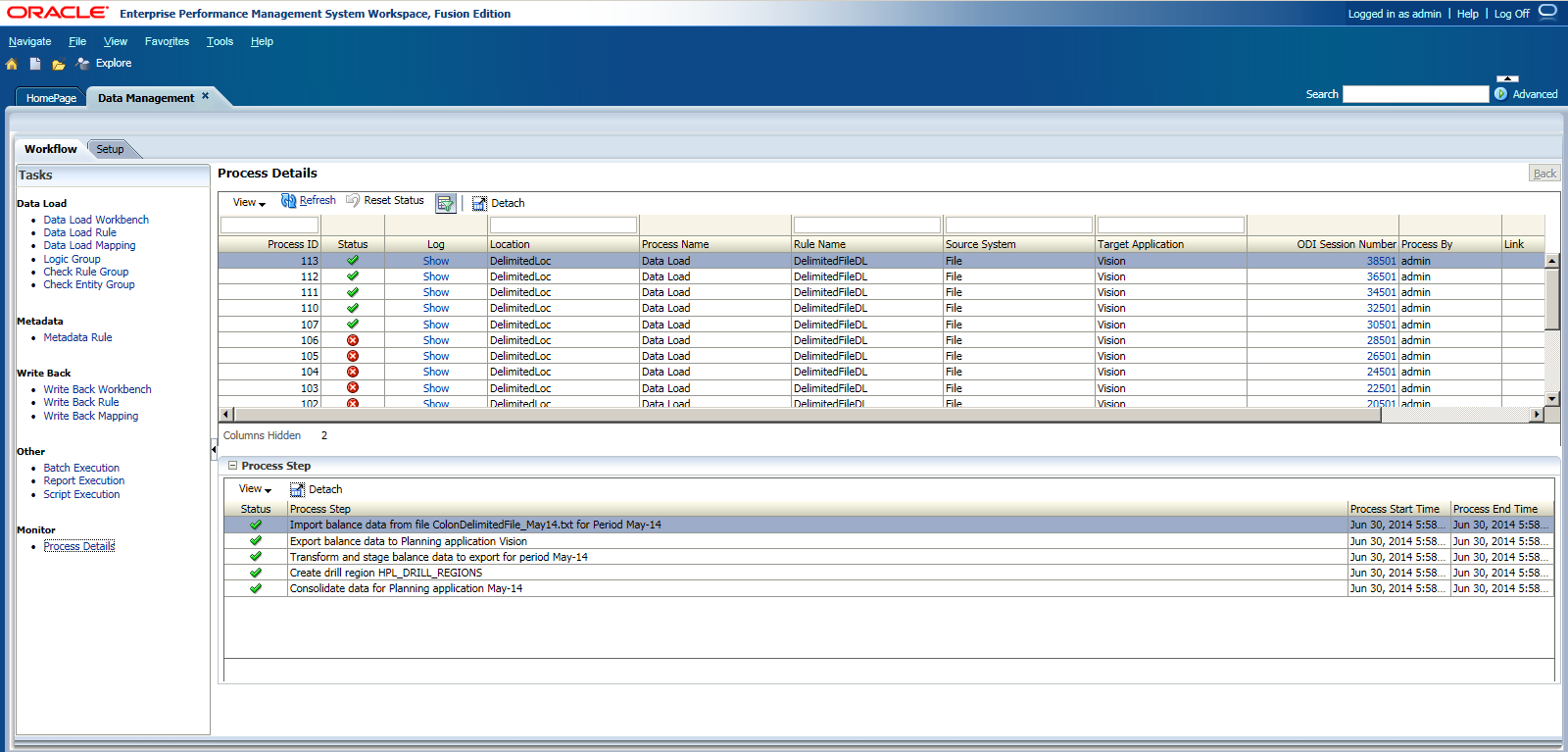
Click "Process Details" in Monitor, you can find the status for Process ID 113.

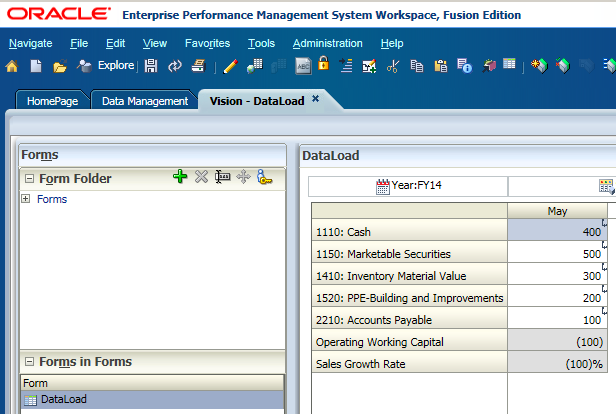
Then we can go to Planning Application "Vision" to check the Data Load details. You can find the data was loaded to the Planning Application successfully. And there is a small icon in each of the data load cells, which is an indicator showing the data is loaded from FDMEE and it can be drilled back.

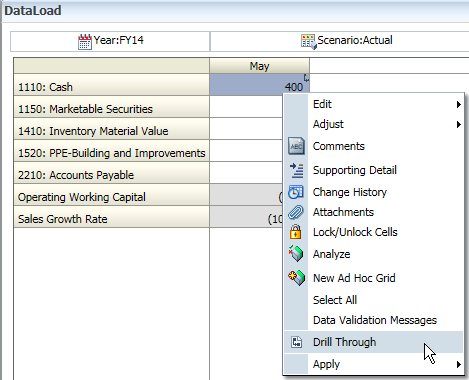
Right click of the data cell > Click "Drill Through"

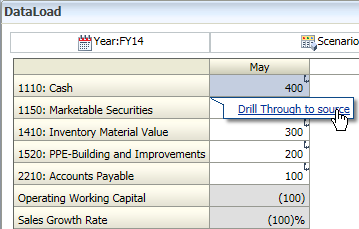
Click the link "Drill Through to source"

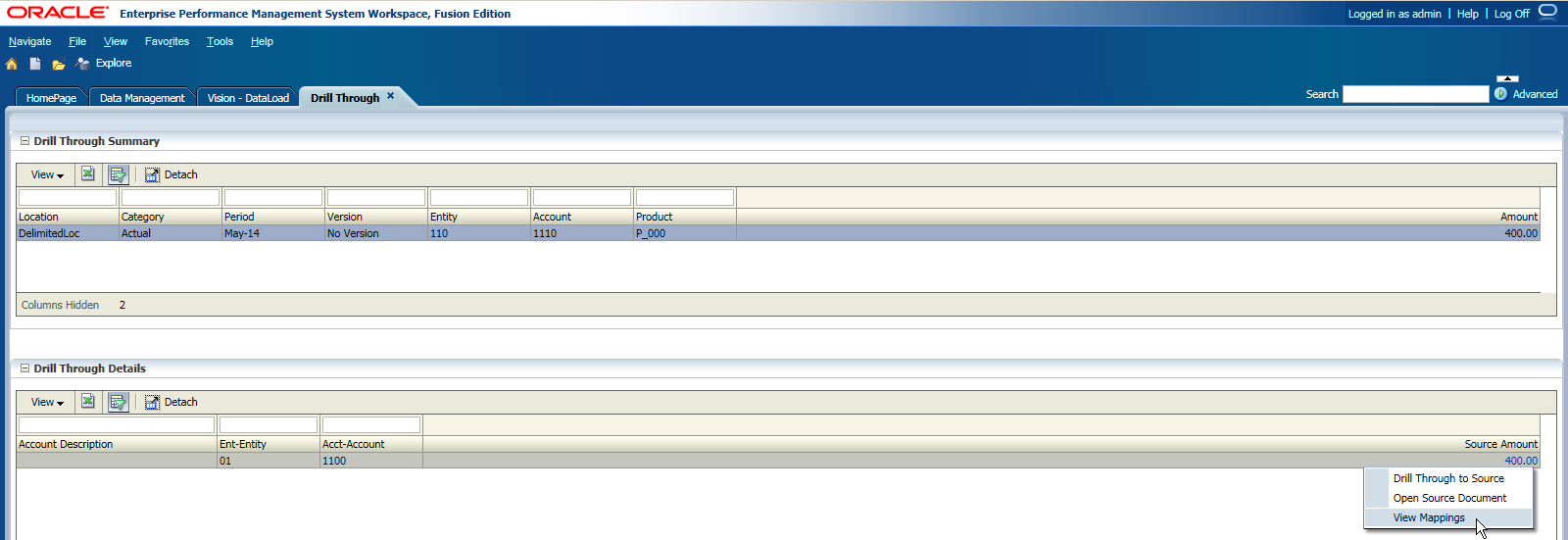
 Then there is a new tab called "Drill Through" opened, showing the drill through details. Click on the Source Amount, you can
  • Drill Through to Source: If your source system is ERP, you can drill through to your source ERP system
  • Open Source Document: If your source system is a file, you can open the source file
  • View Mappings: view the mappings


Click "View Mappings", you can find the dimension mappings.



Monday, April 28, 2014

Planning 11.1.2.3 (6) - Mobile Utilization

From version 11.1.2.3 (With PSU 11.1.2.3.500 patched), users can use mobile device in the following areas.
EPM Mobile App:
  • iOS7, phone and tablet
  • Android 4.1, 4.2, 4.3 phone and tablet
Hyperion Planning:
  • iOS7, tablet only, Safari and Chrome browsers
  • Android 4.1, 4.2, 4.3, tablet only, Chrome browser
  • Windows 8 Standard, Pro and Enterprise Editions, tablet, Chrome and Internet Explorer 10 browsers
Financial Reporting:
  • iOS7, phone and tablet, Safari browser
  • Android 4.1, 4.2, 4.3, phone and tablet, Firefox 26+ browser

Users can view, launch, and interact with Oracle Hyperion Financial Reporting reports from mobile devices. To access Financial Reporting from a mobile device, you just need to open a new browser page and enter the following URLs:
http://server:19000/hr/mobile/HRMobileLogon.jsp


Enter User ID and Password then Logon, you can find the report folders as below.


Click on the report folder and select the report, you can launch the financial reports or books.


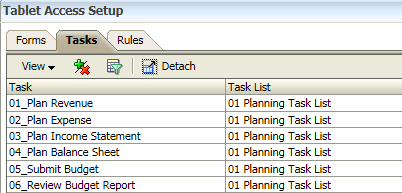
To access Hyperion Planning in the Tablet, you need to add Tablet Access to the Forms, Task Lists and Business Rules first.

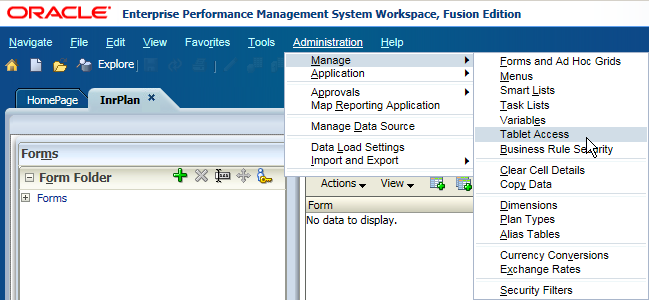
Login to Workspace and open Planning application > Administration > Manage > Tablet Access.


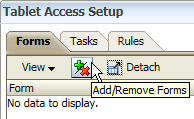
Click "Add/Remove Forms" button.


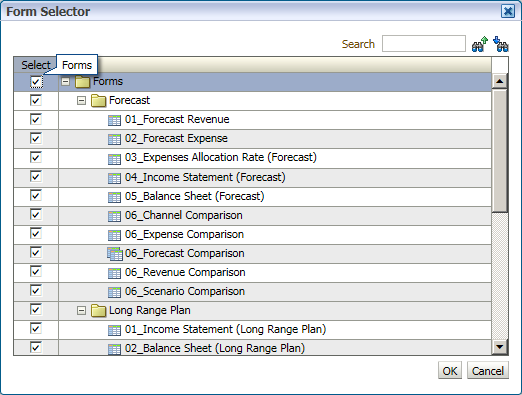
Select the forms that need to grant access.


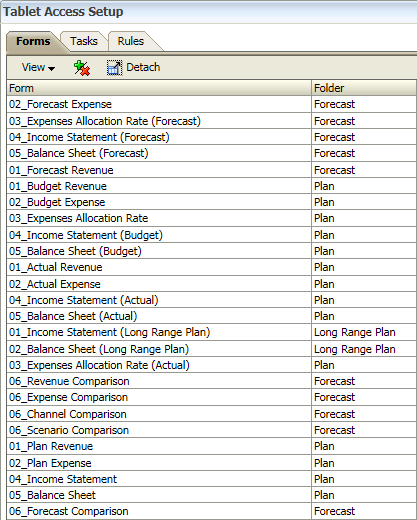
You can find the form access added here.


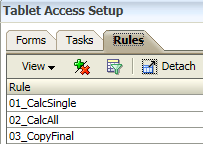
 Same steps to add access to Tasks and Rules


To access Hyperion Planning from a Tablet, you just need to open a new browser page and enter the following URLs:

http://server:19000/HyperionPlanning


Input User Name and Password, select the Application and Language then Click Sign In.


Click Task Lists, you can find the task lists with access


You can open a form from the task list.


Click the Forms, and then you can select the forms folder.


Select the form to open.


Composite form shown as below.


Click Rules to select business rules to launch.


Click Approvals to view the approvals status.


Click Settings to set the user preference.


You can download the EPM Mobile App from Apple Store/Google Play.


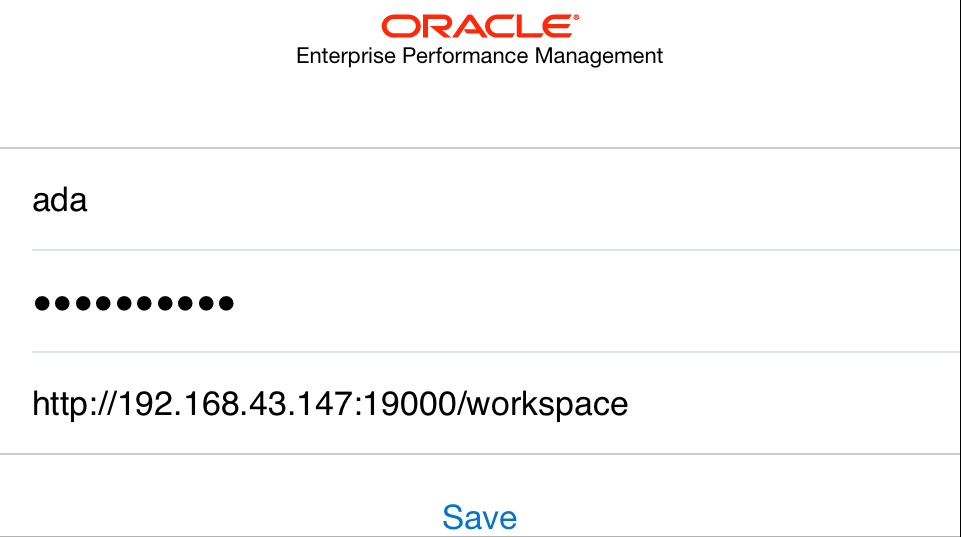
For the first time to use, you need to configure connection first.


Input user name, password and the connection. Then Save.


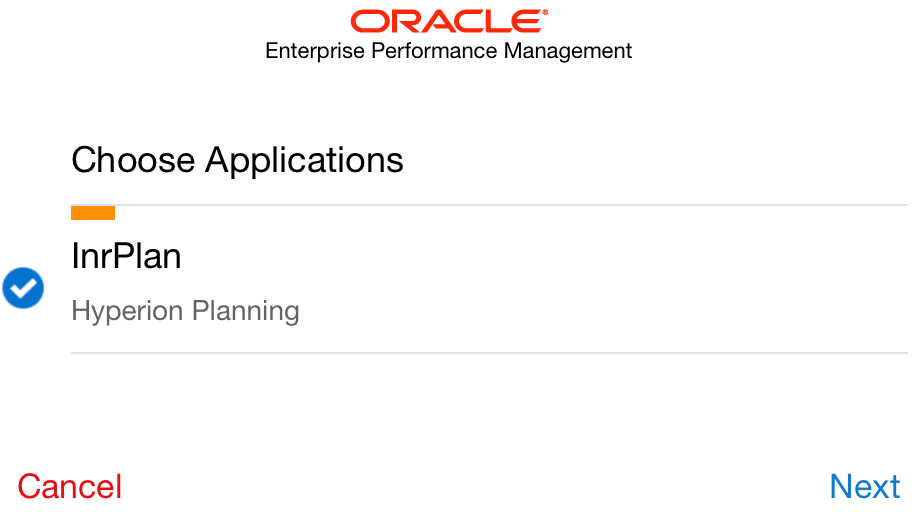
Choose the Application and then click Next.


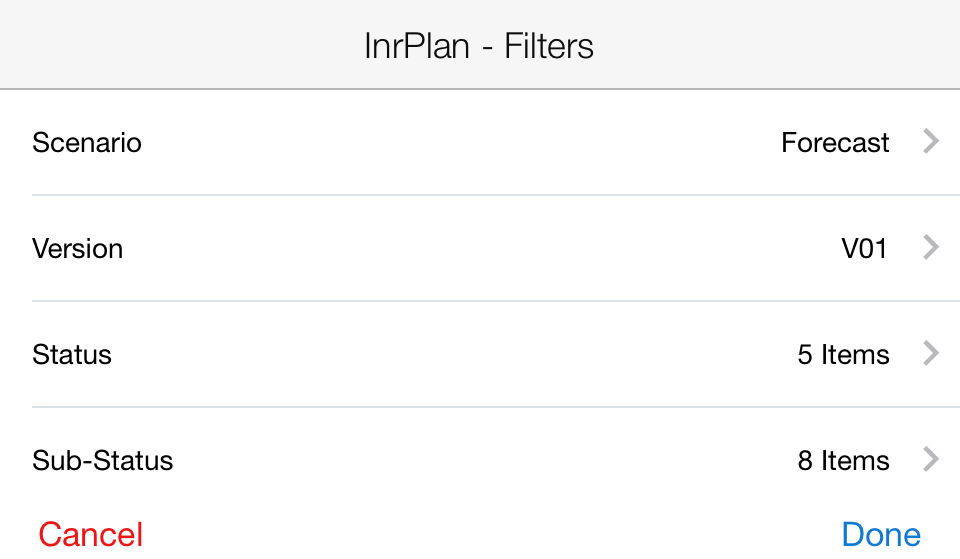
Select the Scenario and Version and then Click Done.


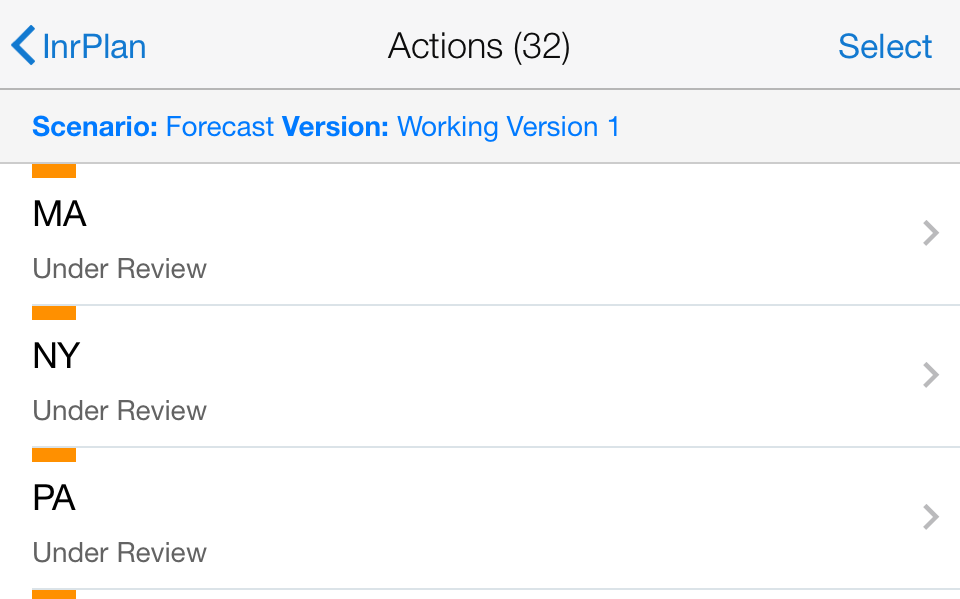
Select the Entity to Promote.


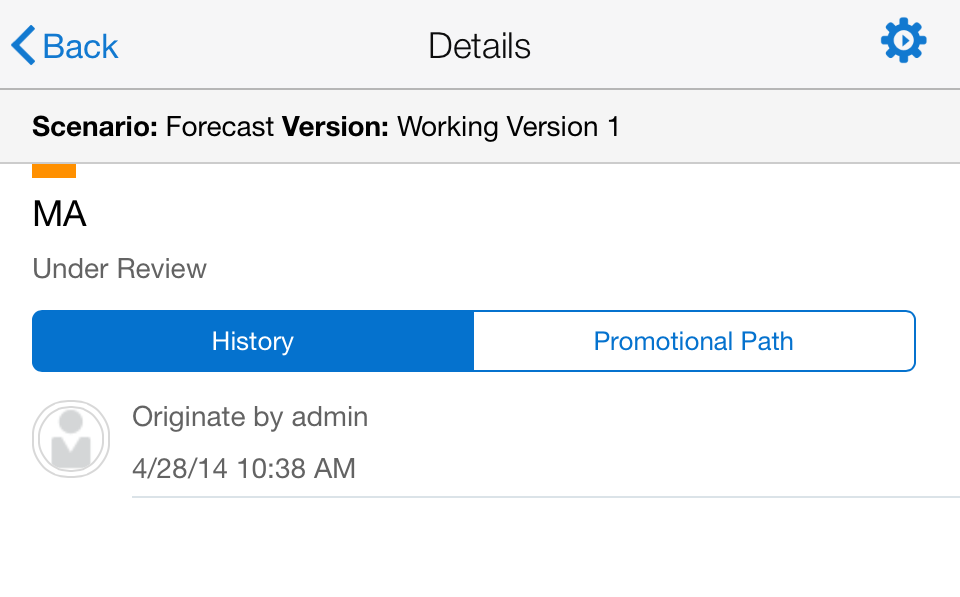
You can find the History here.


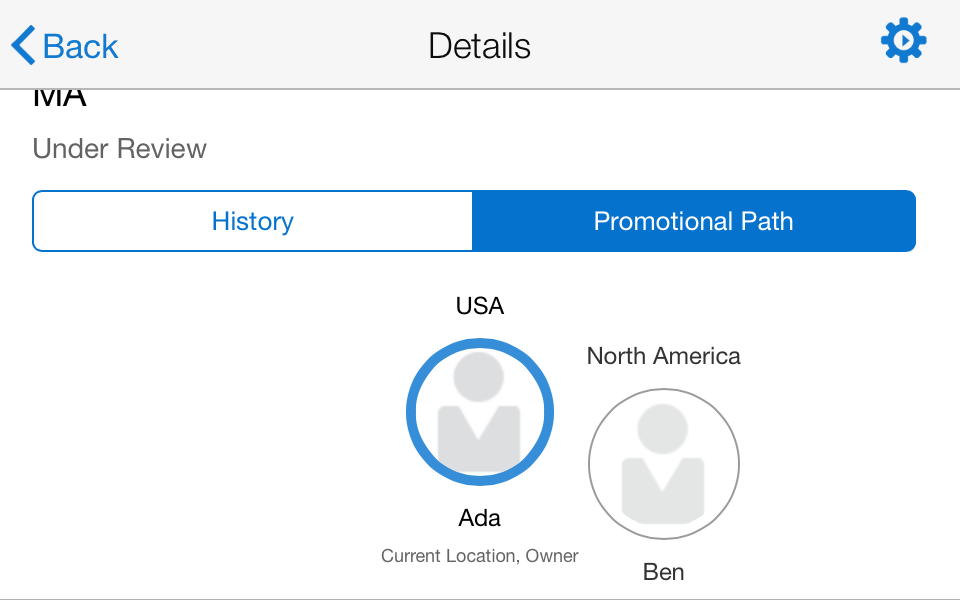
Click Promotional Path and you can find the promotional path.


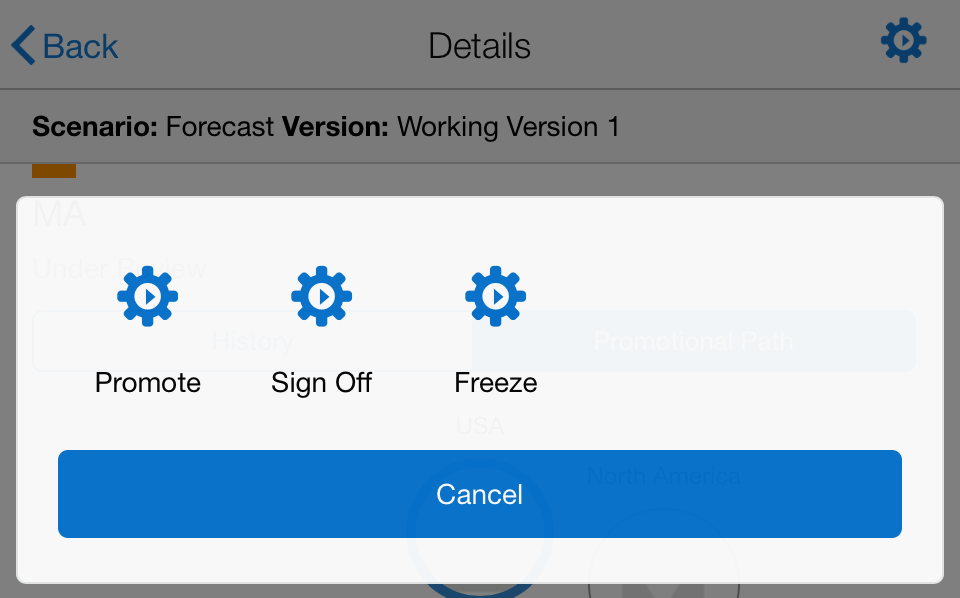
Click the Gear Icon in the upper-right corner, and then you can select Promote.


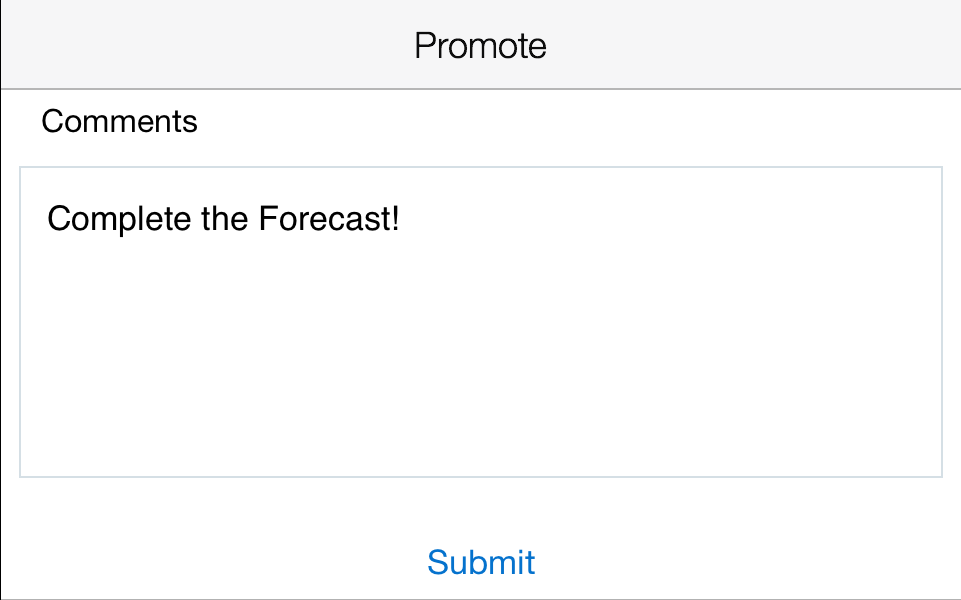
Input the comments and then Submit.


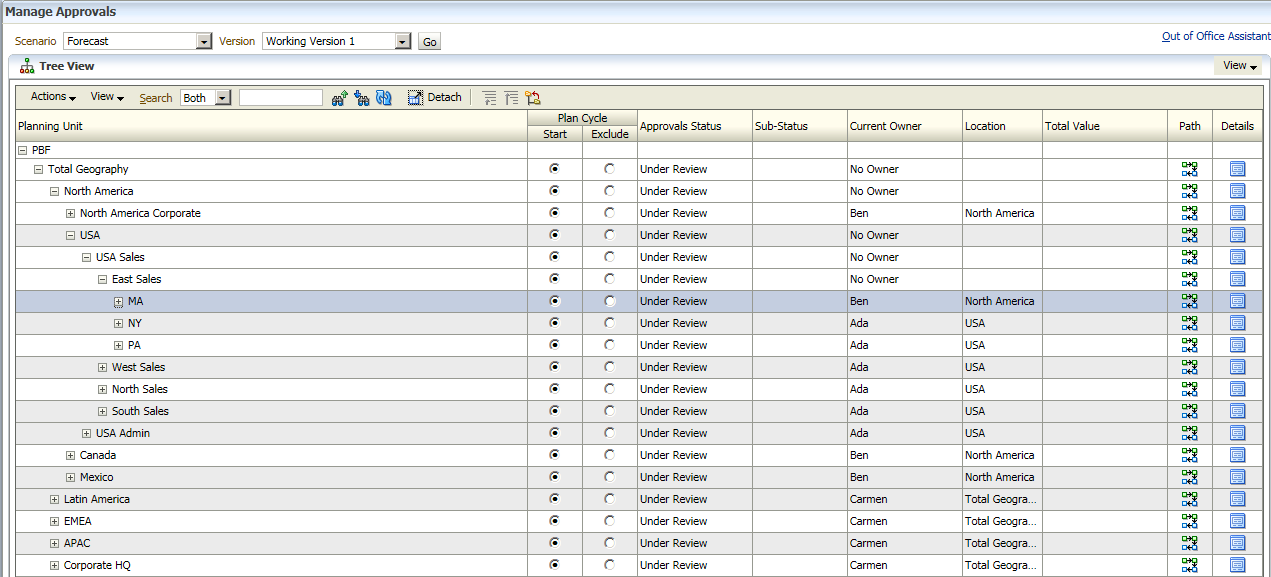
Return to the PC/Laptop web client, you can find the planning unit was promoted successfully.


And you can find the comments input from the Mobile App.